Table of Contents
Purpose
To resend a Sale Order, you need to duplicate the original Sale Order.
Use case
- The courier loses a Sale Order dispatched from your warehouse, and you need to resend it.
- An order is damaged in transit and needs to be sent out again.
- The original order was sent to the wrong address and needs to be sent out again but to the correct address.
Steps to duplicate a Sale Order
- Navigate to the Sale Order you need to resend, Warehouse>Sale Orders>Select relevant Sale Order.
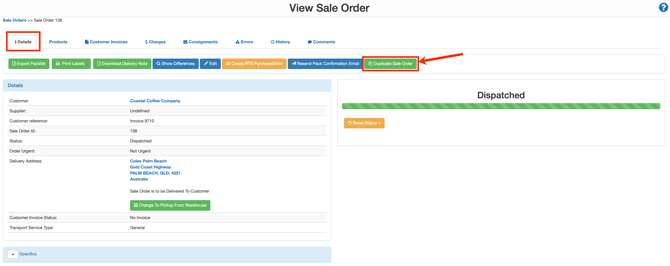
- Select the Details tab.
- Select the green Duplicate Sale Order button.
- Enter the duplicate Sale Order reference. It is suggested you add 'Resend' to the end of the reference.
- Select Duplicate.
- Then dispatch the Sale Order as normal.
Invoicing from the duplicate order
Depending upon your agreements with your customer, you may need to zero out the charges on the order so that they are not charged for both orders.
Note, you will need to zero out the duplicate order as the original order may already have been invoiced and paid.
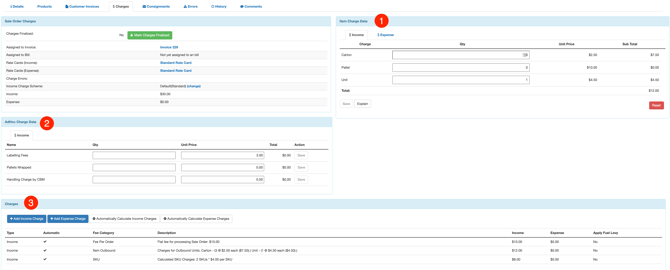
The charges you will need to zero out on the order include:
- Item Charge
- Adhoc Charge
- Charges
To zero out the charges on the duplicate order:
- Navigate to the duplicate Sale Order.
- Select the Charges tab.
- Zero out any charges for the Item Charge Data and select Save. Repeat this process for the Adhoc Charge Data table.
- Scroll down to the Charges table and select Automatically Calculate Income Charges.
- Click on the individual charge.
- Click the red Delete button.
- Repeat this process for all charges.
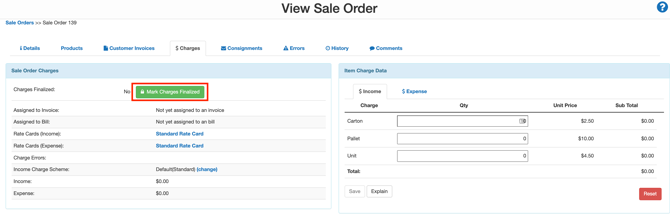
- Click Mark Charges Finalized. This will add the Sale Order to the Invoice with no charges against the order.