
Table of Contents
Purpose
To remove all stock for a customer from a specific warehouse. This process removes the customer's stock through an adjustment Sale Order.
Use Cases
- Customer is moving all stock from one warehouse to another warehouse (Note: This facilitates only the Outbound movement of stock)
- Customer is leaving your warehouse and you want to create a single Sale Order to clear out all stock
Prerequisites
- Reconcile the customer's orders to check whether any stock is allocated. This process will not adjust any stock which is already allocated to orders.
- Ensure the setting "Create new sale order for every adjustment?" is disabled. This is to avoid the system creating a separate adjustment for each individual product for that customer.
How to remove all stock for a Customer
- Navigate to Contacts > Customers.
- Select the Customer you wish to remove the stock for and click Edit.
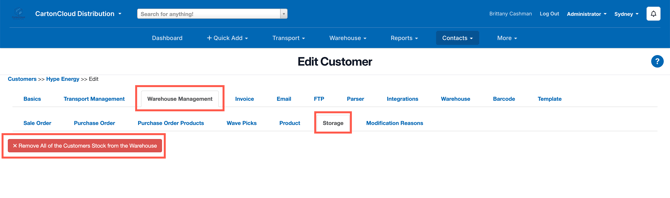
- Select the Warehouse Management tab followed by the Storage tab.
- Select the Remove All of the Customers Stock from the Warehouse button.
Considerations
- This process will only remove stock for the customer from the specific warehouse you are currently working in. If the customer has stock in multiple warehouses and you need to remove stock from all warehouses you will need to repeat this process for each warehouse.
- The adjustment Sale Order made from this process can then be removed if a mistake is made.