Table of Contents
Purpose
When using an Integration to receive or send orders from and to other platforms (such as Shopify), you may face a situation where the other systems use different Product Codes to those set up in CartonCloud. In this case, you will need to create multiple Product Codes for one Product. This will ensure the integration works effectively and the correct products are matched across the different platforms.
How to create multiple product codes for a product
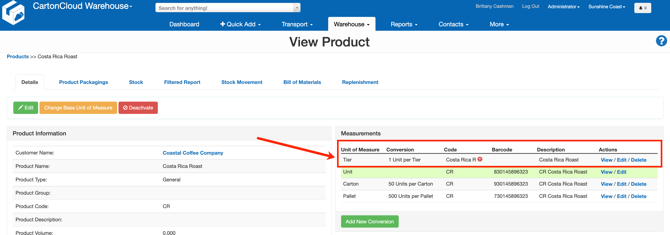
To create multiple Product Codes for one Product, you need to add another Product Unit Of Measure with the other Product Code(s) you want to support. You then need to have a 1-1 conversion with the Base Unit of Measure.
-
Navigate to the relevant Product you wish to add another Product Code to, Warehouse>Products>Select the appropriate Product.
-
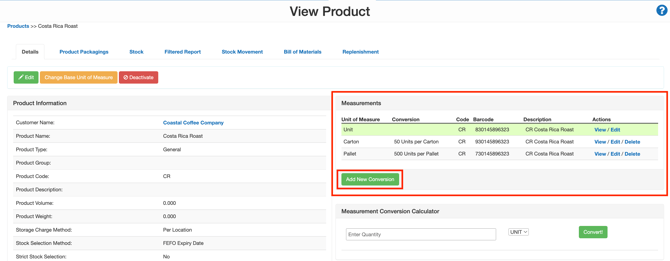
Within the Measurements window, click Add New Conversion.
- Select the Product Unit of Measure you wish to use. If you would like to create a new Product Unit of Measure, please click here for instructions on adding a Product Unit of Measure.
- Enter the additional Product Code.
- Enter the conversion of 1 for the Base Unit of Measure.
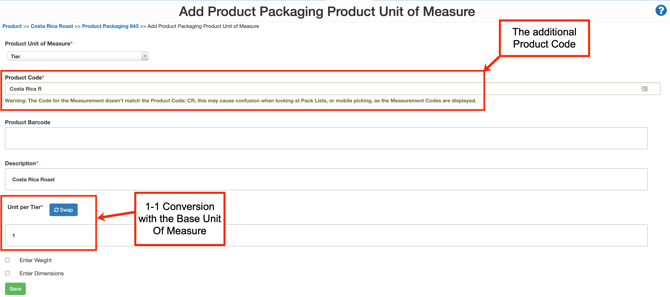
- Click Save.