Table of Contents
- Steps to create a Replenishment
- Save Replenishment prefill settings (Replenishment template)
- Replenishment page list view
Please note this is a WMS Premium only feature. For more information on WMS Premium and to upgrade your account please reach out to our Service Desk team here.
Before creating a Replenishment, please note the below:
-
Ensure you have set up Replenishment at the Organisation Settings and at the Product level for the Products you wish to use Replenishment for.
-
The settings you configured at the Organisation Settings and the Product level will be applied.
-
Replenishments are customisable. You can create Product, Customer, Product Type, or Pick Face Location-specific Replenishments using the filter options.
-
Replenishments can be duplicated. If you save the Replenishment as a prefill setting, you can easily apply the same settings when creating a new Replenishment. This is extremely useful if you have identical recurring Replenishments.
- You can create Replenishments automatically using Replenishment Auto Generation (Advanced Automation).
Steps to create a Replenishment
- Navigate to the Replenishments page by typing Replenishments into the Search for anything bar at the top of the application.
-
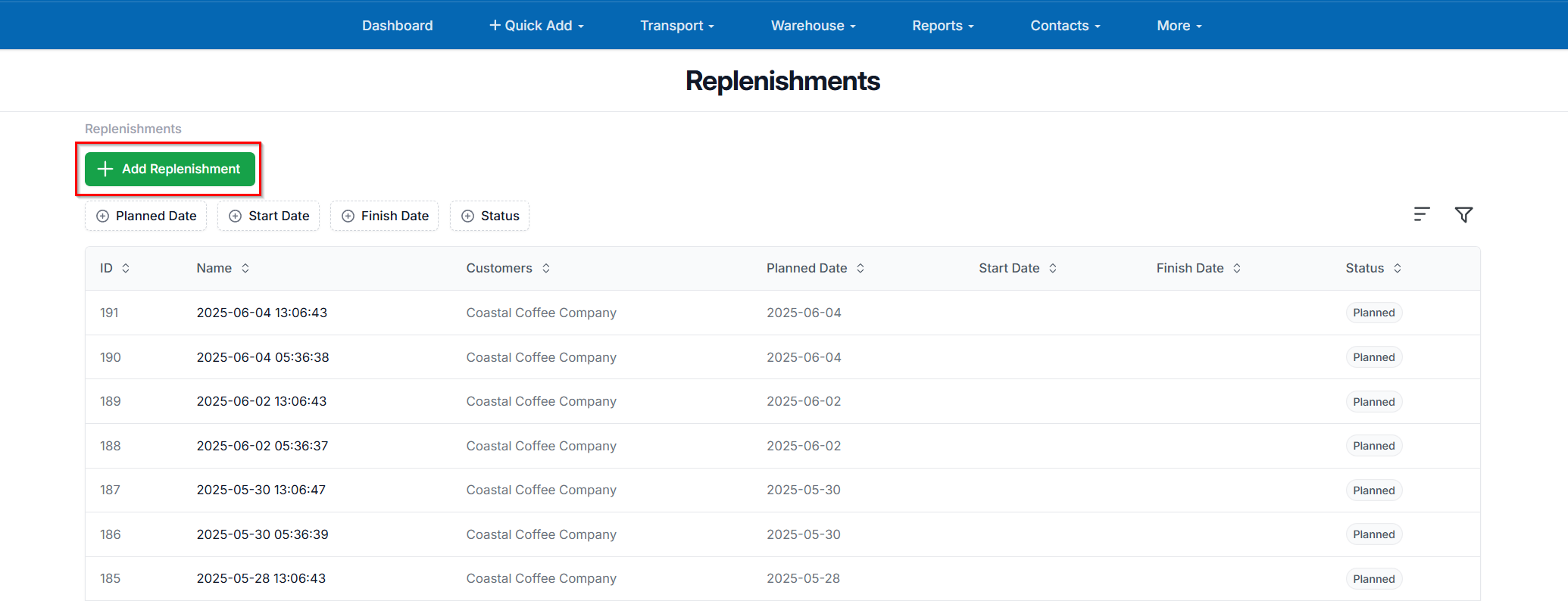
To add a new Replenishment, click the +Add Replenishment button in the top left corner.
Alternatively, for an automated process, you can use Advanced Automation - Replenishments to create automated Replenishments. See Replenishment Auto Generation (Advanced Automation) for more information.
-
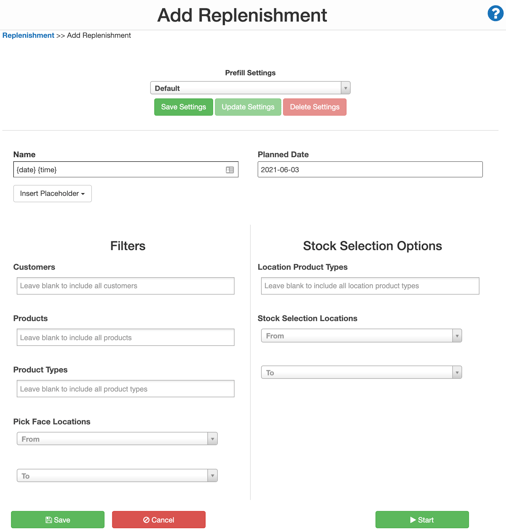
You will then be directed to the Add Replenishment page.
If the Replenishment you create will be recurring, save the Replenishment as a prefill setting. See the Prefill Setting section of this article for more information.
-
Name the Replenishment in the Name field. You can insert a name placeholder by selecting the Insert Placeholder drop-down menu and choosing the appropriate name placeholder you wish to use.
-
Select the date of the Replenishment from the Planned Date field. This can be today's date or a future date.
-
If you would like to customise the Replenishment, you can utilise the Filters and/or Stock Selection Options. Use the below table to fill in the Filters and Stock Selection Options fields.
You can use the filters if you wish to create a Product or Customer-specific Replenishment. In addition, the Stock Selection Options allow you to limit what stock is used to replenish the pick face locations.
|
Field |
Field Description |
|---|---|
|
Filters |
The filters allow you to customise the Replenishment and only include certain Customers, Products, Product Types, and/or Pick Face Locations. |
|
Customers |
Select the Customers you wish to apply the Replenishment to. There is no limit to the number of Customers you select. If left blank, all Customers will be included in the Replenishment. |
|
Products |
Select the Products you wish to apply the Replenishment to. You will only be able to select products you have enabled Replenishment for and associated with the selected Customers. There is no limit to the number of Products you can select. If left blank, all Products with Replenishment activated will be included in the Replenishment. |
|
Product Types |
Select the Product Types you wish to apply the Replenishment to. There is no limit to the number of Product Types you can select. If left blank, all Product Types will be included in the Replenishment. |
|
Pick Face Locations |
Select the From and To Pick Face Locations you wish to apply the Replenishment to. You will only be able to select Pick Face Warehouse Locations. If left blank, all Pick Face Locations will be included in the Replenishment. |
|
Stock Selection Options |
The Stock Selection Options allow you to limit what stock from what locations are used to replenish the pick face locations. This is useful if you wish to only replenish with stock from a certain location. |
|
Location Product Types |
Select the Location Product Types (e.g. General, Chilled, Dangerous Goods) you would like the Replenishment to replenish the pick faces. If left blank, all Location Product Types will be included in the available locations to take stock from to replenish the pick faces with. |
|
Stock Selection Locations |
Select the Warehouse Locations you would like the Replenishment to take stock from to replenish the pick face locations. If left blank, all locations will be available to take stock from to replenish the pick face locations. |
- Select Save or if you wish to conduct the Replenishment instantly, select Start.
Save Replenishment prefill settings (Replenishment template)
If you have identical recurring Replenishments, it is recommended you save them as a prefill setting. By saving the Replenishment in the prefill settings, you can use a template each time you create the same Replenishment. For example, if you run a daily Replenishment for Customer A, you would save it in the prefill settings and apply it each time you create the new Replenishment.
To save Replenishment Prefill Settings:
You can either save the prefill settings from within an already created Replenishment or whilst you are creating a Replenishment.
-
If you are not already in the Replenishment and you wish to save the prefill settings, navigate to the Replenishments page and select the relevant Replenishment.
-
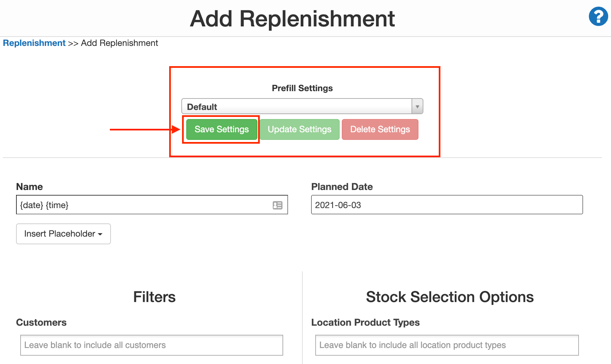
Click the Save Settings button at the top of the page.
- A pop-out window will appear. Name the settings and select Save.
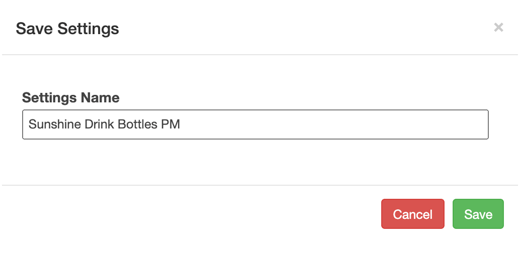
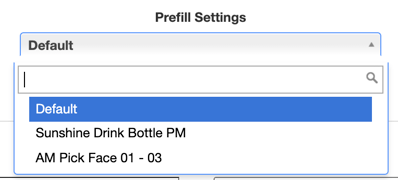
- This will now be an option in the Prefill Settings drop-down menu next time you create a Replenishment.
Replenishment page list view
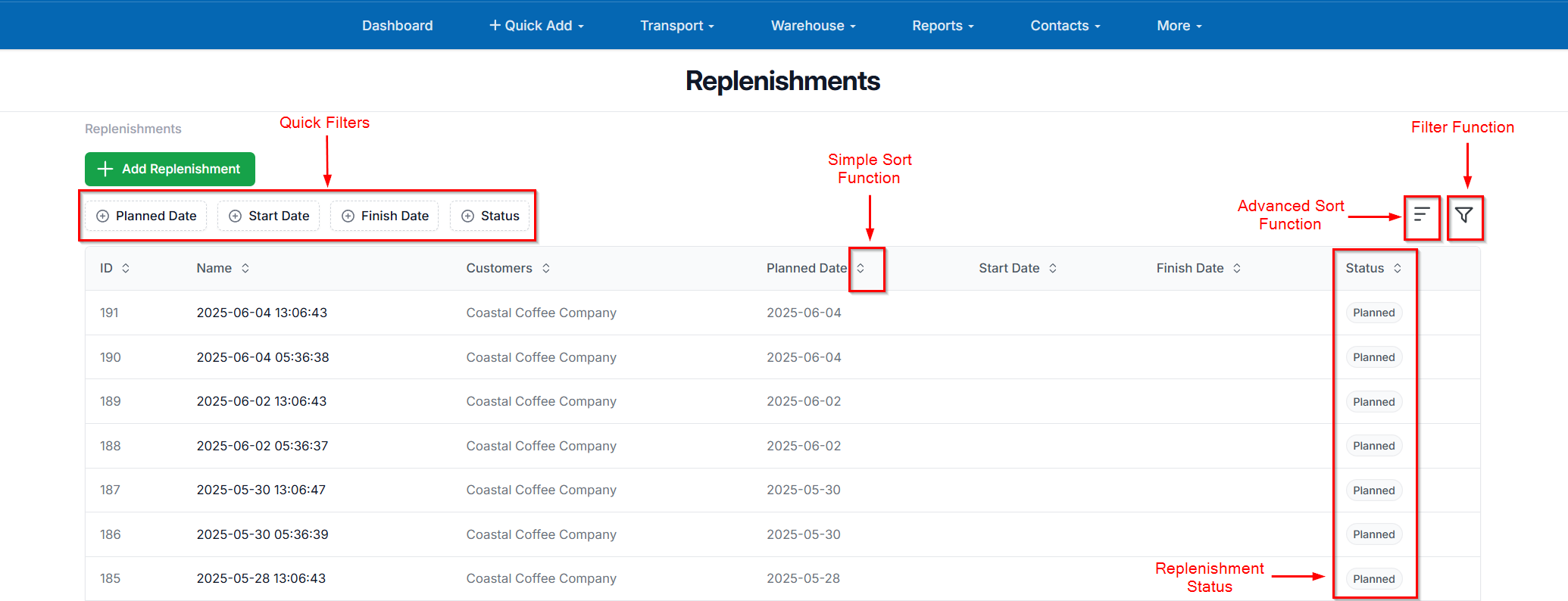
From the Replenishments page list view, you can see all current, past, and planned Replenishments. This view highlights the key information of the Replenishment, including the Name, Customer, Planned, Start and Finish Date, and the Status.
You can filter and sort Replenishments using the filter and sort configuration buttons and the simple sort function (clicking the heading column to order the column). See the Advanced sorting and filtering page for more information on how to use this functionality.