Table of Contents
- Purpose
- Prerequisites
- How to assign a Sale Order in the web app
- How to assign a Sale Order on the mobile app
Purpose
To assign the task of packing a Sale Order to a packer. The packer will be recorded against the Sale Order in the web and mobile app. You can assign a Sale Order to a packer in either the web or mobile app.
Prerequisites
To be able to assign a packer to a Sale Order the below is required:
-
The user must be assigned the packer role. Please see User Roles Explained for more information.
How to assign a Sale Order in the web app
There are a number of ways in which you can assign a Sale Order to a packer in the web app.
In bulk from the Sale Order list view
- Navigate to the Sale Order page, Warehouse > Sale Orders.
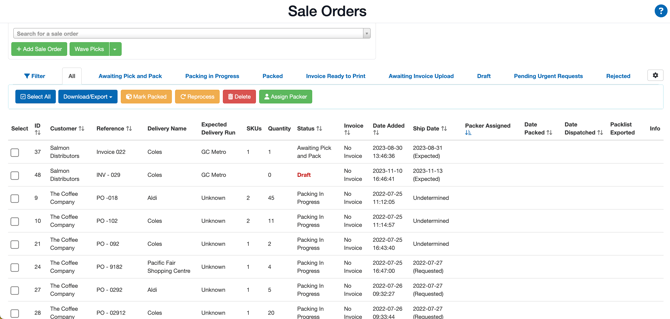
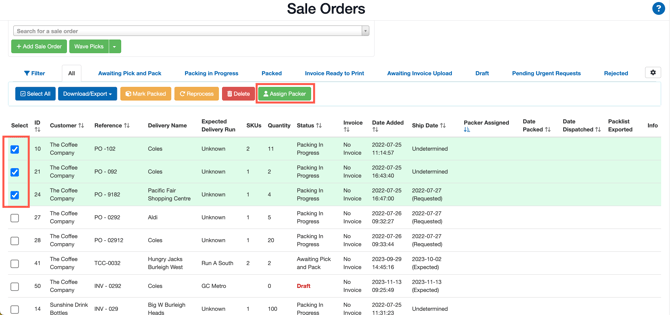
- Use the select box to choose the Sale Orders you wish to assign to the packer. You can select multiple orders at once.
- Click Assign Packer.
- Select the packer from the drop down menu and click Save.
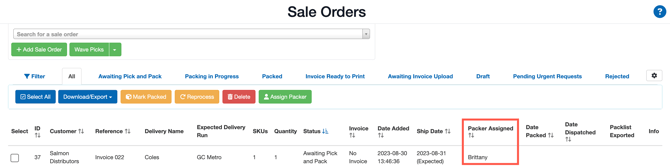
- You will now be able to see the name of the packer assigned to the order on the Sale Order list view.
- You can also see the packer who is assigned to the order from within the Sale Order.
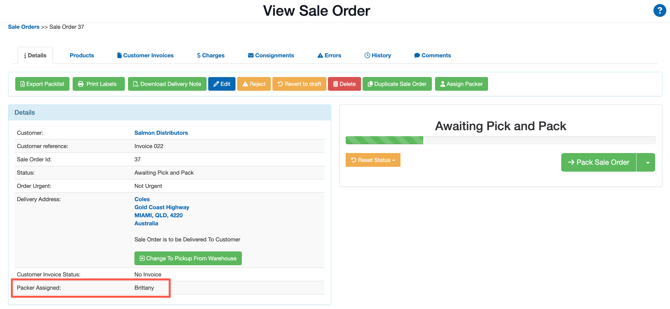
From within the individual Sale Order
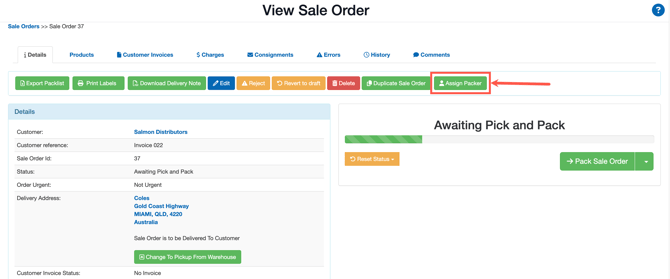
- Navigate to the relevant Sale Order you wish to assign the packer to.
- Click Assign Packer.
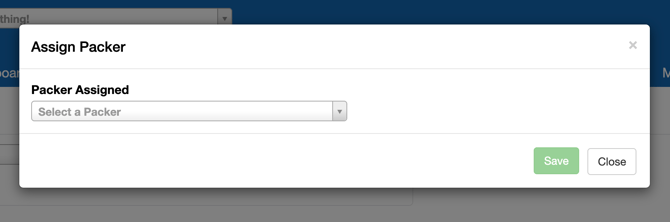
- Select the packer from the drop down menu and click Save.
How to assign a Sale Order on the mobile app
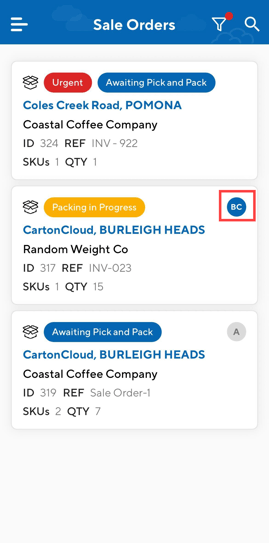
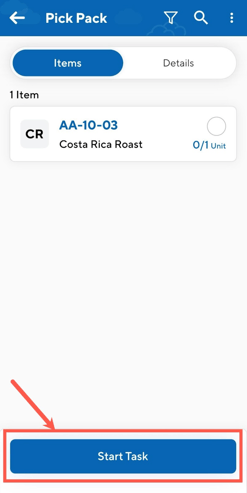
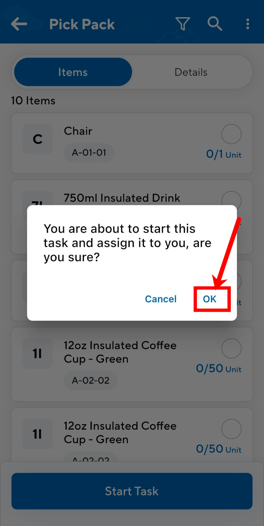
To assign a Sale Order on the mobile app you need to start the task. By starting the task the Sale Order will be assigned to the user who started the task.
- From the Task List, select the task you wish to assign yourself.
- Click Start Task.
- Click Ok.
- Initials of the packer who is assigned to the order will appear against the Sale Order