
Table of Contents
Prerequisites
Before proceeding to set up the Honeywell CT50 device to work with the CartonCloud mobile application, you will first need to check the build version that the device is running. Depending on your build version, a device update may be required to allow for a successful barcode scanning setup.
Check the device version
To check the device version:
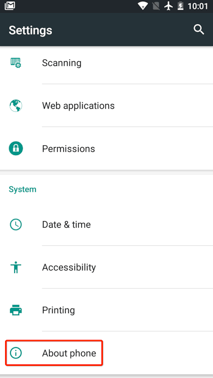
- Navigate to Settings > About Phone and scroll to the bottom of the screen to find the Build number.
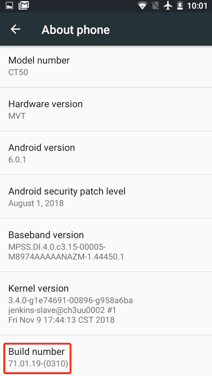
- For barcode scanning to work as expected the minimum build number supported is 71.01.09.0161.
If you are unsure about whether your version number is higher or lower than the minimum build number, follow this simple logic:
Compare the number up to the first full stop, if it is lower than the same section in the minimum version, your version is lower. If it is higher, your version is higher and the minimum requirement is fulfilled. If they are the same, compare the next section up to the second full stop. Again, if this number is lower than the same section in the minimum version, your version is lower, if it is higher than the minimum version it is higher etc. Continue until you have determined whether the minimum required is fulfilled. If the build numbers are the same, the minimum requirement is also fulfilled.
Setting up the device
To begin using the Honeywell CT50 device with the CartonCloud application you must first configure the device as per the below instructions.
- Navigate to Settings.
- Select Scanning > Internal Scanner > Data Processing Settings.
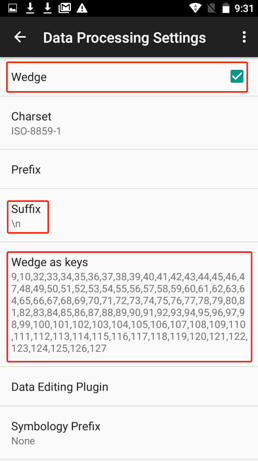
- Tick the Wedge option box.
- Under the menu option Suffix, enter either \r or \n.
- Under the menu option Wedge as keys, enter the text below:
9,10,32,33,34,35,36,37,38,39,40,41,42,43,44,45,46,47,48,49,50,51,52,53,54,55,56,57,58,59,60,
61,62,63,64,65,66,67,68,69,70,71,72,73,74,75,76,77,78,79,80,81,82,83,84,85,86,87,88,89,90,91,
92,93,94,95,96,97,98,99,100,101,102,103,104,105,106,107,108,109,110,111,112,113,114,115,116,
117,118,119,120,121,122,123,124,125,126,127
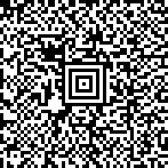
To make this task easier, just open the text field and scan this QR barcode, which will fill in the whole required text for you:
Troubleshooting Steps
If you are having difficulties scanning on your device we suggest checking the below settings:
- Navigate to device Settings and select Honeywell Settings
- Choose Scanning, then Internal Scanner
- Select the ** Default profile{}
- Choose Symbology Settings, then EAN-13
- Ensure that ** Send check digit ** is ticked.