
Table of Contents
Purpose
Sometimes when importing a Manifest, for example, CartonCloud is unable to work out which Customer needs to be charged for the Consignment. When this occurs the Consignment is marked as "Unassigned A2IC". Specifically, a Consignment is marked as unassigned when CartonCloud fails to find a matching Address To Invoice Customer Mapping (A2IC Mapping) for the delivery address provided with the Consignment. When a Consignment is marked as Unassigned, it needs to be manually resolved to a Charge Customer. CartonCloud handles this using Receiver Pays Freight and Address To Invoice Customer (A2IC) Mapping. This functionality allows you to associate the Delivery Address of a given Consignment (Address) to a Customer to Charge (Invoice Customer).
For example, assume you have stock which is going from one of your customers, Joe's Fruit, to a store in regional New South Wales, IGA Kurrajong and the store (the receiver) is paying for the freight. One way you can do this is by specifying the "Customer" as IGA Kurrajong, but this can become confusing if you're looking at a job because you refer to it as "the stock from Joe's Fruit". To avoid this confusion, Receiver Pays Freight and A2IC mapping is used, which allows you to leave the Customer as Joe's Fruit, but specify that you want the job charged to IGA Kurrajong.
Assigning Unassigned A2IC Consignments
When the Organisation Settings Enable Receiver Pays Freight And A2IC Mappings is enabled, a new tab will appear in Consignments called Unassigned A2IC Consignments. This tab contains Consignments that have been marked as unassigned when parsed from a Manifest import. To assign Consignments that appear in this tab with A2IC Mapping, click on the green Begin Assigning button that appears at the bottom of the tab:
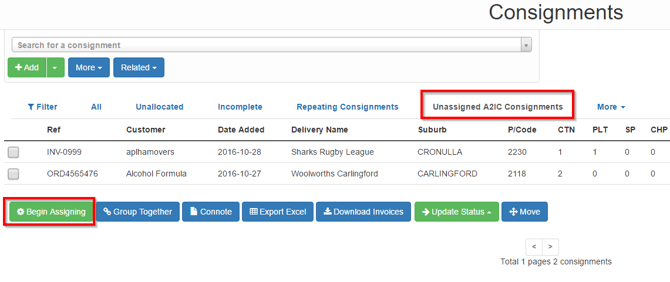
Clicking on the Begin Assigning button will take you to the assign screen: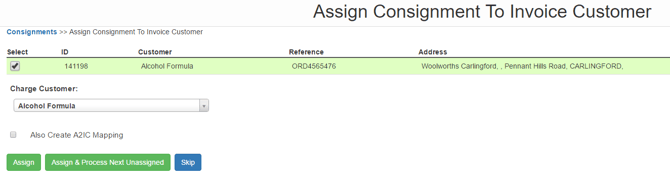
Clicking on the Assign button in this screen will assign the selected Charge Customer as the Invoice Customer for the given Address and redirect back to the Consignments listing table. Clicking on the Assign & Process Next Unassigned will assign the selected Charge Customer as the Invoice Customer for the given Address and will redirect to the next Unassigned Consignment. Clicking on the Skip button will skip the current Unassigned Consignment and go to the next Unassigned Consignment.