Table of Contents
Purpose
The Generate ZPL tool allows you to build, edit and preview Document Template Placeholders (ZPL).
Preview Template
To preview the output of the Document Template:
- Navigate to the Document Template page by typing Document Templates into the Search for anything.
- Click Preview ZPL Label.
- Choose the entity of the label you wish to preview. This can be either a Sale Order, Consignment, Purchase Order Product or Pallet.
- Choose the Document Template type:
- Default: The Organisation default template.
- Override Customer: The customer specific template (select the relevant Customer).
- You will see the ZPL for that template in the ZPL Template box.
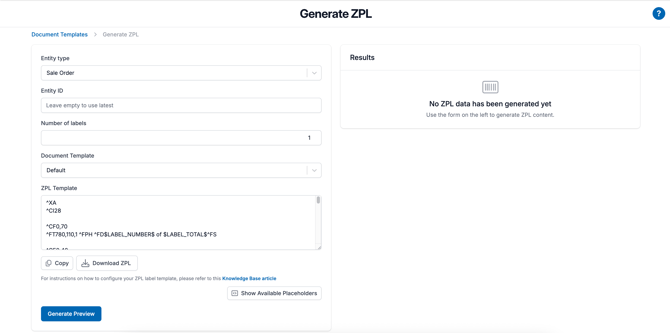
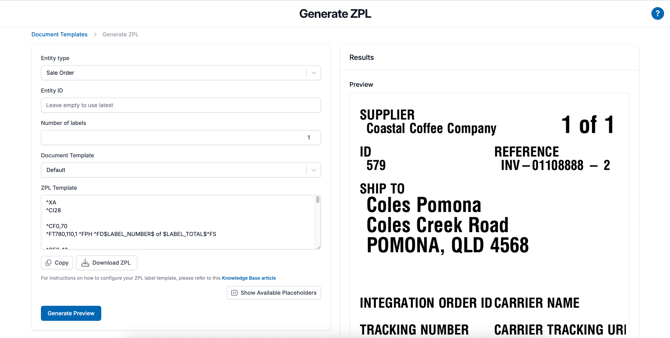
- Click Generate Preview.
- You will then be able to see a preview of the output of the label.
Edit Template
To edit a Document Templte:
- Navigate to the Document Template page by typing Document Templates into the Search for anything.
- Click Preview ZPL Label.
- Choose the entity of the label you wish to edit. This can be either a Sale Order, Consignment, Purchase Order Product or Pallet.
- Choose the Document Template type, Override Template.
- This option will provide a ZPL Template edit box which allows you to edit the template.
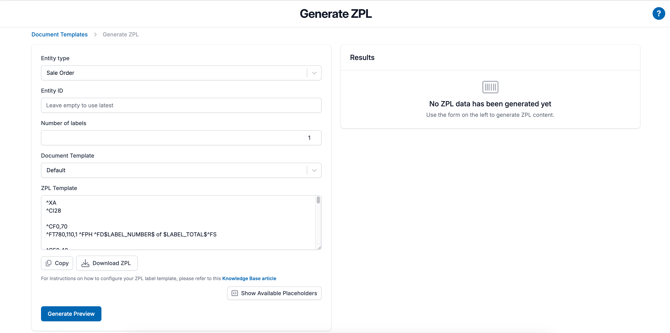
- You can then make changes to the ZPL in the ZPL Template box. You can use the available placeholder by clicking Show Available Placeholders or by starting to type the placeholder and a suggested placeholder will appear.
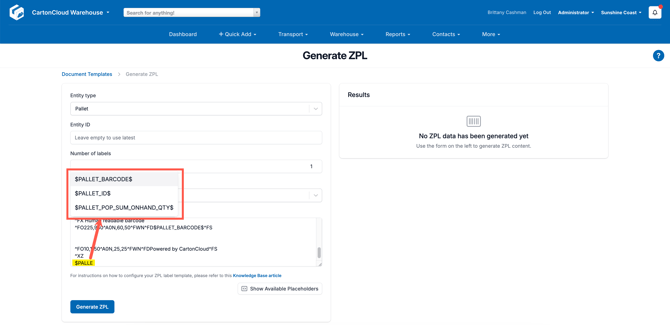
- Click Generate Preview.
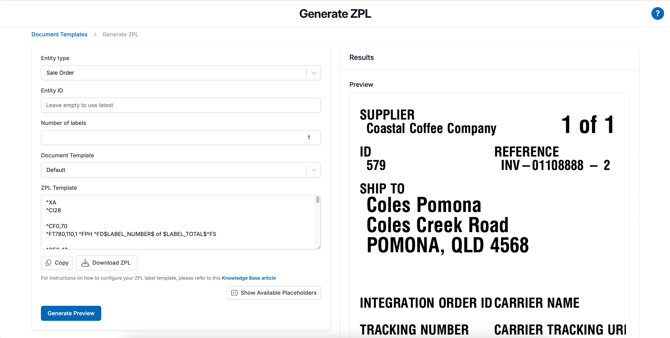
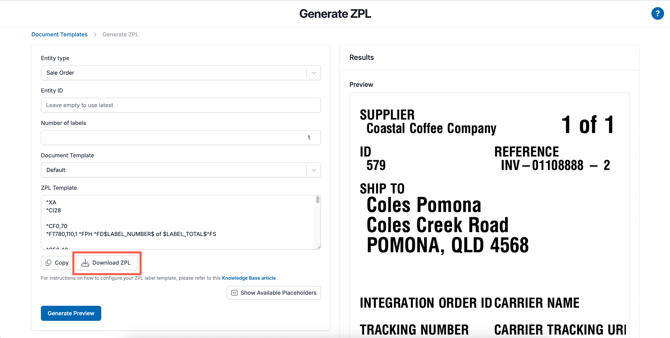
- Once you are happy with the preview produced, you will need to click Download ZPL and then copy and paste the ZPL to the Document Template you wish to update and upload it to CartonCloud following these steps.