
Table of Contents
- Overview
- Fuel Levy Application Level
- How to create a Base Fuel Levy (Fuel Price History page)
- How to apply Rate Card and Transport Rates Fuel Levy
- How to activate the Fuel Levy
- Fuel Levy calculation
Fuel Levy Charges are being rolled out progressively from July 27, 2026. We expect the rollout to continue throughout August. This change aligns the behaviour of Fuel Levy Charges with the way other charge types are managed within CartonCloud.
Overview
A fuel levy is a surcharge applied to your transport rates. In CartonCloud there are three levels at which the fuel levy can be adjusted. Control over whether a fuel levy is applied at all is controlled by the Transport Rate.
Fuel Levy Application Level
| Level | Application | Description |
| Base Fuel Levy (Master %) | Applied to all transport rates within the account, unless overridden by the Rate Card or Transport Rate fuel levy. |
|
| Rate Card Fuel Levy Offset | Applied to all Transport Rates within the Rate Card, unless overridden by the Transport Rate fuel levy. |
|
|
Transport Rate Fuel Levy / Offset
|
Appliedd to all charges within that Transport Rate. |
|
How to create a Base Fuel Levy (Fuel Price History page)
You create the Base Fuel Levy from the Fuel Price History page. To do this;
- Type in Fuel Levy into the Search for anything bar.
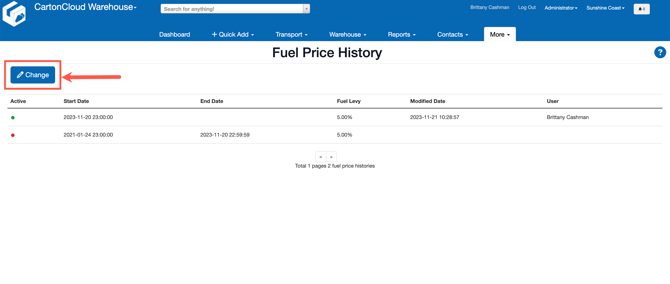
- Here you will see the current and past Fuel Levy. To create a new one click the blue Change button in the top left corner.
- Enter the Fuel Levy (Percentage).
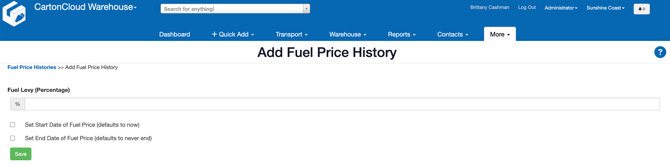
- If you wish to set a Start Date and/or End Date. Tick the 'Set Start/End Date of Fuel Price' option. Enter the relevant date. If you do not enter a date the Start Date will default to now and the End Date will default to never end.
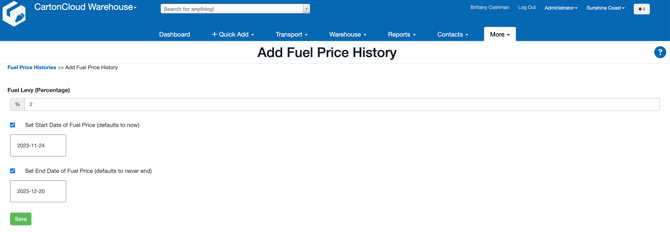
- Click Save.
Points to consider:
- Any Fuel Levy that was created prior to end of November 2023 will not show a start or end date.
- If you enter a Fuel Levy and set a future date it will override any existing fuel levy with the same future date.
How to apply Rate Card and Transport Rates Fuel Levy
To make changes to the Fuel Levy at the Rate Card and Transport Rates level you will need to do so from within the Rate Card and the Transport Rate itself.
|
Rate |
Description |
|
Fuel Levy Offset (Rate Card & Transport Rate) |
The amount that should be applied to the base fuel levy. For example, if the base fuel levy is 12% but you wish a customer to always be 2% higher, you would apply a Fuel Levy Offset of 2% to their associated Rate Card. On the other hand, if you require the customer to track 2% below the base fuel levy, you would apply an offset of -2%. Fuel Levy offsets can be set on both the Rate Card and Transport Rate and will be added together if set on both. |
|
Ignore Base Setting (Rate Card) |
If you just want to fix the fuel levy for a customer, then setting "Ignore Base Setting" to Yes will cause the Fuel Levy Offset to be applied to a base fuel levy of 0. |
|
Rate (Transport Rate) |
From the dropdown menu, you can select either Offset or Rate. By selecting rate, you can apply a completely new fuel levy from the Rate Card and Base fuel levy. |
How to activate the Fuel Levy
To activate the fuel levy simply select the fuel icon (it will turn green) next to the applicable charge. You will need to do this for every applicable charge within the Transport Rate. The fuel icon will be green when it is being applied and will stay grey when it is not being applied.
Fuel levy not active (no fuel levy will be applied to this charge):

Fuel Levy calculation
The calculation of the fuel levy will be shown on the Consignment charges tab against the Consignment. The fuel levy percentage and dollar amount being charged will show in the calculations.
The below video covers how to apply a fuel levy.