Table of Contents
Purpose
Please note the below functionality is only available in version one of CartonCloud. For more information, please use CartonCloud Help and lodge a case with our Service Desk.
This article explains how to export Transport Rates to update them in bulk before re-importing them into CartonCloud.
Overview
When exporting transport rates to Excel, only the rate ids are downloaded making it difficult to relate the rate to the customer charge card. A way around this is to download both the Transport rates and the charge rates. You can then match up the id in both files and clearly identify the relevant charge card while updating rates.
Files to Export and Matchup
These are the 2 files to be exported so that the linking of the charge card to the transport rates can be performed.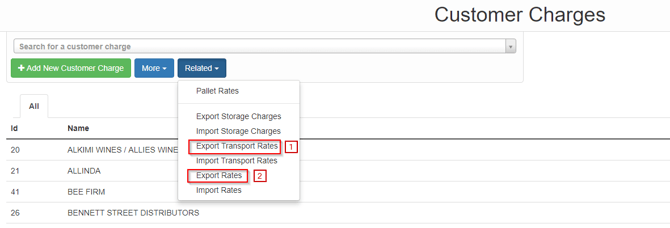
NB: the files names can be confusing after download.
-
Filename is customer_rate_charges.csv
-
Filename is rates.csv
For the 2 files to marry up at a row-level, the id (column G) from customer_rate_charges (File 1.) must match the id (column A) from file named rates.csv (File 2.).
Once you've exported the files, open in excel. Insert enough columns (7 columns minimum) to the left of column A in File 2. Copy and paste the columns from File 1. into the newly available columns.
Check that the Id number from the inserted file matches the id number from the base file. If there is a miss-match, insert cells to data on the inserted table until both ids match.
Matched 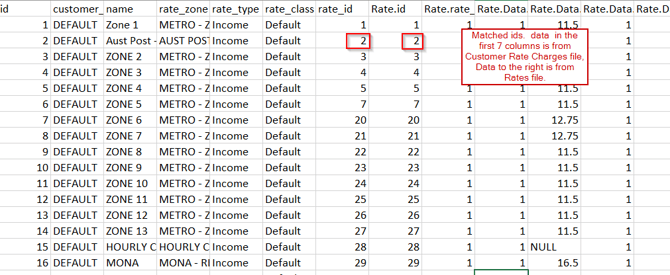
Unmatched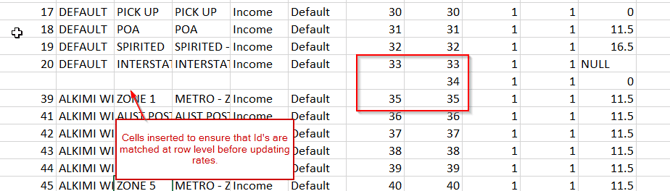
Note: Each Rate has a unique ID.
Once you have linked the rates table to the customer rate charges table, you'll be able to update charges for a particular rate card. Below is a table of headings that explains the columns in the rates file (File 2.). It's based on an example of consignment types Kegs, Cartons and Pallets.
Any Consignment type that has been ignored in the Rate card will not be exported.
|
Rate Component |
Heading |
Definition |
|
|
Overall Rate Information |
This is the rate id and must match the id from the Customer Rate Charges file. |
||
|
|
Rate.rate_class_id |
This defines the Rate Card type (Income or Expense) |
|
|
Keg Consignment Type Data |
Rate.Data.Keg.calculation_method |
This defines the calculation method for the associated consignment type. (1 = non-cumulative, 2 = cumulative) |
|
|
|
Rate.Data.Keg.per_rate |
Enter the value of the rate being charged for this id. 'Null will be shown if there is no entry in this field |
|
|
|
Rate.Data.Keg.rate_type |
This defines the rate type for the associated consignment type. (1 = flat rate, 2 = sliding scale) |
|
|
Overall Rate Information for Field Rate Type |
Rate.Data.allow_zero_charge |
This is the flag for allowing zero charges. It's found at the bottom of the rate card. ('0' = don't allow, '1' = allow zero charges) |
|
|
|
Rate.Data.apply_fuel_levy |
This is the flag for applying fuel levy. ('0' = no levy, '1' = apply levy) associated with Field Rate |
|
|
Carton Consignment Type data |
Rate.Data.cartons.calculation_method |
This defines the calculation method for the associated consignment type. (1 = non-cumulative, 2 = cumulative) |
|
|
|
Rate.Data.cartons.per_rate |
If you have chosen sliding scale as the rate type, then this field should be = 0 as its based on field rate |
|
|
|
Rate.Data.cartons.rate_type |
This defines the rate type for the overall charge (based on consignment type) (1 = flat rate, 2 = sliding scale) |
|
|
|
Rate.Data.cartons.rates.0.from |
Enter the starting qty for the first sliding scale component |
|
|
|
Rate.Data.cartons.rates.0.rate |
Enter the $ value for the first sliding scale range. |
|
|
|
Rate.Data.cartons.rates.0.rate_type |
This defines the method for charging the sliding scale rate for the associated consignment type. (1 = per consignment type (e.g carton), 2 = flat rate) |
|
|
|
Enter the ending qty for the first sliding scale component |
||
|
|
Rate.Data.cartons.rates.1.from |
Enter the starting qty for the second sliding scale component |
|
|
|
Rate.Data.cartons.rates.1.rate |
Enter the $ value for the second sliding scale range. |
|
|
|
Rate.Data.cartons.rates.1.rate_type |
This defines the rate type for the associated consignment type. (1 = flat rate, 2 = sliding scale). In this case should be '2'. |
|
|
|
Enter the ending qty for the second sliding scale component |
||
|
Overall Rate Information for Drop Rate Type |
Rate.Data.drop_rate |
If 'Drop Rate' Rate type is used, then enter the $ rate |
|
|
|
Rate.Data.fuel_levy_percentage |
This is the flag for applying fuel levy. ('0' = no levy, '1' = apply levy) associated with Drop rate |
|
|
|
Rate.Data.max_charge |
Minimum charge for this rate card |
|
|
|
Rate.Data.min_charge |
Maximum charge for this rate card |
|
|
|
Rate.Data.minimum_charge |
This is the minimum charge for the rate card after testing the rate charges for a consignment |
|
|
Pallet Consignment Type data |
Rate.Data.pallets.calculation_method |
This defines the calculation method for the associated consignment type. (1 = non-cumulative, 2 = cumulative) |
|
|
|
Rate.Data.pallets.per_rate |
If you have chosen sliding scale as the rate type, then this field should be = 0 as its based on field rate |
|
|
|
|
This defines the rate type for the associated consignment type. (1 = flat rate, 2 = sliding scale) |
|
|
|
Rate.Data.pallets.rates.0.from |
Enter the starting qty for the first sliding scale component |
|
|
|
Rate.Data.pallets.rates.0.rate |
Enter the $ value for the first sliding scale range. |
|
|
|
Rate.Data.pallets.rates.0.rate_type |
This defines the rate type for the associated consignment type. (1 = flat rate, 2 = sliding scale). In this case should be '2'. |
|
|
|
Enter the ending qty for the first sliding scale component |
||
|
|
Rate.Data.pallets.rates.1.from |
Enter the starting qty for the second sliding scale component |
|
|
|
Rate.Data.pallets.rates.1.rate |
Enter the $ value for the second sliding scale range. |
|
|
|
Rate.Data.pallets.rates.1.rate_type |
This defines the rate type for the associated consignment type. (1 = flat rate, 2 = sliding scale). In this case should be '2'. |
|
|
|
Enter the ending qty for the second sliding scale component |
||
|
Overall Rate Information |
Rate.Data.percent_of_invoice |
If '% of Invoice' Rate Type is used, then enter the % amount here. If not, then Null |
|
|
|
Rate.Data.rate_type |
Flag for defining Rate Type (Field rates = 1, % of Invoice = 2, Drop rate = 3) |
|
|
|
Rate.Data.use_highest_calculated_rate |
Flag for using Highest Calculated Rate (0 = no, 1 = yes) |
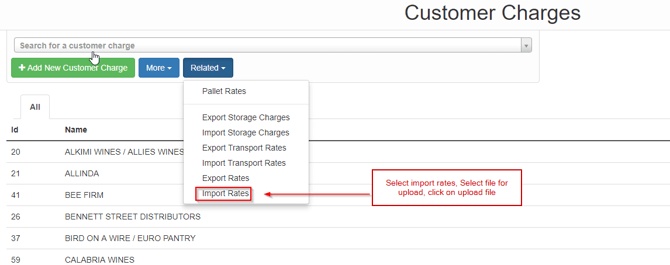
Once you have updated and saved the rates on the Rate File. You can import the file back into CartonCloud and then do a thorough check that the rates have imported correctly.