
Table of Contents
- What is Enterprise Single Sign-On (SSO)
- How to enable Enterprise Single Sign-On (SSO) for your CartonCloud account
- How to log into CartonCloud using Enterprise Single Sign-On (SSO)
- How to set up Single Sign-On (SSO) for your company
Please note this is a WMS Premium only feature. For more information on WMS Premium and to upgrade your account please reach out to our Service Desk team here.
What is Enterprise Single Sign-On (SSO)
Enterprise Single Sign-On (SSO) is the ability for users to log in with one set of credentials to get access to multiple corporate apps, data and websites which they have permission for. Enterprise Single Sign-On helps to strengthen security and compliance.
If you don't already have Single Sign-On and would like to configure it please see here for some useful tips.
Prerequisites for Single Sign-On
To enable Single Sign-On for CartonCloud login you need to already have Single Sign-On set up for your company. If you do not already have Single Sign-On set up for your company and would like to do so please find the below information:
- Single Sign-On can be set up using an existing account such as Google Workspaces or Microsoft.
- Here is an article that guides you through setting up Google as the SSO provider.
- Here is an article that guides you through setting up Microsoft as the SSO provider.
How to enable Enterprise Single Sign-On for your CartonCloud account
Enterprise SSO is a WMS Premium only feature. For more information on WMS Premium and to upgrade your account please reach out to our Service Desk team here.
How to log into CartonCloud using Enterprise Single Sign On (SSO)
Please ensure the email address you use for your SSO is the same email address set up for your CartonCloud user.
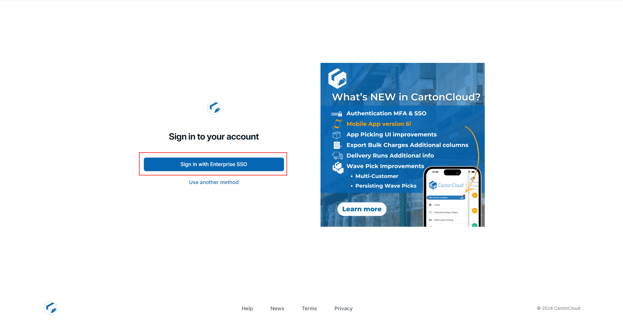
- From the login screen, click Sign in with Enterprise SSO.
-
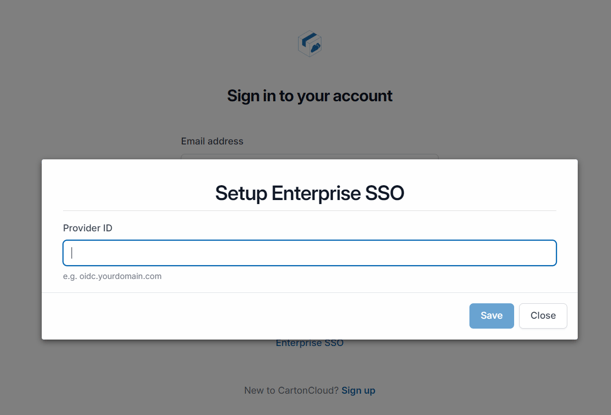
Enter the Provider ID. This will depend upon your organisations SSO provider.
-
Depending on your SSO Provider, the login screen will vary. Enter your SSO login details.