
Table of Contents
- Purpose
- Check outbox for failed uploads
- Check for Remaining Jobs
- Upload any invoices not part of a consignment
Purpose
At the end of a driver's working day, it is best to perform a number of checks to ensure all necessary data for the day's jobs have been submitted.
- Empty Outbox
- Empty Consignment List (or no consignments left for delivery/pickup today)
- Invoice Photos Uploaded
Check outbox for failed uploads
At the end of your working day, ensure that no uploads are remaining in your outbox. Should you find that there are failed uploads available, then check your devices internet connection as this will be the cause of the issue. You might have collected PODs throughout the day while out and about in areas that did not provide Internet access, so it is important to check that your Outbox is clear of any failed uploads at the end of the day. These uploads may include not only PODs but also other important items like lodged errors or invoice photos.
If there are still items in the outbox after the driver has confirmed the devices internet connection is working, then the driver should contact the depot, who can then contact CartonCloud for further support, as this should not occur.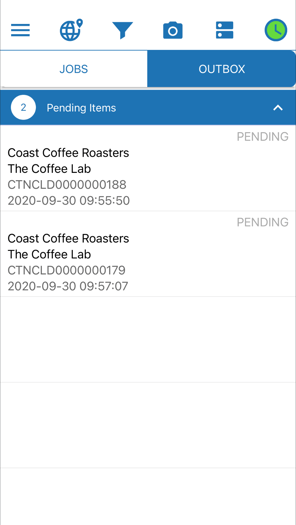
Check for Remaining Jobs
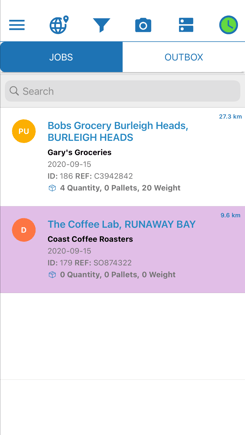
Ensure no jobs due for delivery/pickup today have been left in the job list. The only jobs still appearing in the consignment list might be those that have a pending POD upload in the outbox and are highlighted in yellow, or those that have had an error lodged against them and are highlighted in purple.
- In the case of consignments outstanding, ensure they have been signed off correctly by the receiver
- In the case of error consignments, check whether you have any stock left to return to the warehouse.
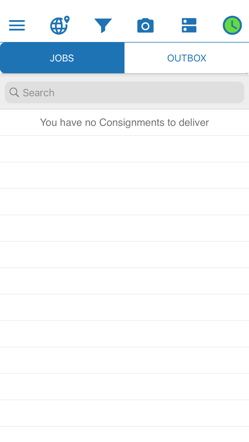
No Consignments outstanding
Upload Any Invoices Not Part of a Consignment
Should you be left with any Invoices / PODs that are not associated to any consignment in your job list, ensure that these have been uploaded as an "Invoice Photo" from within the CartonCloud app to allow office staff to assign them to the corresponding consignment using the CartonCloud web app.
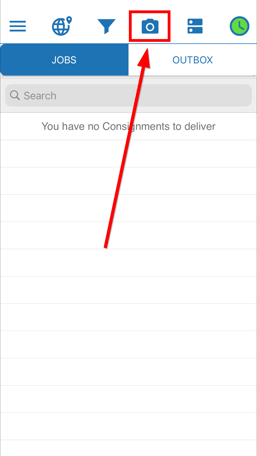
- To upload an invoice photo, select the Camera icon at the top of the screen.
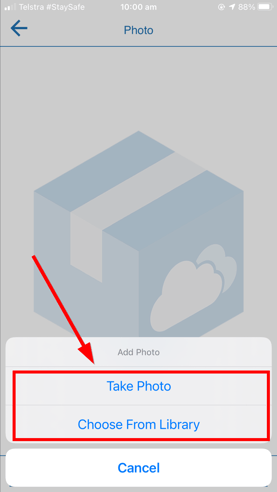
- Then choose to either take the Photo now or upload a previously taken photo from the mobile's library
- Once the photo has been uploaded it will appear to office staff on the CartonCloud Dashboard as an "Unassigned Consignment Invoice / POD".
- The office staff will also be able to view which User has uploaded the photo and when. This is to assist in matching it up to the correct consignment record.