
Table of Contents
- Purpose
- Checking you have customer access enabled
- Once the customer role is selected
- Going back to the administrator view
Purpose
- As an Admin level User within CartonCloud you will be given much more access to the system than your Customers. This includes extra settings and controls as well as extra reports.
- However, sometimes it is useful to see exactly how CartonCloud appears from your Customer's perspective. In this article, we will show how to view CartonCloud exactly as your Customer is able to view it.
- This article is only relevant to admin level Users of CartonCloud.
Checking you have customer access enabled
- At the top right of the screen, you will be able to see the role you're currently viewing CartonCloud as.
- If Customer appears in this menu for you, select it and move on to the next section.
- Otherwise, navigate to Contacts in the main menu then select Users in the drop-down
- On the User's page, select your name.
- Then, on while Viewing your User profile, select Edit
- Scroll down to Roles and tick Customers.
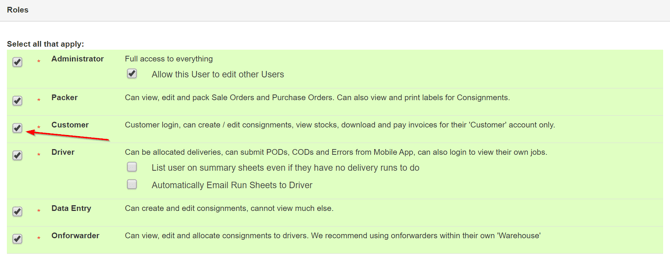
- Then scroll to the bottom of the page and select Save.
- You will now be able to select the Customer Role as previously shown.
Once the customer role is selected
Once you have selected the Customer Role your view of CartonCloud will automatically change to represent how your Customer's see the web app from their login.
You can then change between which Customer's perspective is shown by using the additional search bar now available in the menu.