
Table of Contents
Purpose
After selecting a Purchase Order Product from the product list within the Verify tab, the Confirmation View will be displayed. From here you can confirm or save product quantities and edit Purchase Order Products.
Edit
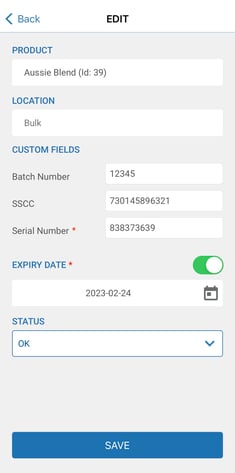
By selecting the edit button in the top bar of the confirmation view, essential details of the Purchase Order Product can be edited: product, location, expiry date and status. Simply tap the product or location field to bring up the Product Search and Location Allocation view, respectively.
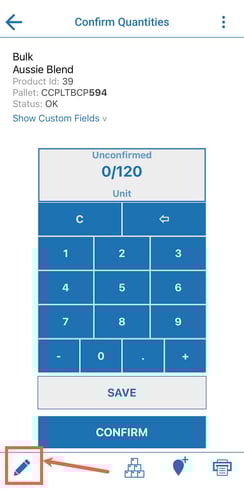
- From here you can tap the Product field to change the product or click the location field to change the warehouse location.
Allocate
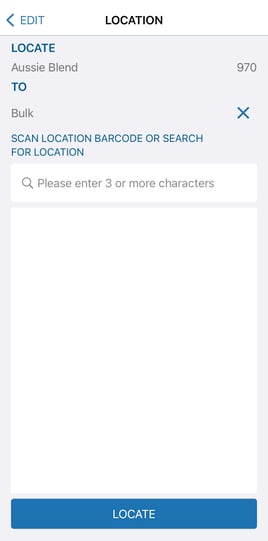
In addition to being able to allocate a product to a location from the Allocate tab, products can also be allocated from the Confirmation View by selecting the location button in the top bar. The Location Allocation view will then open and allow you to add/edit the location for the product.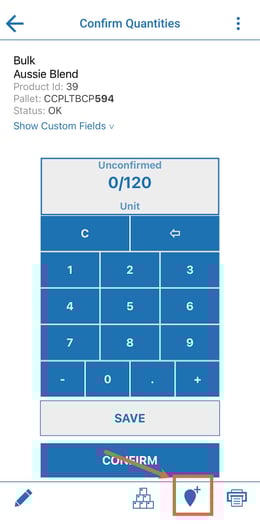
Assign Pallet
From the confirmation view you can assign a pallet barcode to the order or generate one. See Pallet Handling for more information.
More
Selecting the "More" offers you a number of ways of editing the Purchase Order Product.
After selecting a Purchase Order Product from the product list within the Verify tab, the Confirmation View will be displayed. Apart from allowing the user to confirm or save product quantities, it also offers multiple ways of editing the Purchase Order Product.
For more information on how the Confirmation View works, check out this article: Receiving on the mobile app (scan putaway)