
Table of Contents
- Purpose
- Items
- Details
- Navigating the details and items list page
- Details page
- Items list
- Items list searching
- Show Items Details
- Items list grouping
- Items list sorting
Purpose
The details and items page provides more detail relating to the Sale Order.
Items
The items list displays all the products within the order being picked/packed.
Details
The details page shows the Sale Order detail information such as dates and special instructions.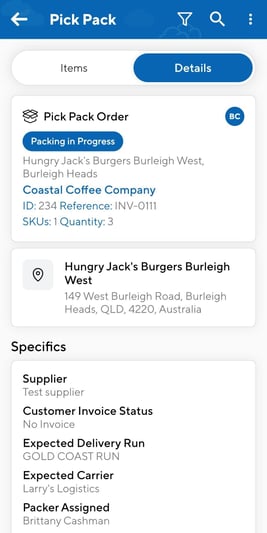
Navigating the details and items list page
- From the Task List, click on the relevant Task.
- Slide the top toggle bar from the Items list to the Details page to access either page.
Details page
The details page will provide more information related to the Sale Order. This information includes:
- The Customer
- Sale Order ID
- Customer Reference
- The delivery address
- Supplier (if applicable)
- Required Delivery Date
- Required Ship Date
- Expected Ship Date
- Packing Instructions
- Customer Invoice Status
- Expected Delivery Run
- Expected Carrier
- Transport Service Type (if applicable)
- Custom Fields
- If labels have been printed or not
Items list
The items list screen is used to display all the products within the order being picked/packed, the quantity associated with each and the warehouse location.
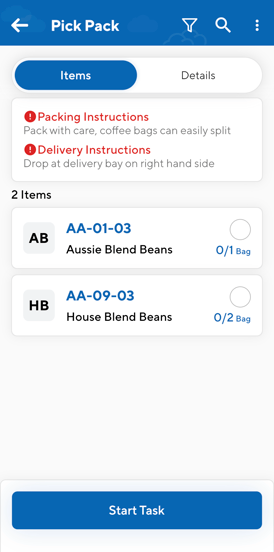
Item grouping (grouping for serial number (unique reference) verify/capture)
Note, if an order contains multiple items with similar attributes, they will be grouped together in the items list in order to allow for more efficient picking. The criteria which items must meet in order to be grouped together is as follows:
- Same product
- Same location(Unallocated included)
- Same Expiry date (Blank included)
- A single POP Custom Field set up with Serial number Capture or Verify as a required step
- Same non-unique custom field values
- Items with a value for a custom field must all have the same value in order to be grouped together.
- Items without a value for a custom field must all have the no value in order to be grouped together.
- No additional custom fields that require a value to be captured
Items list searching
Using the search functionality on the items list, you can search by product name, custom field or any matchable detail within the items list.
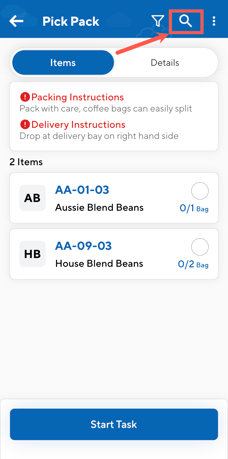
- Select the search icon in the top right corner of the items list.
- Use the search bar to type in the search term.
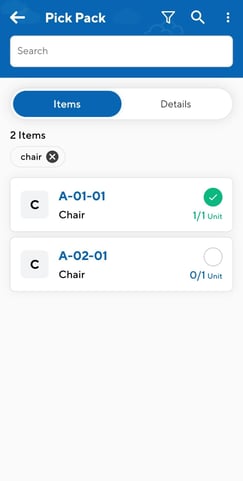
Note, the search will clear once the search is completed and you leave the search screen.
Show Items Details
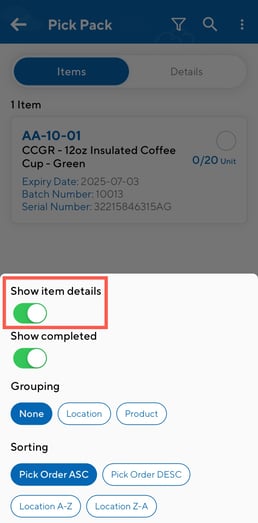
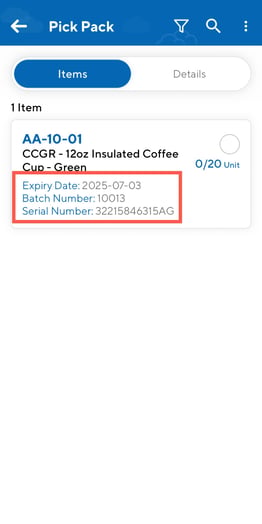
By selecting the 'Show Items Details' option you can view key items details from the Pick Pack screen. This includes Pallet ID, Expiry Date and Custom Fields. This option is enabled by default.
You can now view key item details—such as Pallet ID, Expiry Date, and Custom Fields—directly from the Item List screen in Picking mode.
Items list grouping
Note, any filters will remain even if you exit the app. Filters will only clear if you manually clear them.
How to group items:
- Select the Filter icon in the top right.
- Under Grouping, select either None, Location or Product.
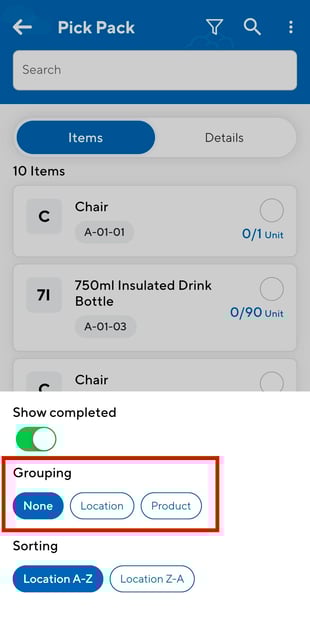
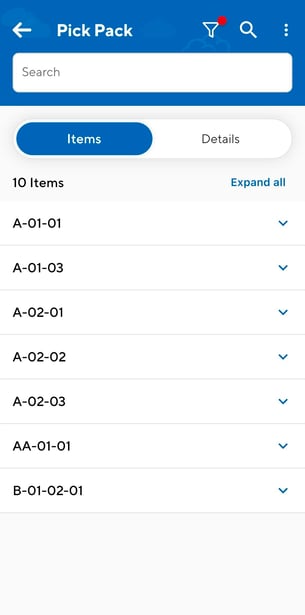
- The item list display will change depending on the grouping selected.
Location:
Product: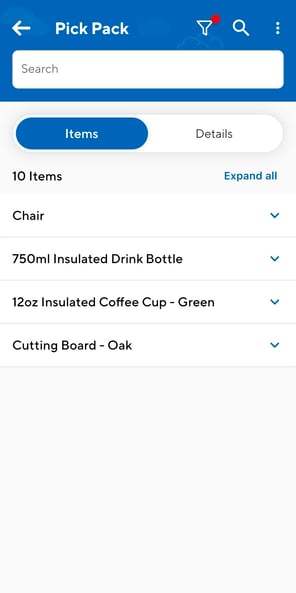
Items list sorting
Using the sorting functionality on the items list, you can sort the items list by warehouse location A-Z or Z-A or Pick Order ASC (ascending) or Pick Order DESC (descending).
- Select the Filter icon in the top right.
- Under the Sorting heading, select either Location A-Z , Location Z-A, Pick Order ASC or Pick Order DESC
- If using Pick Order ASC or Pick Order DESC, will list the products in the order of their pick order (set against the warehouse locations). To use this sorting method you will need to enable the below setting and set up the warehouse location sort order (pick path sequence):
- Navigate to Organisation Settings, More>Organisation Settings.
- Select the Warehouse tab.
- Tick Sort Pick/Pack List by Warehouse Locations Pick Order.
- Scroll down and click Save.
- Set up the warehouse locations with a sort order (pick path sequence). See here for detailed steps.