
Table of Contents
Purpose
This article covers how to delete Sale Orders in large quantities from the Sale Orders page.
To get to the Sale Order page, select Warehouse in the Main menu > Sale Orders from the drop-down.
By Manual Selection
This simple method is best used when all the orders you wish to delete are on the same page (less than 30 orders).
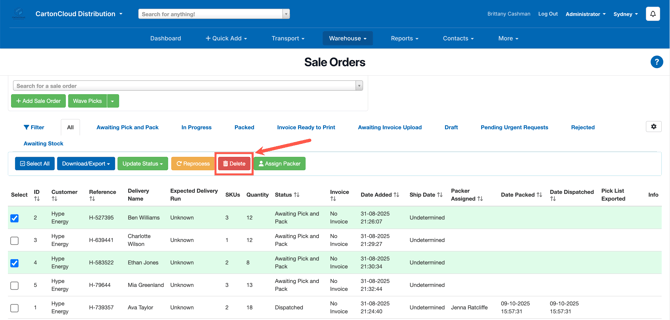
- Select each Sale order you wish to delete.
- Multiple sale orders in a row can be selected by selecting the top order, holding the Shift key, then selecting the bottom-most sale order. This will cause all orders between the two to be selected.
- Select Delete and a pop up window will appear to confirm the deletion.
- Select OK and the orders will be deleted.
Using Filters and the Select All button
This method can be used to delete all Sale Orders that are searched for through the Filter tab. This method is best used for large deletions (30+ Orders).
- On the Sale order page, select the Filter tab.
- Apply the necessary filters so that only the Sale Order you wish to delete appear in the search.
- Next, click the Select All button and all orders will be highlighted (including any that might be on the following pages.
- Select Delete All and the system will produce a warning message to ensure you wish to continue with the deletion. Remember, deletion cannot be undone!
- Provided you wish to continue, select OK.
- The Sale Order records have now been deleted from CartonCloud.