
Table of Contents
- Purpose
- Merging warehouse locations
- How to merge a warehouse location
- Bulk merging warehouse locations
- Deactivating / reactivating warehouse locations
Purpose
Warehouse Locations cannot be deleted directly due to dependency restrictions, as they may be in use by other records, such as Purchase Order Products.
For this reason, the only way to completely delete a Warehouse Location is to merge it with another Warehouse Location.
Alternatively, you can simply "Deactivate" a Warehouse Location if the Warehouse Location is empty.
Note, when merging warehouse locations, CartonCloud will alert you when the file size is exceeded and the merge/import will fail.
Merging warehouse locations
Merging Warehouse Locations cannot be undone - it adjusts all historical and current stock to point to the new Warehouse Location.
As direct deletion of a warehouse location is not possible, Warehouse Locations must be "Merged" together in order to remove one that's not required. Merging warehouse locations should only be used if the Warehouse Location was added incorrectly and was never really in use. If you simply want to remove a Warehouse Location that no longer exists then Deactivate the Warehouse Location instead.
When two Warehouse Locations are merged, only ONE warehouse location will exist after the merge. For example, Location AA-01-01 is being merged into AA-01-02, meaning after the merge AA-01-01 will no longer exist.
How to merge a Warehouse Location
- Navigate to Warehouse > Warehouse Locations.
- Select the relevant Warehouse Location.
- Click Merge Warehouse Location.
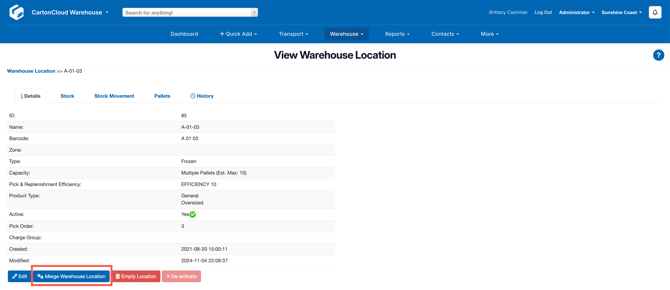
- From here, select which Warehouse Location you want to merge the Warehouse Location into.
Remember, only the location you select in the box below will exist after the merge.
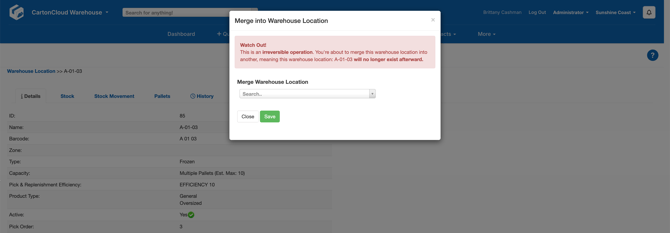
- Click Save.
Bulk Merging Warehouse Locations
You can also bulk-merge warehouse locations by doing the following:
-
Export Warehouse Locations.
-
Add an additional column to the Warehouse Locations file called 'merge_id'
-
On each location that you want to remove, put the ID of the Warehouse Location you want to merge INTO into the merge_id field.
-
Save the file and import it.
Locations of type Multiple Pallets cannot be merged into locations of type Single Pallet (import will fail on these locations). You can first change the location type to single pallet through export and import.
Deactivating / Reactivating Warehouse Locations
Warehouse Locations can be deactivated if they no longer contain any stock so if you want to deactivate a location that still contains stock then you need to move the stock to another location first.
Once locations are deactivated, they can be reactivated for use at any time.
- Navigate to Warehouse > Warehouse Locations.
- Select the relevant Warehouse Location.
- Click De-activate.
You can also deactivate and reactivate locations in bulk from the Bulk Edit Warehouse Locations page.