
Table of Contents
Purpose
Because Addresses are used in records such as Consignments and Sale Orders it is not possible to delete them (otherwise these records would be missing information). Instead, it is only possible to deactivate an address or merge it with another existing address.
Deactivating or reactivating an Address
To deactivate or reactivate an Address navigate to the Address page by selecting More in the main menu, followed by Addresses in the drop-down box.
Next, select the Address which you wish to deactivate/reactivate.
Now in the View Address page, click Deactivate or Reactivate depending on what you are doing. Click Ok when asked if you are sure in the pop-up box.
That's it! The address will now be updated with the new status.
Merging an Address
CartonCloud manages duplicate addresses by merging them. Rather than having two records of the same address, you can merge all the addresses into one, therefore, only having one record for that address to avoid confusion and error.
Addresses can be merged without user approval (for example, when parsing an order) or with user approval (automatically merge address function from the address page or upon adding a new address or manually merge the address from within the individual address record). Also if a duplicate address is accidentally created within CartonCloud, this feature will allow you to merge it with the original address.
If you wish for every address entered in CartonCloud to require user approval (and to check for duplicates), you can enable the; 'If enabled, any new Addresses that are added to CartonCloud will require approval' setting in the Organisation Settings. With this setting turned on, all your addresses will require manual approval and manual merging (if applicable) before entering CartonCloud. See Requiring newly created addresses to be approved for more information.
As an example, we will merge the Bunning's address below with ID 13 into the earlier created address with ID 10.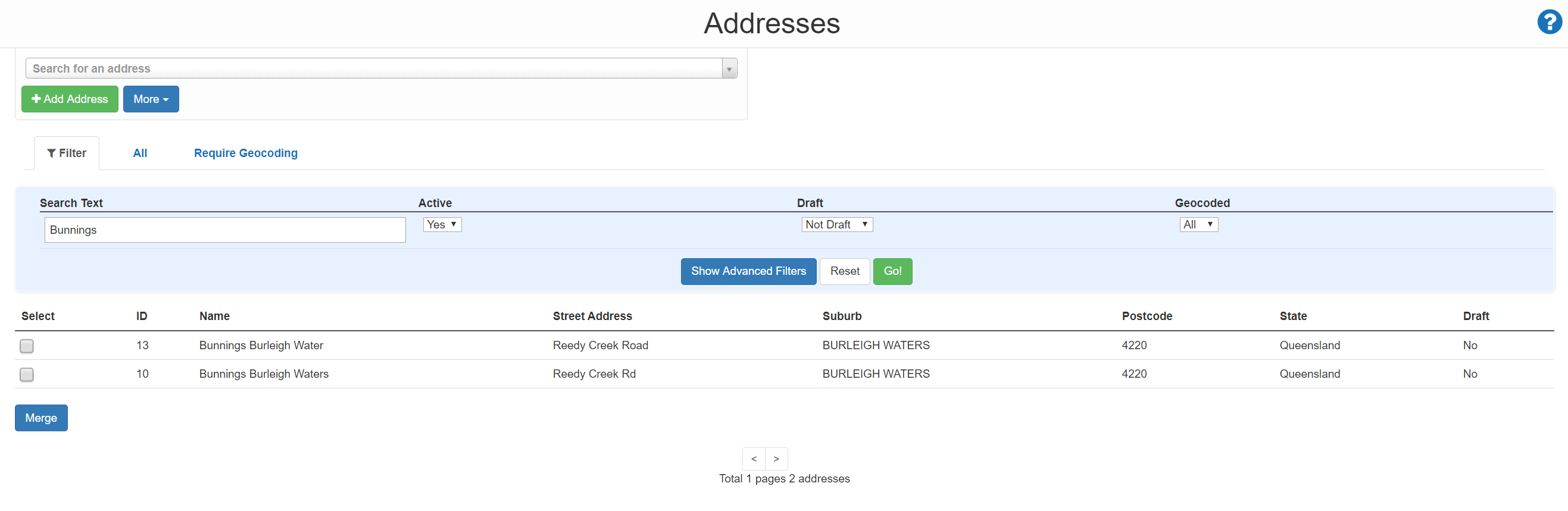
To do this, click on the Address in the list you wish to merge (and whose records will be absorbed by the other address). In this case, we clicked on the Address with ID 13.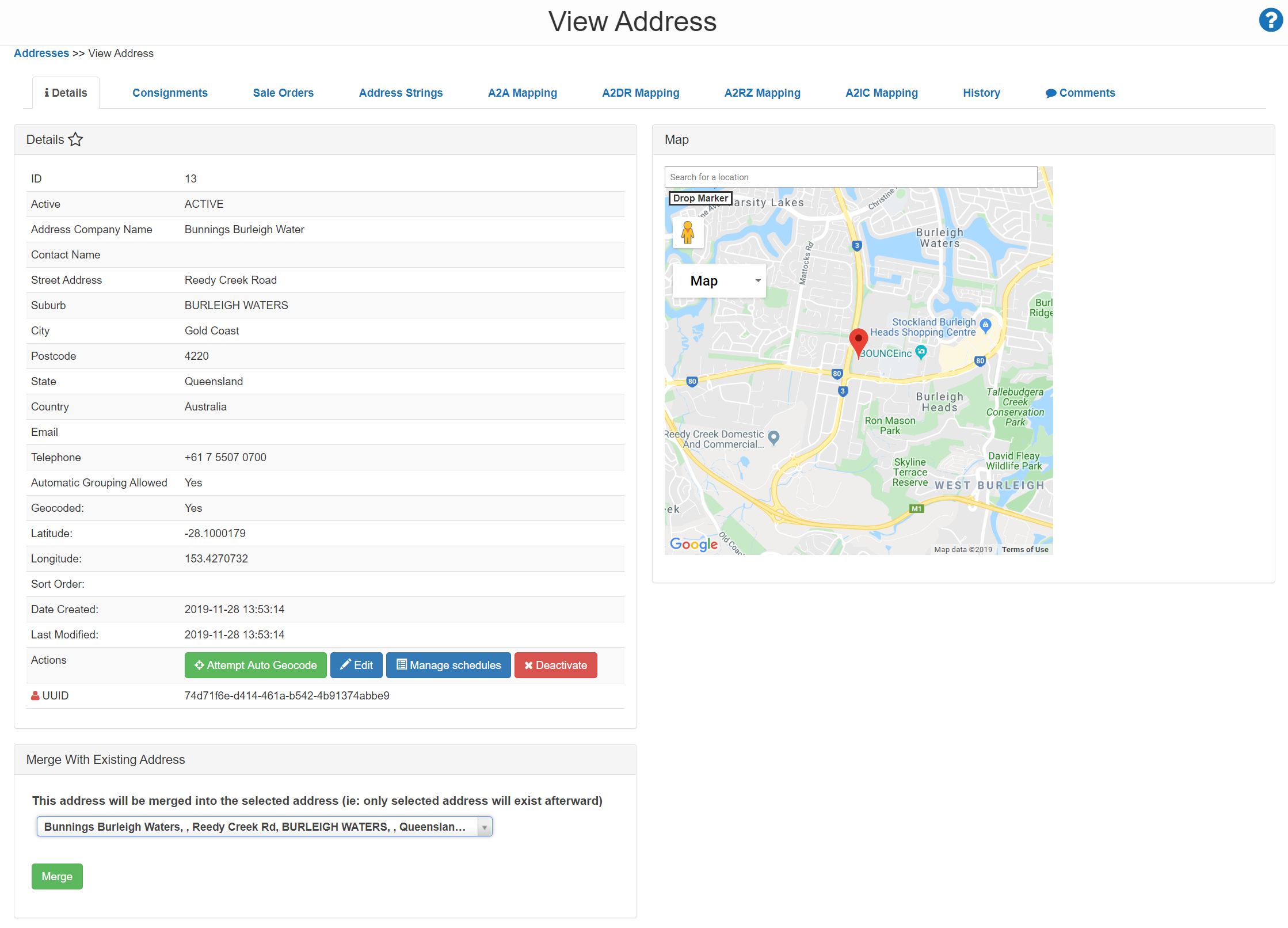
Next, down the bottom of the View Address page, type the address you wish to Merge the current address into and select it once found.
Finally, click Merge and a Success! banner will display at the top of the browser.
You will now be able to see that all record stored against the merged address now belong to the target address.