
Table of Contents
Purpose
The Dashboard gives you an overview of information tracked by CartonCloud. In addition, you can select which widgets (different information) you would like displayed on your Dashboard.
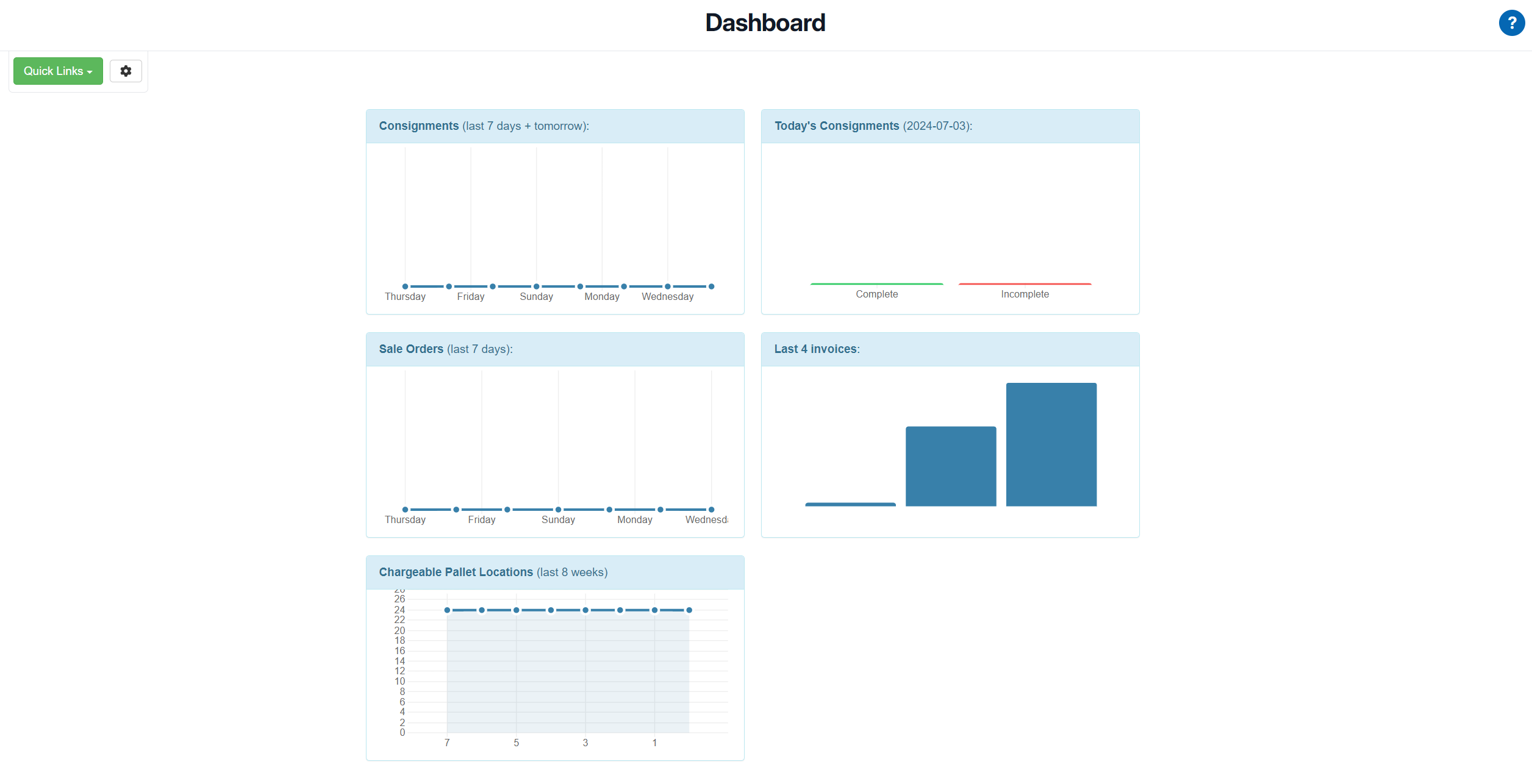
Widgets
Available Widgets
|
WIDGET |
Explanation |
|---|---|
|
Total Consignments for last 7 days |
Consignments for the last 7 days. |
|
Undelivered Consignments today |
Consignments that have been delivered and not delivered today. |
|
Sale Orders History |
The number of Sale Orders for the past 7 days. |
|
Invoicing |
The last four invoices. |
|
Pallet Count |
Will show the number of chargeable locations (that are using 'Per Location' storage charge method) |
|
Latest Releases |
To help you stay up to date with new CartonCloud features and improvements. This widget displays the most recent product updates so that you can see what’s new without leaving your workspace. The update will link to the full release log, where you can read more. |
How to add a Widget
-
Navigate to the Dashboard page, More>Dashboard.
-
Select the cog icon in the top left corner.

Rearrange Widgets
To change the order in which the Widgets are arranged:
-
Select the cog icon in the top left corner.
-
Using the Order column, adjust the numbers against the widgets accordingly.
-
Click Save.
Remove Widgets
To remove widgets from the Dashboard:
-
Select the cog icon in the top left corner.
-
Untick the widget you wish to remove.

- Click Save