
Table of Contents
Purpose
From within the View Customer page, you can access Customer-specific Reports.
How to generate Customer Stock Reports
- Navigate to the Customers page, Contacts>Customers.
- Select the relevant Customer.
- Under Stock Reports select the report you wish to view.
- The below explanations explain what each Report is designed for and how to use it.
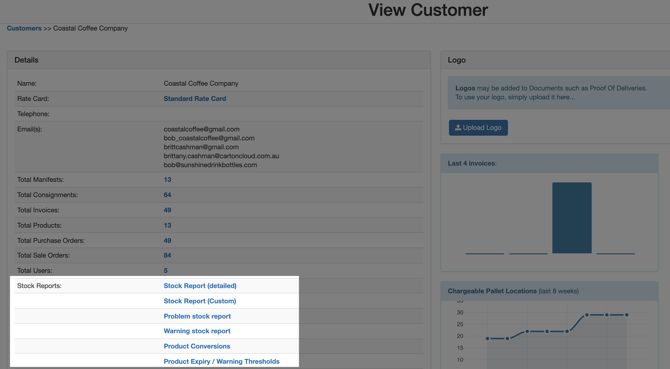
Stock Report (detailed)
This report will show all current stock for the Customer via Warehouse Location or Product. You can export the report to Excel.
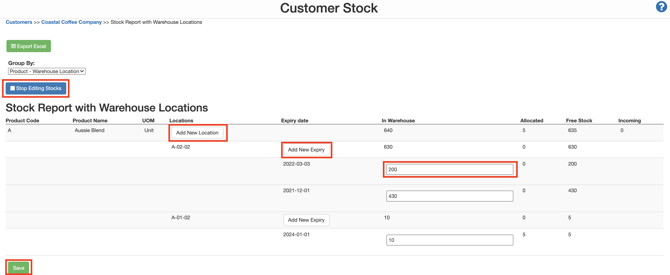
You can also edit the stock, add new expiry dates or warehouse locations or adjust the quantities. 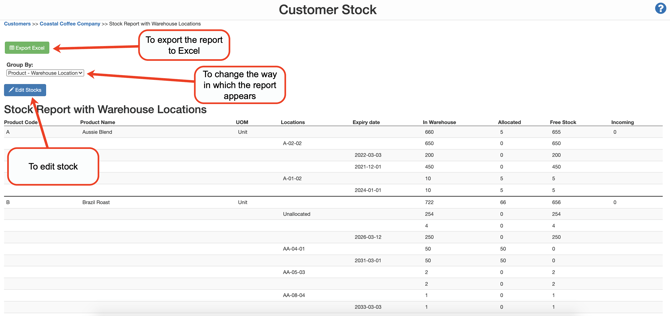
To change the Group By
-
Select the Group By drop-down and select the option you wish to apply.
-
Product - Warehouse Location: will list the stock by Product and then Warehouse Location.
-
Product - Expiry date: will list the stock by Product and then Expiry Date (oldest to newest).
-
WarehouseLocation - Product: will list the stock by Warehouse Location and then Product.
-
To Edit Stocks
Note that you can only edit stocks when you are in the Group By view of Product - Warehouse Location or Product - Expiry Date.
-
Select the blue Edit Stocks button.
-
Make adjustments to the Warehouse Location, Expiry date or quantity.
-
Select Save.
-
Click Stop Editing Stocks.
Stock Report (Custom)
For information about the Stock Report (Customer), please see Customer Stock Report.
Problem stock report
The Problem stock report shows all stock for that Customer with a Status other than Ok. 
Warning stock report
The Warning stock report will show that customer stock has expired or is within its warning threshold. 
Product Conversions
The Product Conversions list all the Customer's Products and the unit of measure conversions. 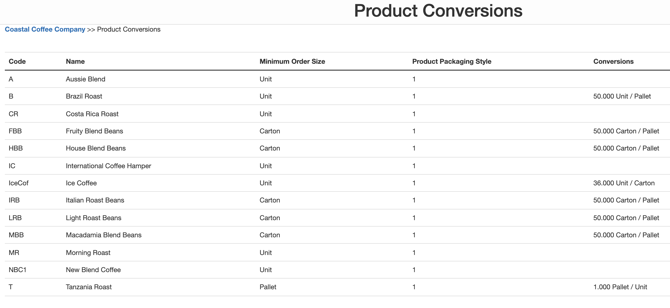
Product Expiry/Warning Thresholds
The Product Expiry/Warning Thresholds list all the Customer's Products and the associated warning and expiry threshold. You can also edit the thresholds either individually for each Product or in bulk. 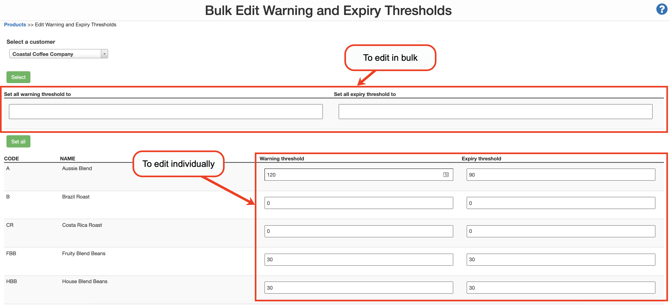
To edit in bulk:
-
Enter the value in the Set all warning threshold and Set all expiry threshold to the field.
-
Click Set all.
To edit individually:
-
Enter the value within the individual Warning threshold and Expiry threshold field.
-
Click Save.