
Table of Contents
- Purpose
- How Expiry Dates Are Calculated
- Step 1 - Create an Address Custom Field
- Step 2 - Create Customer Product Custom Fields
- Step 3 - Edit Product Settings
- Step 4 - Update the Address String
- Testing
Purpose
It is a common requirement when working with food items to deliver stock that has a Minimum Life on Receipt (known as MLOR or Receiving Limit). Each retailer and or customer will have their own policy in place for handling this requirement, including their own specific limits. CartonCloud has the ability to handle this requirement by setting up an Expiry Threshold Group.
Note, this is separate from the Expiry Threshold setting that sits against the Product Settings.
How Expiry Dates Are Calculated
When using the FEFO by Address Group (MLOR) stock selection method, CartonCloud calculates the minimum required expiry date for stock based on the Required Delivery Date on the sale order — not the date the order was created or imported.
The calculation works as follows:
- The delivery address's Expiry Threshold Group is identified (via the custom field on the Address).
- The product's minimum shelf-life requirement for that group is read from the per-group custom field configured against the Customer (e.g. a different threshold for Coles vs Woolworths).
- The system calculates the number of days between today (the day allocation runs) and the Required Delivery Date.
- That day count adjusts the group's minimum threshold — a Required Delivery Date further in the future tightens the requirement (stock must expire later), while a nearer date relaxes it.
- If a customer-level Expiry Threshold Adjustment is configured, that value is added on top.
- Any stock that does not meet the resulting cutoff is excluded from selection.
- Among qualifying stock, CartonCloud still picks earliest-expiry-first, the same as standard FEFO.
Required Delivery Date — Imported vs. Manually Created Orders
The FEFO by Address Group rules apply whether the sale order is imported or manually created through the portal. The key difference is how the Required Delivery Date is handled:
|
Order type |
Required Delivery Date behaviour |
|
Imported sale order |
Mandatory. If missing, the import will error rather than fall back to another date. |
|
Manually created sale order |
Optional. If left blank, the system treats the date gap as zero (today's date) and applies a more conservative threshold — there is no hard block. |
Step 1 - Create an Address Custom Field
The delivery address custom field will be used to record the specific MLOR value.
For example, a sale order or consignment going to Woolworths may have stock that requires an MLOR of 185 days. Creating this field against the delivery address points the system to use the specific MLOR setting for Woolworths.
To create the Custom Field:
- Navigate to the Custom Fields page by typing Custom Fields into the Search for anything bar.
- Select Address > +Add Custom Field.
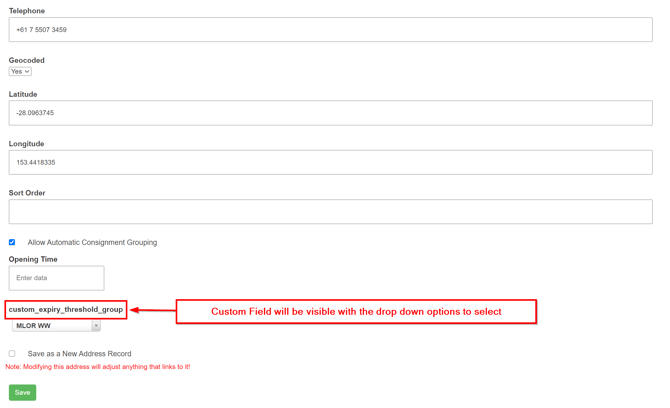
- Name the field, custom_expiry_threshold_group.
Note, the field name MUST be exactly custom_expiry_threshold_group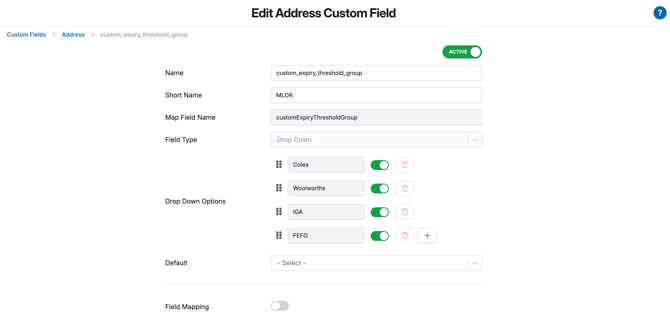
Step 2 - Create Customer Product Custom Fields
To create a Customer Product Custom Field:
- Navigate to Contacts > Customers.
- Select the relevant Customer and click Edit.
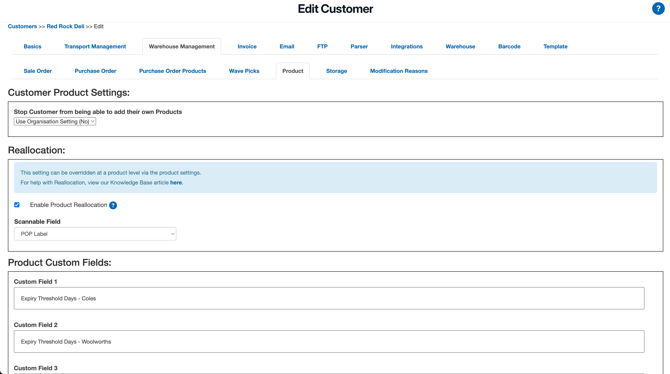
- Select the Warehouse > Product tab.
- Name the Custom Field. The name MUST start with Expiry Threshold Days.
- Create the required number of fields.
Step 3 - Edit Product Settings
- Navigate to the Product page, Warehouse > Products.
- Select the relevant Product and Edit.
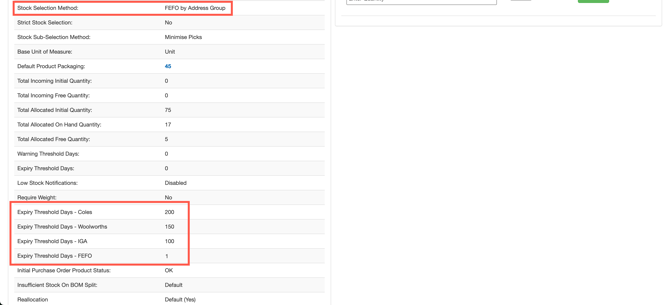
- Update the Stock Selection Method to "FEFO By Address Group"
Step 4 - Update the Address Setting
Whenever a new address (or existing address during the set-up phase) is added to CartonCloud, the Expiry Threshold Group custom fields MUST be updated.
This field is the link between the product settings and the stock selection process based on the Delivery Address for a specific customer.
For new Addresses:
- Navigate to Addresses by typing Addresses into the Search for anything bar.
- Select +Add Address.
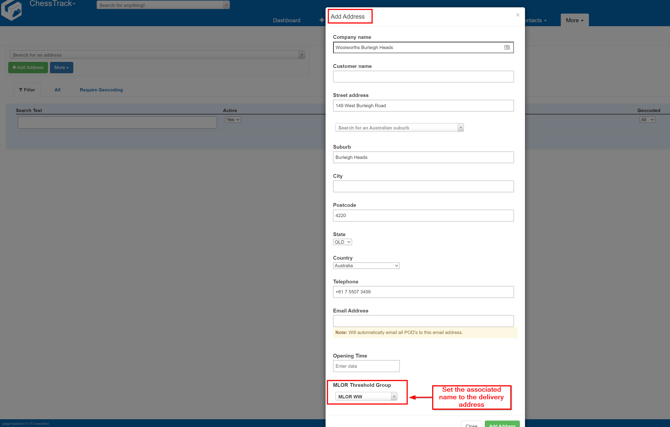
- Update the MLOR Threshold Group.
For existing Addresses:
- Navigate to Addresses by typing Addresses into the Search for anything bar.
- Select the relevant Address and click Edit.
- Update the threshold group.
- Click Save.
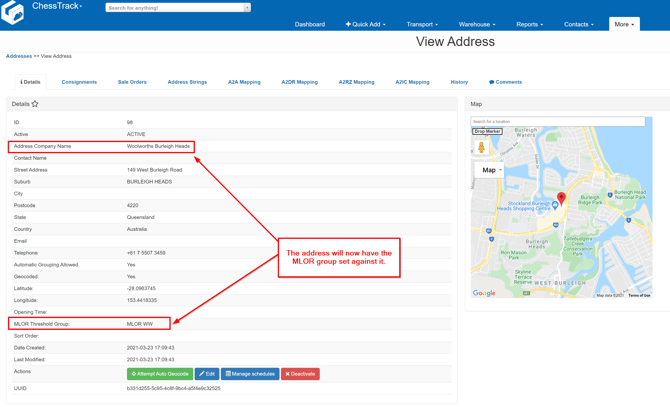
From the view page, the selected Expiry Threshold Group will be set
Testing
In this example, the customer is delivering to a Woolworths store.
- Expiry Threshold for this product and the Woolworths address group: 195 days
- Required Delivery Date on the sale order: 24/03/2021
- Days between today (allocation date) and Required Delivery Date: calculated at runtime
This means the stock selected for this sale order MUST have an expiry date more than 195 days from today's date, adjusted for the gap between today and the Required Delivery Date ( > 05/10/2021 ).
You can use a Date Calculator to quickly work out the expected date.
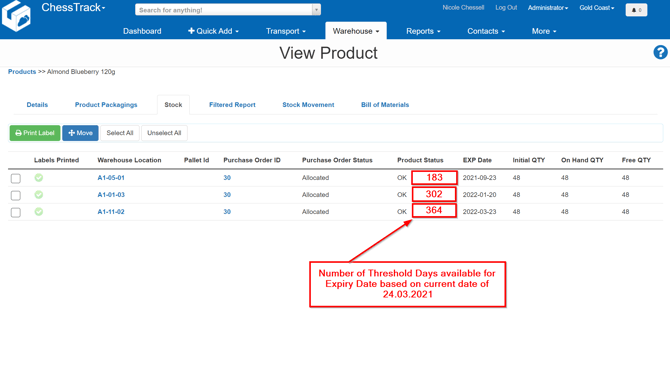
The product has three expiry dates available in the warehouse:
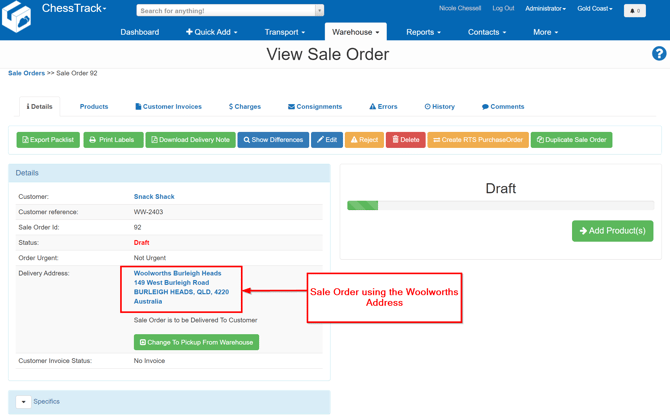
A sale order has been created using a delivery address for a Woolworths store:
After adding the product:
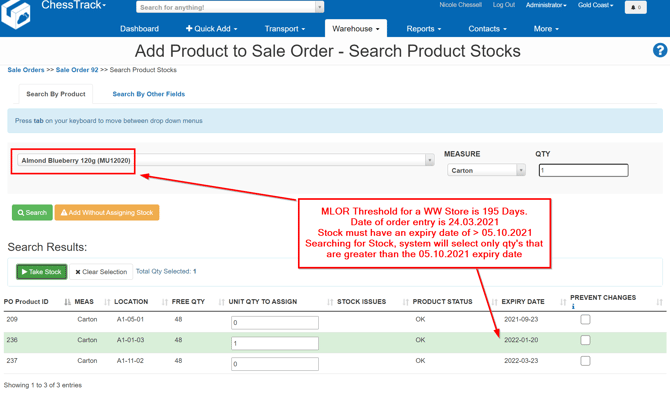
CartonCloud has applied the Expiry Threshold Group settings for the delivery address and selected stock that meets the required cutoff date.