
Table of Contents
Purpose
The notifications tab provides finer control over the notifications going out to the emails configured in the Addresses tab.
For example, in the email tab, it's possible to select if a User receives Purchase Order notification emails or not. In this tab, you can then select which specific Purchase Order notifications you wish to send.
Please note for orders that have been parsed in the email address sending the file in will receive the notifications for that order regardless if they have the notifications set up or not.

How to enable notifications
Before selecting what notification you wish to enable, you need to ensure the correct email address is set up and the corresponding notification has been selected against the address. Please see Configuring Outgoing Notification Emails to Customers for steps on how to set the email address up.
-
Tick the notification you wish to enable.
-
Scroll down and select Save.
Please note that these notifications will only become active once the corresponding notification type has been enabled against the email address. For example 'Sale Order Notification' must be ticked against the email address for the 'Send Email when Sale Order is Packed' notification to work.
Notification Configurations for Sales Orders and Purchase Orders
Select from the following options for When to Send a Notification:
-
Never Send Reply
-
Send Reply Always
-
Send Reply only if Warning Or Rejections occur
-
Send Reply for Rejection Only
-
Send Reply for Successful Importation only
Notifications available
|
Sale Order Notifications |
|
Sale Order Import notification |
|
Send Email when Sale Order is moved into Awaiting Stock |
|
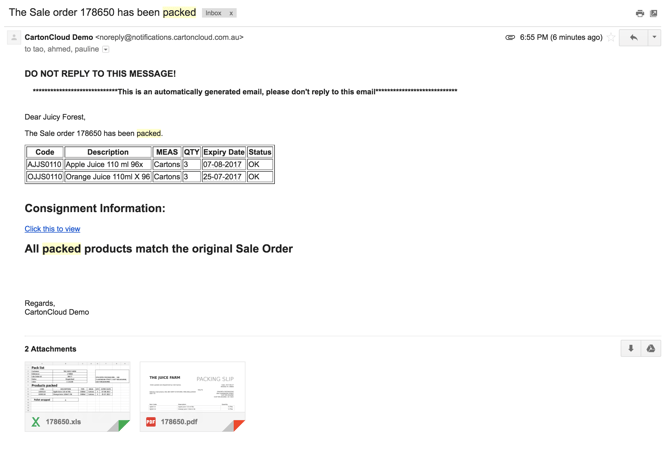
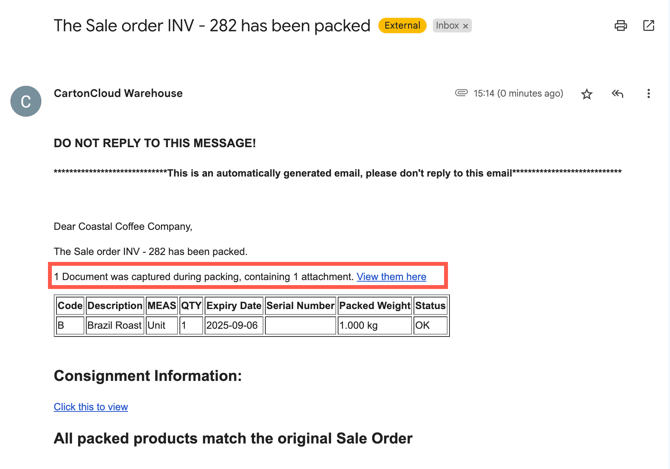
Send Email when Sale Order is Packed |
|
Send Reminder Email to Customer at 4:30 pm if Sale Order is waiting for Customer Invoice |
|
Send Email when Sale Order is marked urgent by Administrator |
|
Send Email if Sale Order is Rejected Manually (after import) |
|
Send Daily Sale Order report email (at 6:00 pm AEST Mon-Fri) |
|
Purchase Order Notifications |
|
Purchase Order Import notification |
|
Send confirmation email when the Purchase Order is approved from draft |
|
Send Purchase Order Goods Received confirmation email |
|
Send Purchase Order verification email Note, if Documents have been uploaded to the Purchase Order they will be available to view from the email notification (as long as the Document is Shared with Customer visibility level) |
|
Send Purchase Order Urgent Email |
|
Send Purchase Order Allocated Email Note, if Documents have been uploaded to the Purchase Order they will be available to view from the email notification (as long as the Document is Shared with Customer visibility level) |
|
Stock Notifications |
|
Send Stock Warning / Expiry Notification Email (at 8:00 am AEST Mon-Fri) |
| Stock Update Notification When a parser updates a stocks status |
|
Consignment Notifications |
|
Send Daily Consignment Report Email (at 8:00 am AEST Tues - Sat) |
|
Manifest Notifications |
|
Attach Labels PDF to Manifest Reply Email |
|
Email notification upon import of new Manifest |
|
Shipment Notifications |
|
Shipment Import notification |
|
Proof of Delivery Notifications |
|
Proof of Delivery notification |
|
Proof of Delivery notification for delivery address's email |
|
Product |
|
Product import notification |
The notifications tab provides finer control over the notifications going out to the emails configured in the emails tab.
For example, in the email tab, it's possible to select if a User receives Purchase Order notification emails or not. Whereas from within this tab, you can then select which specific Purchase Order notifications you wish to send.
Examples of Email Notifications
This provides examples of the various notification emails that CartonCloud can send.
Sale Orders
| Sale Order - Confirming order accepted | 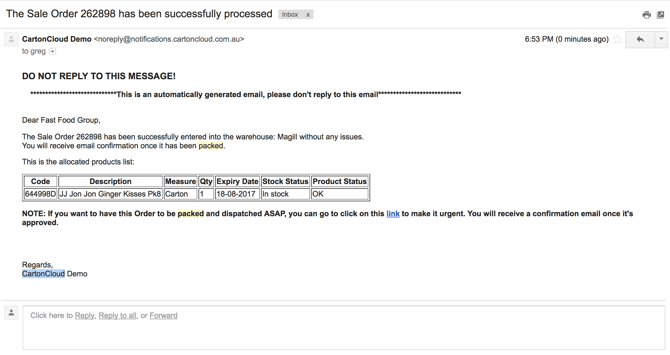 |
| Sale Order - Sale Order is moved into Awaiting Stock | 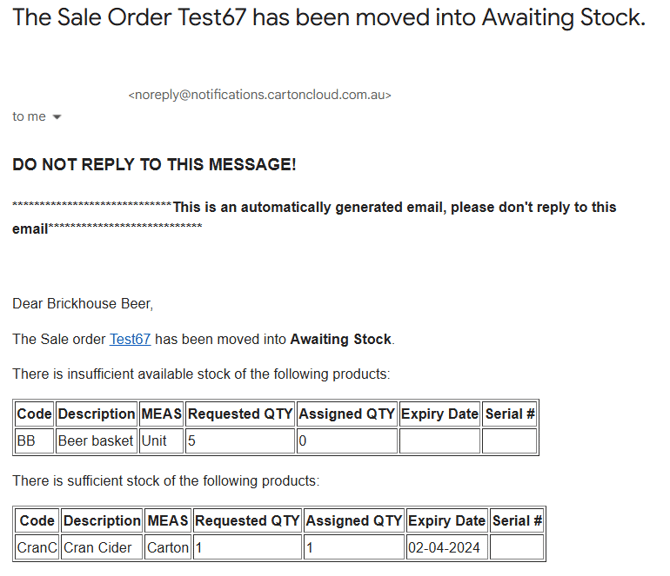 |
| Sale Order - Order accepted, with Warnings | 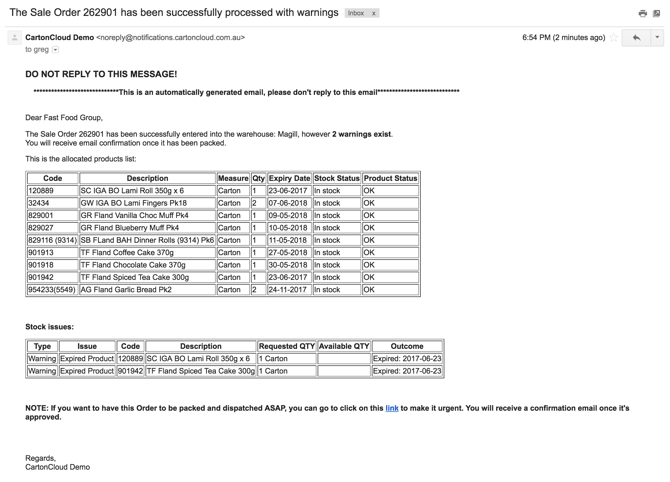 |
| Sale Order - Order Rejected | 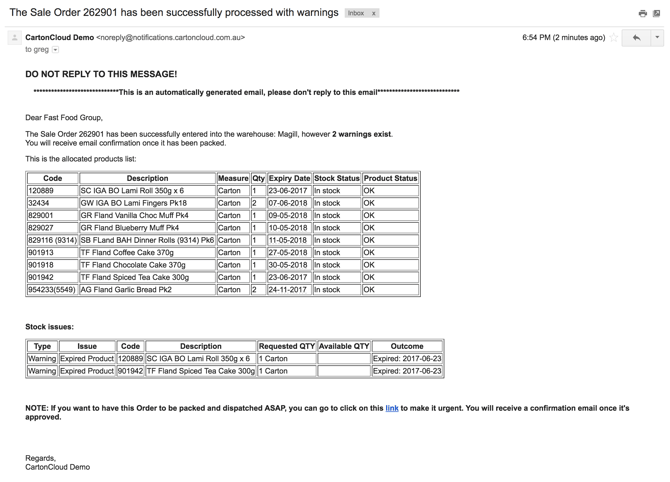 |
|
Sale Order - Order Packed (includes xls + pdf pack slip) |
 |
|
Sale Order Packed (including Photos and Documents attachments) |
 |
Purchase Orders
| Purchase Order - Confirming Order Accepted | 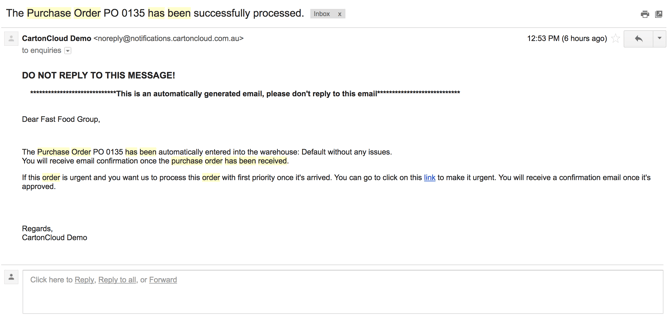 |
| Purchase Order Received | 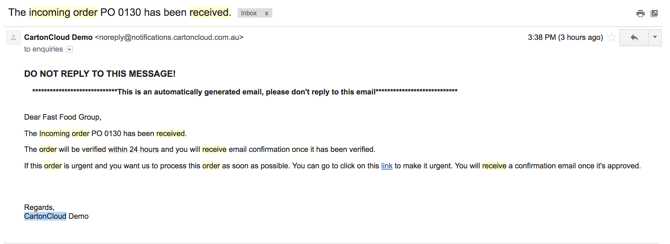 |
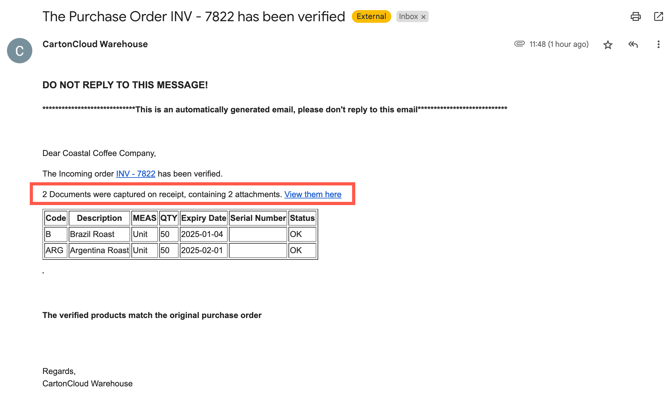
| Purchase Order Verified |
Note, if Documents are included on the Purchase Order and are Customer Visibility they will be listed on the email with a link to the Document.
|
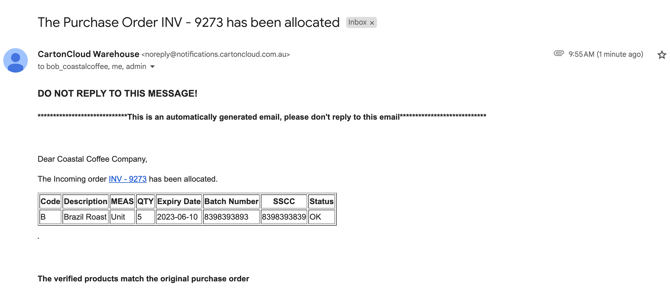
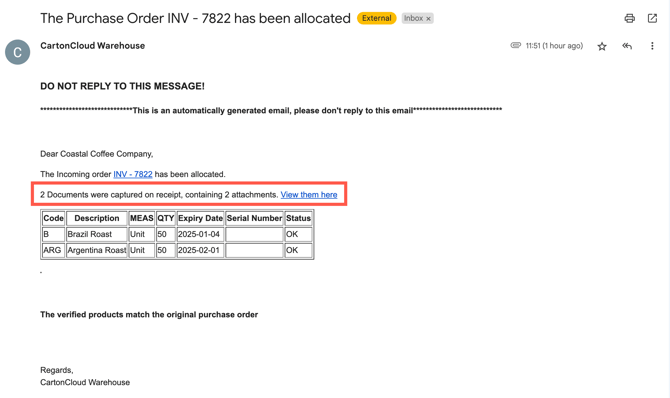
| Purchase Order Allocated |
Note, if Documents are included on the Purchase Order and are Customer Visibility they will be listed on the email with a link to the Document.
|
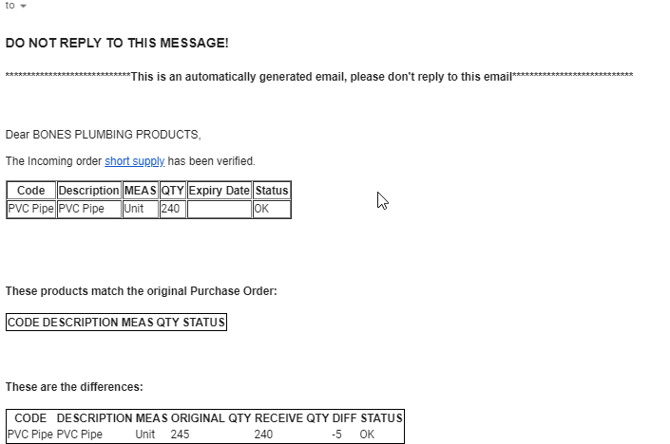
Note: if the quantity verified is different from the original purchase order quantity, the Purchase Order Verified email will include a table showing quantity differences.
Consignment
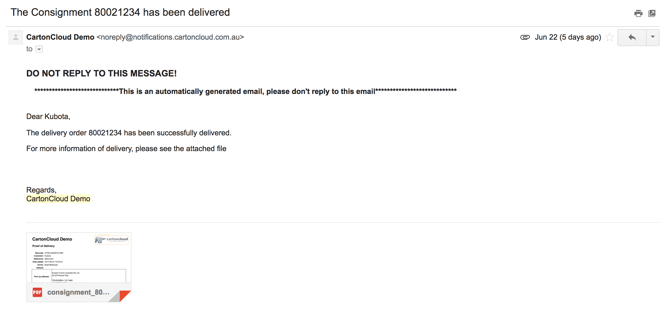
Proof of Delivery / Collection emails are sent whenever a Consignment is marked as "Delivered" or "Collected".
If you're sending via an Onforwarder, and waiting for the POD to come back from the Onforwarder before emailing the client, we suggest marking the Consignment as "With On Forwarder".
For more information about Onforwarder workflows, please see: Onforwarder Use Cases
|
Delivery Notification |
|
Manifests
|
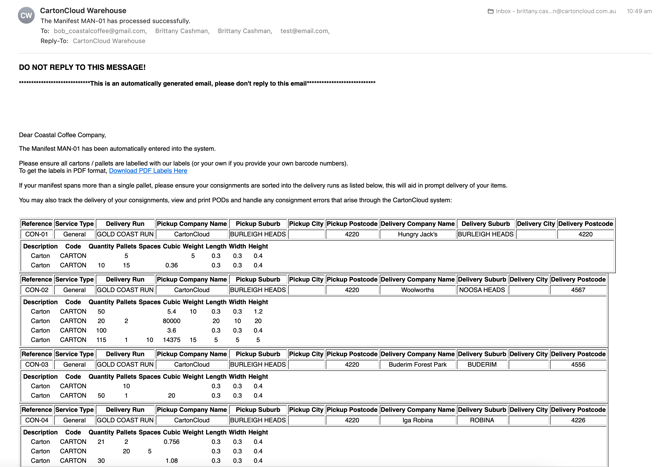
Import Notification |
|
Stock Notifications
|
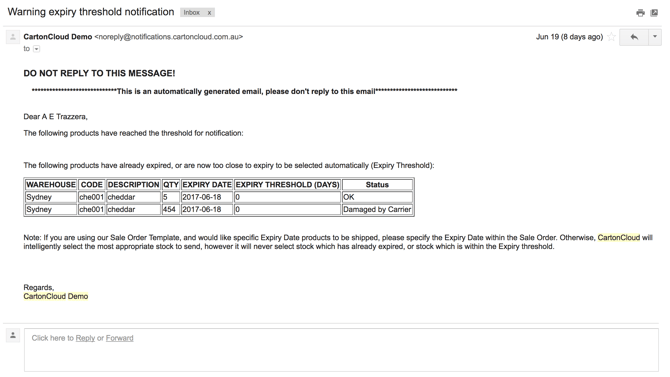
Stock Warning Threshold Notification |
|
|
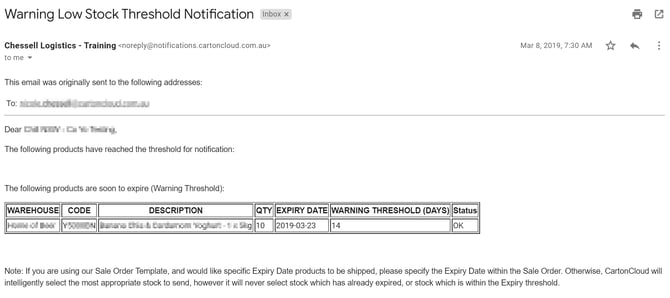
Low Stock Threshold Notification |
When will the low stock notification be delivered?
|
Invoices
|
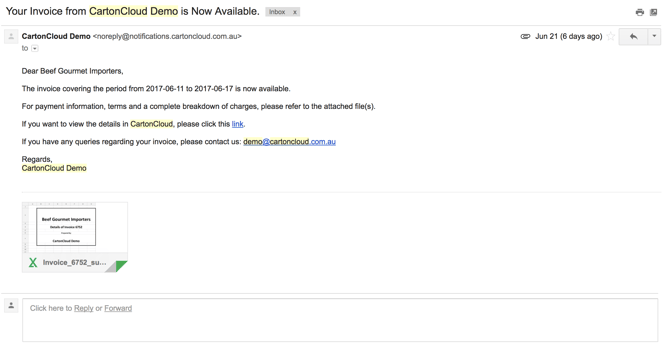
Invoice Notification (note, this may also contain a PDF from any of our available Accounting Software Integrations (Accounting Connectors)) |
|
Product Import Notification
| Product import Notification | 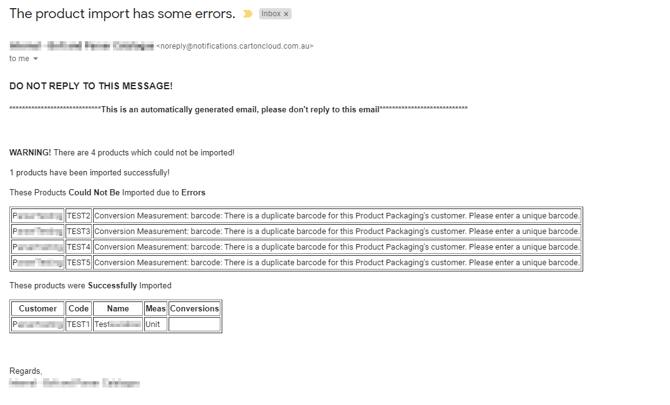 |