
Table of Contents
Purpose
Custom General Ledger Mapping allows you to assign charges to custom and existing income Accounts in CartonCloud. These Accounts can also be mapped to the corresponding General Ledger Codes in an Accounting Connector, such as Xero. This enhances income tracking and provides flexibility in charge grouping for invoicing.
Benefits
-
More granular income tracking.
-
Greater flexibility in charge grouping for invoicing.
-
Improved alignment between Accounts in CartonCloud and the GL codes in the corresponding Accounting Connector.
-
Seamless alignment between CartonCloud Accounts and your accounting software.
-
Simplified end-of-period reconciliation by ensuring consistent account mapping.
-
Real-time visibility into revenue streams by charge type.
-
Ability to track profitability by service type or customer segment.
-
Streamlined audit preparation with clear account mapping trails.
Prerequisites
-
Custom General Ledger Mapping is only available for WMS Premium accounts. For more information please reach out to the team here.
-
If mapping Accounts to the Accounting Connector, ensure you have an active Accounting Connector. Please see here for more information.
Set Up Steps
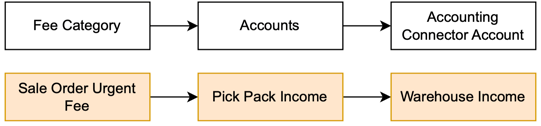
Fee Categories in CartonCloud are associated with Accounts in CartonCloud. Each Account then needs to be mapped to the appropriate Accounting Connector Account (eg: “200 - Sales” in Xero). This ensures charges are grouped and accounted for under the correct accounts in CartonCloud and the Accounting Connector.
Example:
The Fee Category Sale Order Urgent Fee is linked to the CartonCloud Account Pick Pack Income, which is mapped to the Xero General Ledger Code 204 - Warehouse Income.
1 - Create an Account in CartonCloud
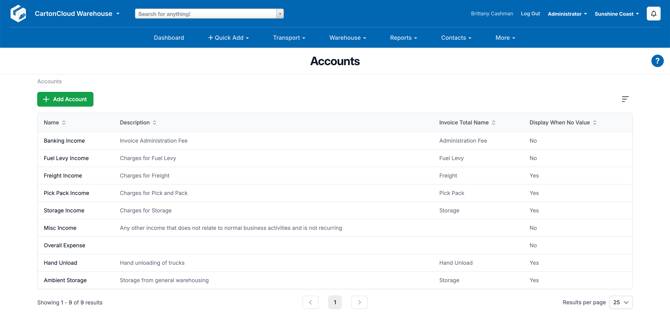
- Navigate to the Accounts page by typing in Accounts in the Search for anything bar. Alternatively, navigate to the Organisation Settings, More > Organisation Settings > Invoice > Accounts.
- Click +Add Account if you wish to create a new Account.
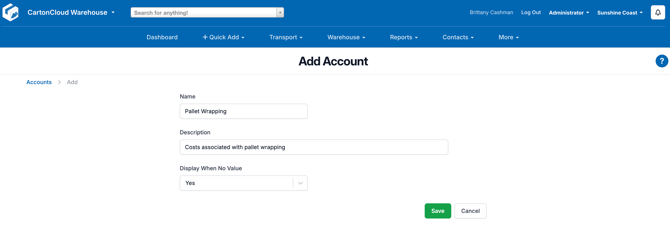
- Enter the below details to create the new Account:
- Name: Account name.
- Description: Brief Account description for clarity.
- Invoice Total Name: The name that will appear on the CartonCloud Invoice Summary to the customer.
- Display When No Value: If set to No, the Account will not display on the invoice if the amount is $0.
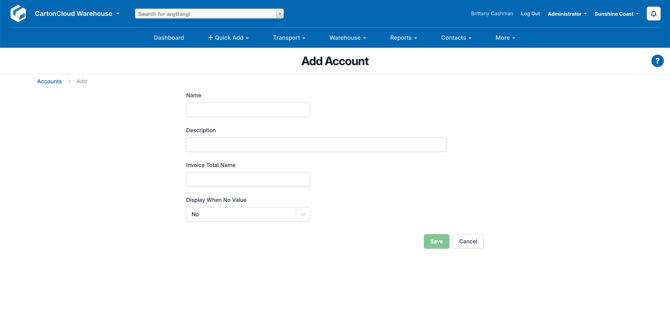
- Click Save.
2 - Map a Fee Category to an Account in CartonCloud
-
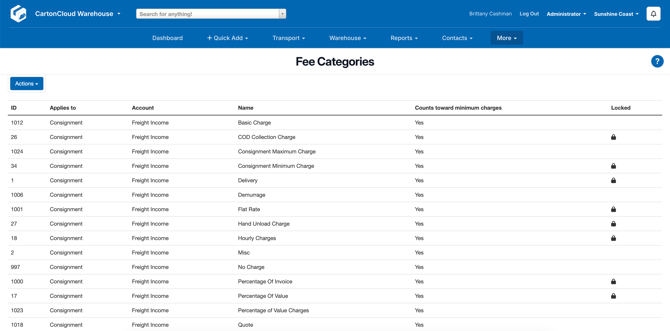
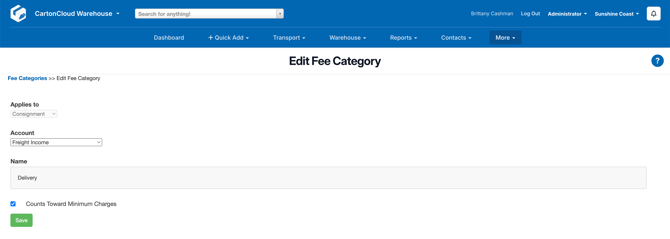
Navigate to the Fee Category page by typing Fee Category into the Search for anything bar.
-
Select the Fee Category you wish to map. Or alternatively, you can create a Fee Category following the instructions here - Fee Categories.
-
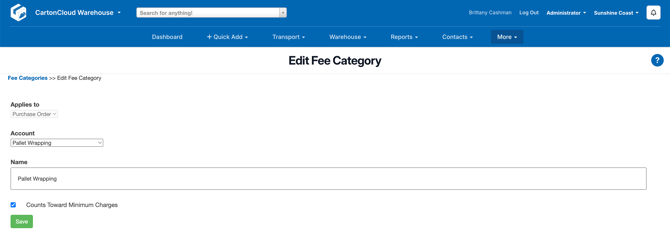
From the Account drop down, select the Account you wish to associate with the charge.
-
Click Save.
-
The related charges will now appear under the assigned Account.
3 - Map the Account in CartonCloud to the General Ledger Code for the Accounting Connector
Expand for more...The Account can be mapped to the Accounting Connector’s General Ledger Codes from the Organisation or Customer Settings. Mappings created at the Organisation Settings level will be the default for each customer and can then be adjusted at the Customer Settings level if customer specific mapping is required.
-
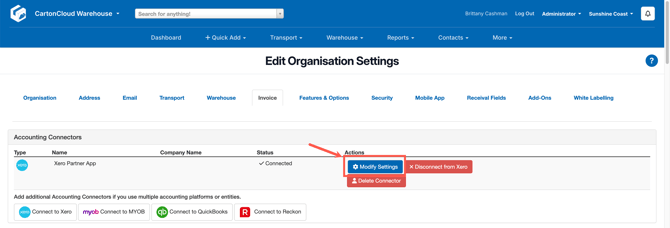
Navigate to the Organisation Settings, More > Organisation Settings.
-
Select the Invoice tab.
-
For the connected Accounting Connector, select Modify Settings.
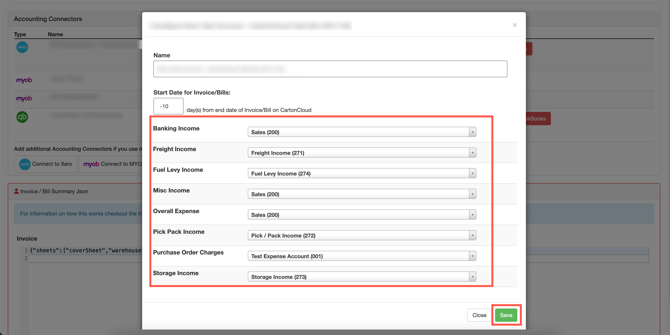
- Match the CartonCloud Account to the respective GL code from the Account Connector.
- Click Save.
Examples
Adhoc Charges
Using Custom General Ledger Mapping you can split specific Adhoc Charges to different GL codes outside of the standard Pick Pack Income Account. For example, if you would like to seperate out Container Pack/Unpack or Pallet Wrapping. In the below examples, they are examples only and the names of the charges, Accounts and
Pallet Wrapping
- If you have not yet already created a Pallet Wrapping Adhoc Charge, do so following the process here - Adhoc Charge Setup.
- Create an Account (following Step 1) and call it Pallet Wrapping.
- If you have not yet already created a Pallet Wrapping Fee Category, do so following the process here - Fee Categories.
- Map the Fee Category to the Account (following Step 2).
- Map the Pallet Wrapping Account to the General Ledger Code for the Accounting Connector (following Step 3).