
Table of Contents
Purpose
To create a Wave Pick for a Run Sheet.
Alternatively, you can create a Wave Pick by the Customer. See Creating a Wave Pick for a single Customer for more information.
To create a Wave Pick the Sale Orders you wish to use in the Wave Pick must be set to the "Awaiting Pick and Pack" Status. Those Sale Orders must also have consignments generated from them and those consignments must be already allocated to the Run Sheet you intend to include in the Wave Pick.
How to create a Wave Pick for a Run Sheet
-
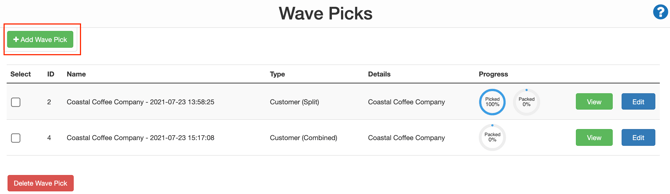
Navigate to the Wave Picks page by selecting Warehouse>Wave Picks.
-
Select the green +Add Wave Pick button from the top left corner.
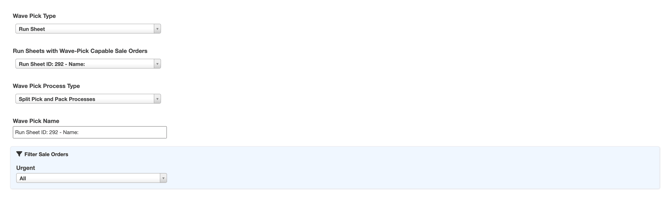
- Select a Wave Pick Templates from the Prefill Settings drop-down menu or alternatively create a Wave Pick not using an existing template.
- Select Run Sheet from the Wave Pick Type drop-down menu.
- Select the Run Sheet you wish to create the Wave Pick for from the Run Sheets with Wave-Pick Capable Sale Order drop-down menu.
Note, for a Run Sheet to appear in this drop-down option, the Run Sheet will need to have Sale Orders associated with it that are in 'Awaiting Pick and Pack' status
-
Select the Wave Pick Process Type from the Wave Pick Process Type drop-down menu.
See Wave Pick Process Types for more information regarding the different Process Types and which will be best for your operations.
-
If you wish to change the auto-generated name, then you can do so in the Wave Pick Name field.
- Select if you wish to filter the available Sale Order list by if the order is urgent or not.
-
Select the Sale Orders you wish to include in the Wave Pick by ticking the Select box in the far left column.
-
Once all relevant orders are selected, click Begin Wave Pick.
Note, when Sale Orders are added to a Wave Pick, their status is automatically updated to 'Packing in Progress'
How to complete a Wave Pick
Once you have created the Wave, Pick you then have two options for completing the Wave Pick. You can either complete the Wave Pick;
-
On the mobile app
-
On the web app
-
On the web app using paper
Completing the Wave Pick on the mobile app
For instructions on completing the wave pick through the mobile app, see Scan Wave Picking.
Completing the Wave Pick on the web app
When completing the Wave Pick on the web app, you can either pick per-product or per-order. 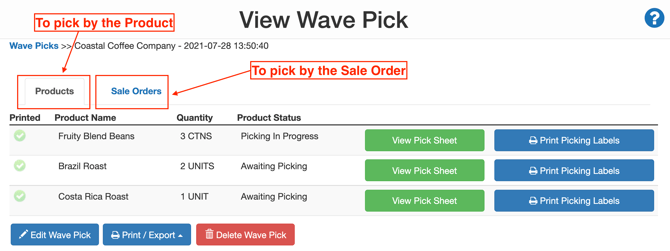
Picking Per-Product on the Web App
-
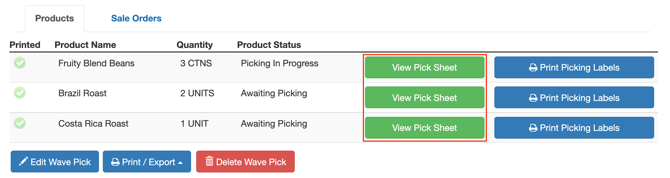
Select View Pick Sheet next to each product.
-
Pick the required quantities. As the stock is picked, enter the quantity and select the Completed box.
-
Select the green Complete Picking button.
-
The Product Status will inform you if the picking has been completed or not.
Picking Per-Order on the Web App
-
Select the blue Pack Sale Order button next to each Sale Order.
-
Picking per order uses the same interface as regular, non-wave picking.
-
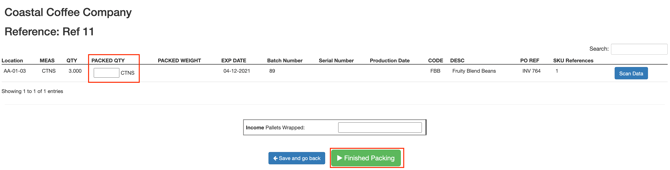
Enter the PACKED QTY.
-
Select the green Finished Packing button.
-
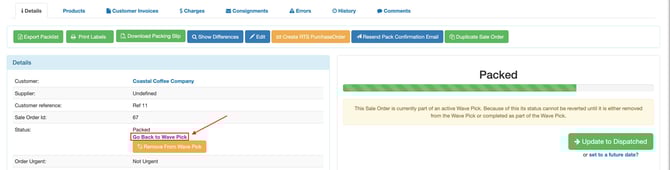
You will be directed to the Sale Order/Consignment Screen. To go back to the Wave Pick from the Sale Order, select Go Back to Wave Pick.
Completing a Wave Pick on the Web App
-
Once all products/orders have been picked, select the green Complete Wave Pick button on the bottom of the screen.

-
This will update the status of all orders to 'Pack' and delete the Wave Pick.
To complete a Wave Pick using paper
-
Select the blue Print/Export button at the bottom of the screen.
-
Select Export Bulk Pick List.

-
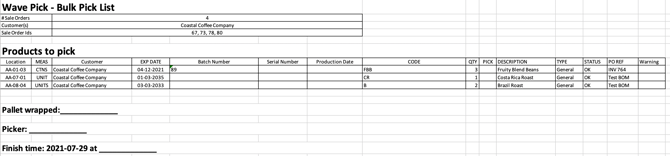
Open the downloaded XSL file (example of the file below).
-
Complete picks using the paper to mark off products as they are picked.
-
To complete the packing process, select the blue Print/Export button at the bottom of the screen and click Export Individual Pick Lists.

Even if using paper to complete the Wave Pick, you will need to complete the Wave Pick on the web app. See Completing the Wave Pick on the web app for more information.