
Table of Contents
Purpose
Consignments in CartonCloud are Transport jobs. You have the ability to add Consignments through your CartonCloud login or via a Parser.
How to create a Consignment in CartonCloud
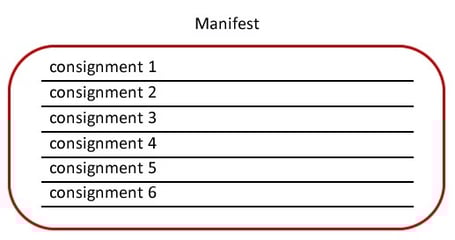
When you create a Consignment in CartonCloud you have the option to add the Consignment to a Manifest. A Manifest is a list of all Consignments your CartonCloud account owner/transport company will be delivering on your behalf. Once you have created all of your Consignments you will then need to finalize the Manifest which makes the Manifest and the related Consignments available to your transport company for work. You also have the option to create individual Consignments that are not a Manifest and approve them individually. Each workflow is stepped out below
Creating a Consignment on a Manifest
- Navigate to Transport > Consignments.
- Click +Add Consignment.
- Select the Consignment Type.
- Type in the customer references (this is how you will reference and identify the order)
- The Custom Fields that are set up for Consignments will appear here. Fill in the appropriate fields.
- Select if the Consignment needs to be picked up or not, next search for the pickup address and select the correct address. If the address is not listed, select +Add New Pickup Address.
- Search for and select the Delivery Address. If the address is not listed, select +Add New Address.
- Enter the Invoice Value if required.
- Click the drop down arrow against Advanced Options.
- Click Add to Existing Manifest or Create a new Manifest.

- Fill in any other applicable fields if required.
- Click +Add Consignment Items.
- Enter the Consignment Items by selecting the item from the code drop-down menu.
- Enter the quantity.
- Select Save.
- Select the blue plus icon if you wish to add another Consignment Item.
- Select the Details tab, and you will see all relevant information for the Consignment.
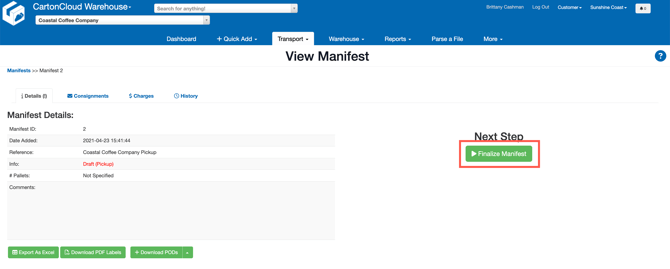
- You will then need to Finalize the Manifest once all Consignments have been added to the Manifest and all changes and edits have been made to the associated Consignments.
- To Finalize the Manifest, navigate to the Manifests page by clicking Transport > Manifests.
- Select the Draft tab and you will see all Manifests that are not yet approved.
- Click View against the Manifest and click Finalize Manifest.

Creating a Consignment not on a Manifest
- Navigate to Transport > Consignments.
- Click +Add Consignment.
- Select the Consignment Type.
- Type in the customer references (this is how you will reference and identify the order)
- The Custom Fields that are set up for Consignments will appear here. Fill in the appropriate fields.
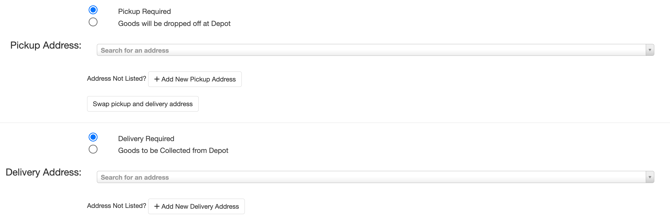
- Select if the Consignment needs to be picked up or not, next search for the pickup address and select the correct address. If the address is not listed, select +Add New Pickup Address.
- Search for and select the Delivery Address. If the address is not listed, select +Add New Address.
- Enter the Invoice Value if required.
- Click the drop down arrow against Advanced Options.
- Click No Manifest.
- Fill in any other applicable fields that are required.
- Click +Add Consignment Items.
- Enter the Consignment Items by selecting the item from the code drop-down menu.
- Enter the quantity.
- Select Save.
- Select the blue plus icon if you wish to add another Consignment Item.
- Select the Details tab, and you will see all relevant information for the Consignment.

- You will now need to approve the Consignment for it to be available to your CartonCloud account owner/transport company.
- To approve the Consignment, navigate back to the Consignments page. Click on the relevant Consignment.
- You will notice a red banner alerting you that the Consignment is still in a draft status and not yet approved. Click Approve Now.
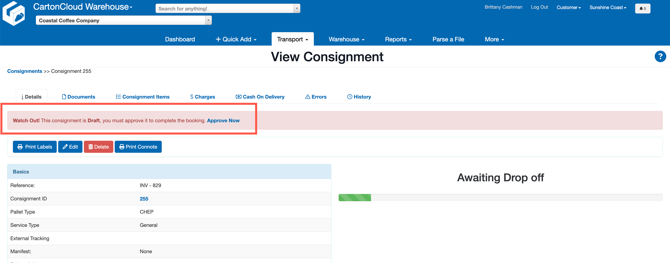
- The Consignment will now be available to your CartonCloud account owner/transport company.