
Table of Contents
- Purpose
- To access the settings
- Sort consignments
- Default sort order
- Sort by proximity
- Filter consignments
- Error consignments
- Address groups
- Completed consignments - show completed jobs
- Split by
Purpose
The CartonCloud app allows you to choose from a number of settings to personalise the way consignments are displayed in the job list.
To access the settings
To access these settings, select the filter button in the navigation bar.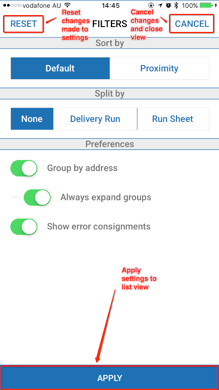
There are several buttons located within the filter view:
-
Reset: reset any changes that have occurred since opening the filter view.
-
Cancel: cancels the filter view display.
-
Apply: applies the current settings and updates the consignment list accordingly.
Sort Consignments
There are two options for sorting consignments within the list view: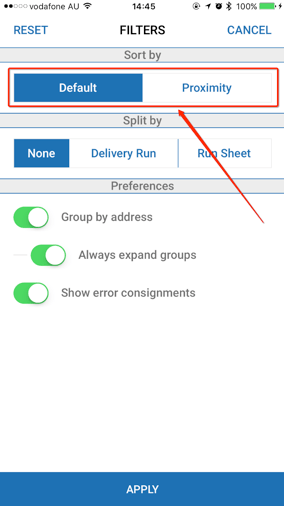
Default Sort Order
This selection defaults to the standard sort order, i.e. the one set in the web app or the one achieved by dragging and dropping consignments or optimizing a route.
Sort By Proximity
On selecting this option, the app will use your current location to sort the consignments by proximity to your current position. For this information to be accurate, you need to be clocked on and have location services enabled.
If the app cannot access a current location, a warning will be displayed informing the user that the last known location is being used. This is due to the last known location potentially being out of date.
Consignment distances to the current (or last known) location are being shown in the list view for each consignment. Current location values are shown in blue, last known (and potentially inaccurate) location values are shown in red.
Filter Consignments
Error Consignments
Using the filter view, you can choose whether or not to display error consignments in the list view.
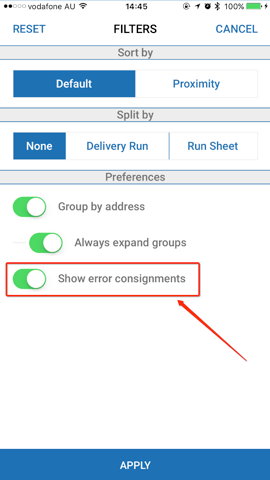
See the example below for a list view showing error consignments vs. the same list view without error consignments being displayed.
Address Groups
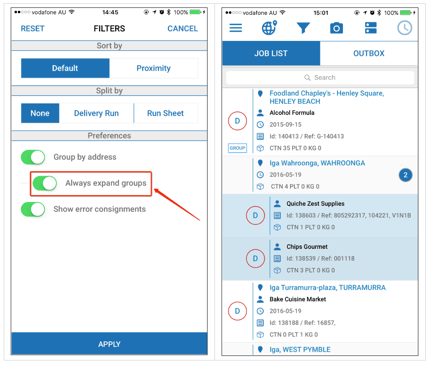
Using the filter view, you can choose whether or not to group consignments by address. ( Stop Consignment Grouping )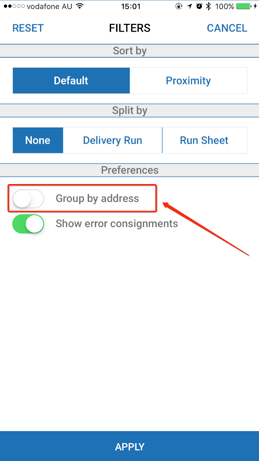
Always Expand Address Groups
Once address grouping has been activated, you are presented with another option - choosing whether or not to always expand address groups. If this is enabled, you will always be able to see the sub-consignments of an address group. If this setting is disabled, the address groups will be initially closed and can be manually opened by selecting the counter button on the right-hand side of the main consignment of the group.
Completed Consignments - Show Completed Jobs
Display Delivered Consignments (won't disappear when has a POD automatically). Using the filter view, you can choose whether or not to display completed consignments in the list view.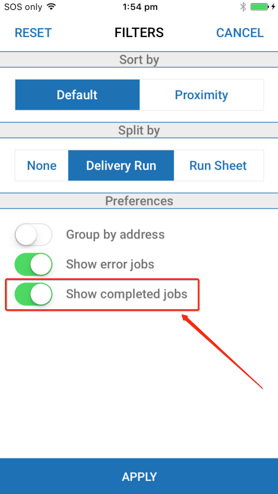
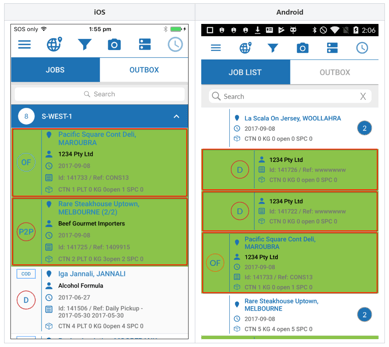
Completed consignments are highlighted in green in the list view and while they can still be selected to see the consignment details, actions that can be performed on them are limited, i.e. no POD can be recorded and no errors lodged. Adhoc Charges can be submitted for completed consignments.
Split By
Delivery Run
Using the filter view you can choose whether to separate the list view by delivery runs.
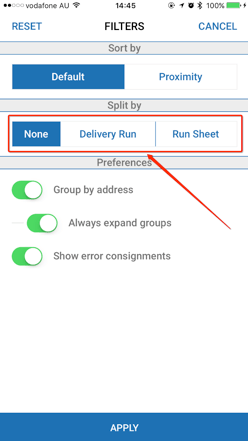
See the examples below for a list showing the consignment list separated and not separated by a delivery run. Please note that within each separate section consignments will still be grouped by address if applicable.
Also, dragging and dropping of consignments is only allowed within the delivery run section they belong to.
Run Sheet
Within the mobile apps, there is an additional option of splitting the consignments into sections by run sheets.
See the examples below for a list showing the consignment list separated by run sheet and not separated by run sheet. Please note that within each separate section consignments will still be grouped by address if applicable.
Also, dragging and dropping of consignments is only allowed within the delivery run section they belong to.