Table of Contents
Purpose
Since Sale Orders deduct stock from Purchase Orders, the packed / dispatch dates of the Sale Order can affect your storage charges. For this reason, you’re able to modify the Sale Order dispatched/packed date so you can modify storage charging.
These changes may cause errors. These errors are covered here.
How to steps
- Navigate to the Sale Orders page, Warehouse > Sale Orders.
- Select the relevant Sale Order.
- Scroll down and expand the Specifics section.
- Select Change against the Date Packed field.
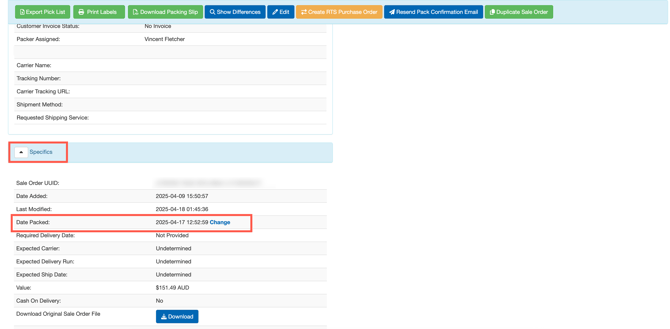
- Update the Date Packed and click Update.
Impact on storage
Depending on the Customer Setting - Deplete Purchase Order Product , which determines when you stop charging storage on stock, will dictate the impact of updating the Date Packed or Date Dispatched.
The Change link with the exclamation mark next to the date information indicates which date will impact storage. 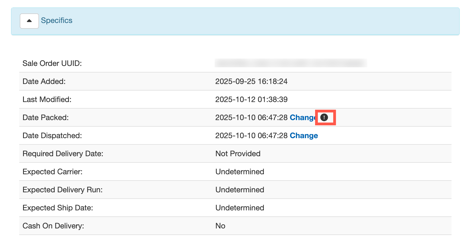
Change Limitations
Changing the date may result in an error for the below reasons;
- The Date Packed must always be less than Date Dispatched.
- The Date Packed or Date Dispatched cannot be less than the date of the most recent product movement of the selected product.
- The Date Packed or Date Dispatched cannot be less than the date the Purchase Order that the stock arrived on is set to.
To check the Purchase Order Date and/or the most recent Move Date:
- Navigate to the relevant Sale Order.
- Select the Products tab.
- Select Edit against the product lines.
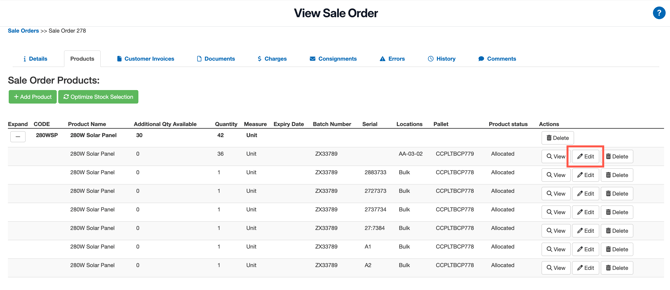
- Select the POP_ID.
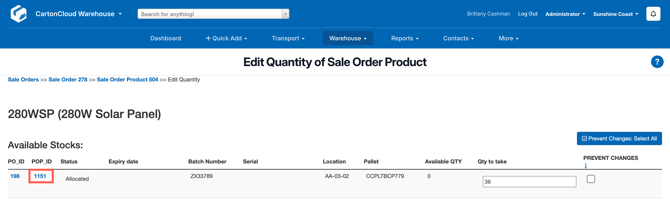
- Expand the Specifics heading.
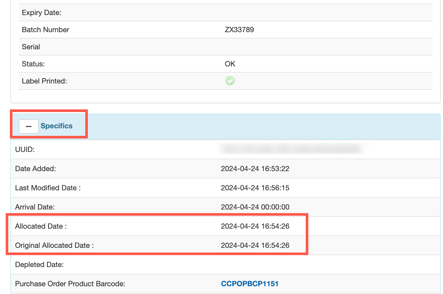
- Original Allocated Date = Purchase Order Date
- Allocated Date = Most Recent Move Date