
Table of Contents
Purpose
To import Users in bulk. How to import users in bulk
-
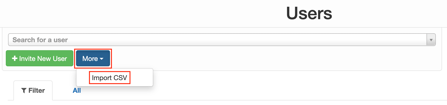
Navigate to the Users page, Contacts>Users.
-
Select More and then Import CSV.
-
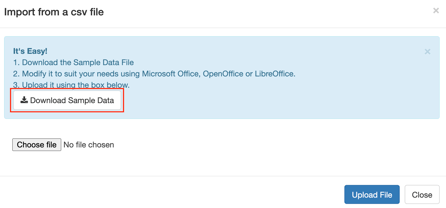
Select Download Sample Data.
-
Open the downloaded file and edit accordingly using the below table as a guide.
Column Header
Description
Detail
Name
User Name
Email
User Email Address
Create
Create User Now
Yes
No
Password
User Password
Roles
Roles - if assigning more than one role then separate each with a semi-colon.
Administrator;Packer;Customer;Data Entry;Onforwarder; Driver
Customers
If creating a 'Customer' type user you need to type the relevant Customer Name in. Note, these are the Customers to which the User will have access. If assigning more than one role then separate each with a semi-colon.
Where User is of type 'Customer'
Warehouses
The warehouses the user will have access to. If assigning more than one role then separate each with a semi-colon.
-
Save the file.
-
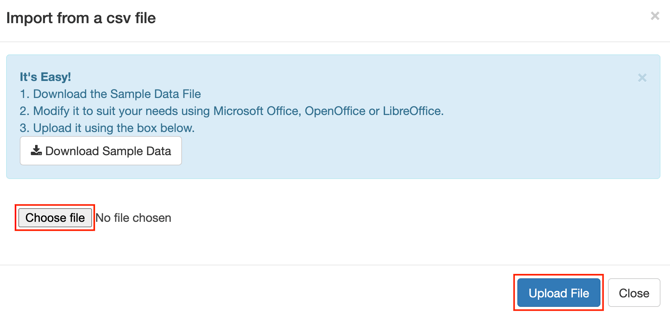
Navigate back to CartonCloud and select Choose file.
-
Select the relevant file.
-
Click Upload File.
-
A success message will appear. If you selected Yes for Create User Now you will see their password on this page. Ensure you select the Download List of Generated Passwords option.

If you need to hide charging information from the created Users you will need to manually select each newly created user and enable this setting.