Table of Contents
Purpose
The Bulk Charges Report allows Administrator users (who can view charging information) to create and export reports containing charging data for a specified date range, entity (Sale Order, Purchase Order, Storage Period and/or Consignment) and for selected customers. The Bulk Charges Report is designed to allow for more granular analysis of charges, facilitating better financial oversight and decision making. In addition, the report can be run via the API. See here for more information.
How to run the report
Note: data from all warehouses will be included in the export and the report limit is 20,000 rows.
Note: only charges that have been generated against an order will show on the report. If the charges against an order haven't yet been generated they will not appear on the report.
-
Click Reports > Bulk Export Charges.
-
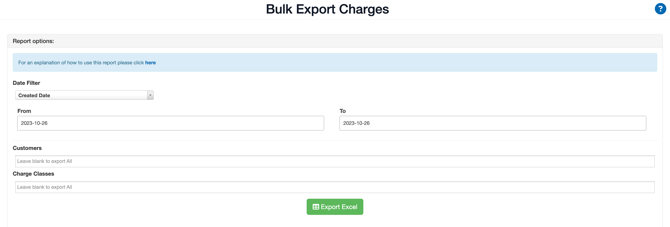
Select a Date Filter. Select to filter the report by either the Created Date, Invoice Date or Activity Date of the related entity to the charge.
-
Created Date: Works off the Sale Order/Purchase Order/Consignment/Storage Period created date.
-
Invoice Date: Works off the invoice start/end dates and will also include invoices that overlap the supplied date range.
-
Activity Date: Works off the date an activity took place, which includes:
-
Sale Order: The date the order was packed.
-
Consignments: The date the Consignment was delivered.
-
Purchase Order: The date the Purchase Order was allocated.
-
Run Sheet: The delivery date for the Run Sheet.
-
Manifests: The date the Manifest was added.
-
-
-
Select a From and To date. This date and time is respective to your local time zone.
-
Select the Customers you wish to include in the Report (only active customers will be visible here) or leave blank to export all.
-
Select the Applies to you wish to include in the report or leave blank to export all. You can choose Consignment, Manifest, Sale Order, Purchase Order, Storage Period or Run Sheet.
-
Click Export Excel.
-
Download the report from the notification bar in the top right corner.
Note: Any charges linked to a Voided Invoice will not be included in the report.
Columns of the report
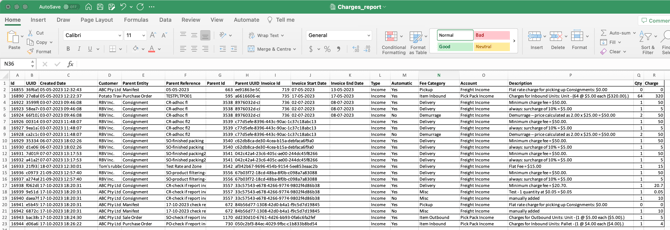
| Column heading | Description |
| Id | Id of the charge |
| UUID | UUID of the charge |
| Created Date | Date the related entity was created |
| Customer | The Customer the charge relates to |
| Parent Entity | The related entity, for example, Sale Order |
| Parent Reference | The reference for the related entity |
| Parent Id |
Id of the related entity |
| Parent UUID | UUID of the related entity |
| Invoice Id | Invoice Id of the invoice related to the charge |
| Invoice Internal Reference | The CartonCloud internal invoice reference, e.g W.E 11/02/25 (CartonCloud: 4775) |
| Invoice External Reference | The CartonCloud external invoice reference, e.g INV-4372 |
| Invoice Start Date | Invoice start date of the related invoice to the charge |
| Invoice End Date | Invoice end date of the related invoice to the charge |
| Type | The type of charge |
| Automatic | If the charge is applied automatically |
| Fee Category | Fee category of the charge |
| Account | The account the charge sits on in terms of the invoice |
| Description | Description of the charge |
| Qty |
The number of times the Ad-Hoc Charge or Item Charge is applied to the related order. The number of pallets being charges for per pallet qty storage charges |
| Charge | The charge amount |
| Warehouse Name | What Warehouse the charge relates to |
| Activity Date | If the report is run by Activity Date, the date the activity occurred |
| Fuel Levy Amount | The total fuel levy charge applied to the line item. This value represents the calculated fuel surcharge included in the charge. |
| Fuel % | The percentage rate used to calculate the fuel levy for the charge |
Example report