
Table of Contents
Purpose
Bill of Materials (BOM) in CartonCloud is a combination of Products that make up one Product. Bill of Materials can also be referred to as kitting. Kitting (in warehouse terms) is used to combine multiple products into a single unit that is then sold to end customers. For example, products that result from kitting include hampers, gift packages, subscription boxes and bundles.
Bill of Materials facilitate the Product building process and allow you to track stock for the resulting Product.
Use Cases
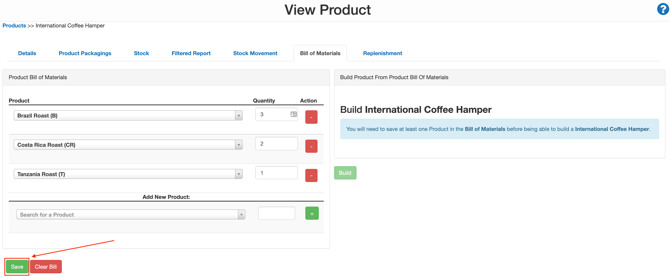
For example, if your Customer is a coffee company they may sell an International Coffee Hamper to their customers. This hamper contains 3 x bags of beans from Brazil, 2 x bags from Costa Rica and 1 x bag from Tanzania. Each of these bags of coffee would be set up as their own individual Product in CartonCloud.
By creating a Bill of Materials, you can combine these Products to create the International Coffee Hamper Product. This means that when a new order is received containing the International Coffee Hamper Product, CartonCloud will inform the picker of what individual products will need to be included to create the final Bill of Materials Product (the International Coffee Hamper).
How To Steps
If you are creating multiple Bill of Materials and have already created the Products needed for the Bill of Materials you can use the export and import feature to create your new Bill of Materials. See the Exporting and Importing Bill of Materials page for more information.
To create a Bill of Material, you will need to:
1. Create a new Product for the Bill of Material Product
-
Create a new Product for the Bill of Material product. This will be the final Product that is a combination of existing Products. In the example scenario, this would be a Product called 'International Coffee Hamper'.
-
Please see the Add a Product page for steps on how to create a new Product.
2. Add Products to the Bill of Material
-
Navigate to the Product, Warehouse>Products and select the relevant Product.
-
Select the Bill of Materials tab.
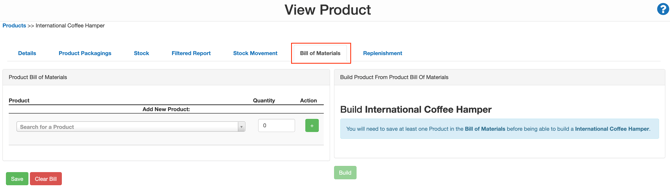
- In the Product Bill of Materials window, you can add the Products that make up the Product you are viewing.
-
Search for the Product in the Search for a Product bar, enter the quantity in the Quantity box and then click the green + button to add the Product.
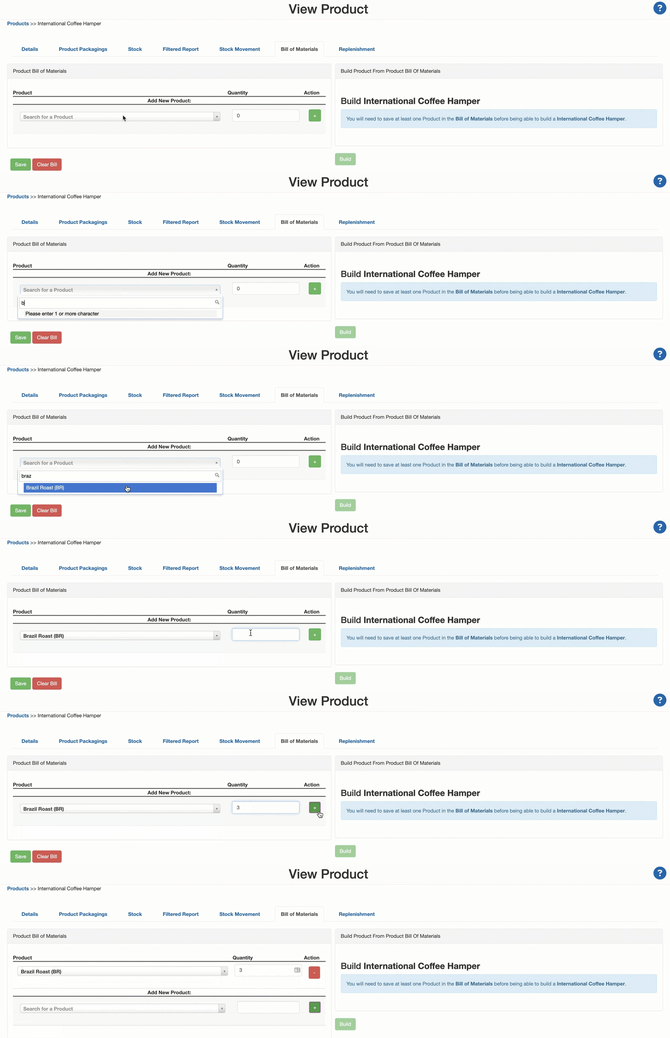
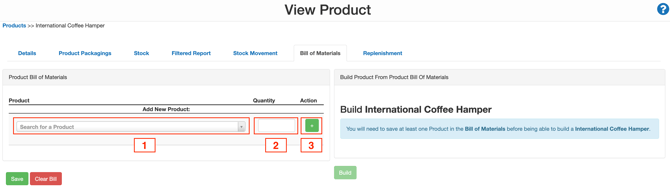
- Repeat the above step until all Products which make up the end Product have been added.
- Click Save.
3. Build Bill of Materials stock OR use existing individual product stock
Once you have created the Bill of Materials there are two options for how you pick the stock. You can either;
(a) pick from the existing individual product stock (this option is only available if you are importing Sale Orders not manually creating them in CartonCloud, however, there is a work around if adding the order manually. See here for more details) or;
(b) build Bill of Materials stock and only pick from that available stock (if you choose this option you will need to physically bundle the stock before picking otherwise your pickers will not know what products are associated with the BOM as CartonCloud will not list them when picking).
It is recommended that you pick from the existing individual product stock as this prevents you from having to manually build the BOM stock in CartonCloud and avoids the risk of stock shortages. You can only choose this option if you are importing Sale Orders not manually creating them in CartonCloud.
To pick from the existing individual product stock
Note: this option is only available if you are importing Sale Orders not manually creating them in CartonCloud.
When a Sale Order is received containing BOM products, by default, CartonCloud will only assign BOM stock to fulfil the order and not look at the individual product stock. This workflow relies on the fact that you are physically building your Bill of Materials and then replicating this in CartonCloud by creating Bill of Materials stock. If you do not wish to follow this workflow and would rather build the Bill of Materials as you are picking (pick individual products to then create the Bill of Materials product) you will need to change the Product and/or Customer Settings.
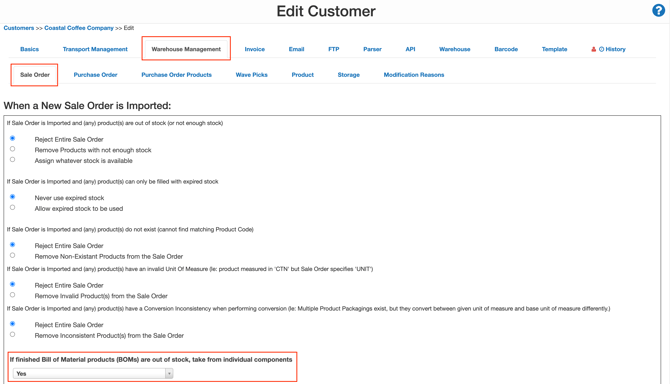
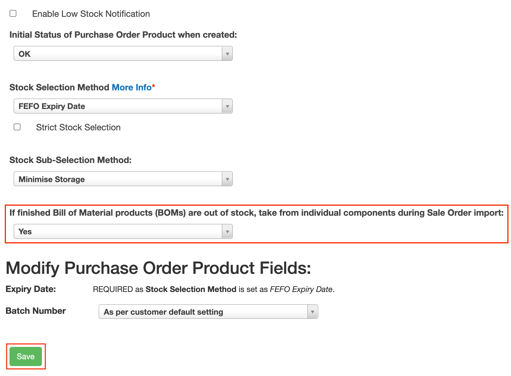
This setting is called If finished Bill of Material Products (BOMs) are out of stock, take from individual components and can be configured from either the Customer or Product settings.
Customer Setting
This setting will apply to all Products belonging to that Customer. If you want to change each product's settings individually, you will need to configure this at the Product settings.
To allow BOM products for a customer to be built during Sale Order import:
-
Navigate to the Customers page, Contacts>Customers.
-
Select the relevant Customer.
-
Select the blue Edit button towards the bottom left of the page.
-
Select the Warehouse Management tab and then the Sale Order sub-tab.
-
Scroll down to the setting If finished Bill of Material products (BOMs) are out of stock, take from individual components.
-
Select Yes from the drop-down menu.
-
Scroll to the bottom of the page and select Save.
-
Imported Sale Orders for that Customer will now take individual products to build a Bill of Materials Product when required.
Product Setting
This setting will only apply to the particular Product. By default, the Product setting will use the Customer setting; however, this setting will be overridden if the Product setting is changed.
To allow specific BOM products to be built during Sale Order import:
-
Navigate to the Products page, Warehouses>Products.
-
Select the relevant Product.
-
Select the green Edit button in the top left of the page.
-
Scroll down towards the bottom of the page until you see the setting If finished Bill of Material products (BOMs) are out of stock, take from individual components during Sale Order import.
-
Change the setting to Yes from the drop-down menu.
-
Select Save.
-
Imported Sale Orders containing the Bill of Materials Product will now take individual products to build that BOM product if required.
To build Bill of Materials stock
Note: Note, if you are choosing to pick Bill of Materials stock you will need to physically bundle the stock before picking otherwise your pickers will not know what products are associated with the BOM as CartonCloud will not list them when picking.
-
Within the Build Product From Product Bill Of Materials window, enter the number of products you wish to generate from the Bill of Materials in the Quantity To Create window.
-
When you enter a quantity in the Quantity to Create window, the Available, Used and Remaining columns will update.
-
Click the green Build button.
What is available, used and remaining stock?
-
Available - The available stock based on the Minimum Purchase Order Product Status in the Warehouse Management tab of the Customer settings for the Customer that the Product belongs to
-
Used - Quantity To Create multiplied by the ratio that makes up that product (which can be seen under the "One" column).
-
Remaining - Available stock minus the used stock
Note: You must create stock for the Bill of Materials Product; otherwise, when a Sale Order is generated containing the Bill of Materials Product, there will be no stock to add to the Sale Order. However, the exception to this is if the Sale Order is created using the import feature and the correct Customer and Product settings are configured, then CartonCloud will take stock from the individual Products if the Bill of Materials Product stock is depleted. Please see the Settings section of this article for more information. 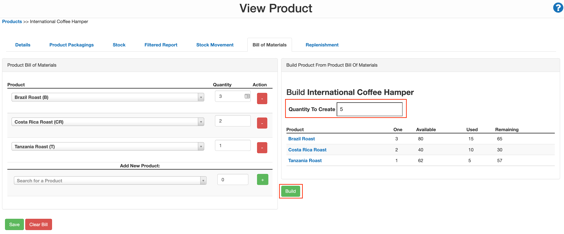
CartonCloud will automatically create a corresponding Purchase Order and Sale Order in the system as a reference for the activity when you create a build. Creating the Sale Order will ensure the stock is not available for new Sale Orders that come through containing the Bill of Materials Product. In addition, creating the Purchase Order will allow you to allocate the stock to its own Warehouse Location. This stock will then be available for picking when required (when a new Sale Order containing the Bill of Materials Product is received).
-
A pop-out window will appear, prompting you to enter a reference for the build and asking if you wish to make the Purchase Order and Sale Order records generated from this build as "adjustments". If you mark them as 'adjustments', then they will not charge the Customer.
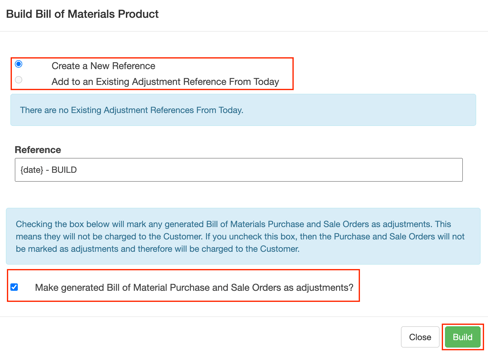
If you wish to add additional Product quantities to an existing build and the resulting Purchase Order and Sale Order, you can do so by repeating the above build process. However, at the end, when the pop-out window appears, select Add to an Existing Adjustment Reference From Today (provided it is the same day).
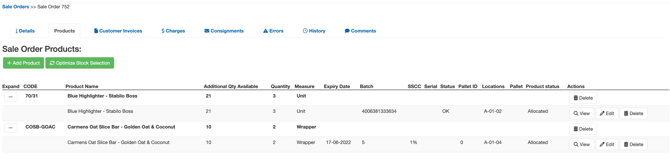
Manually add BOM products to a Sale Order (that haven't been built)
- From the new Sale Order you have created, click Add Products.
- Search for the BOM you are wanting to add to the order.
- Type in the quantity in QTY field.
- Click Search.
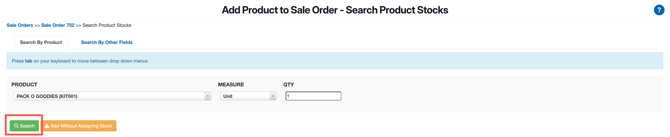
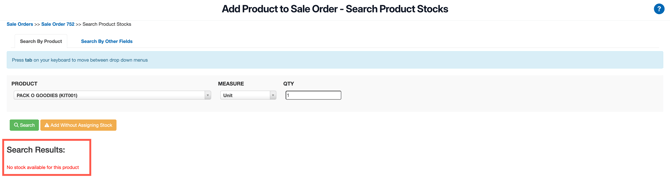
- See that there is no stock available as no BOM products have been pre-built in CartonCloud.
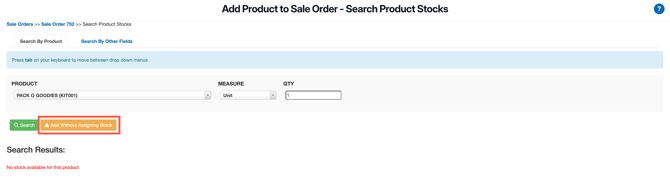
- Click Add Without Assigning Stock.
- Click Auto Assign All Unassigned Stock.
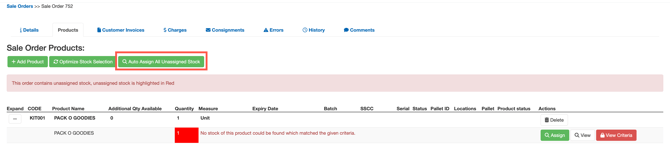
- See that the child products of the BOM product have been added to the order.
Update a Bill of Materials
You can change the Products or quantities that make up the Bill of Materials at any time.
Updating the Bill of Materials will not affect historical data related to past builds of that Product. For example, if the hamper contains 3 x bags of Brazilian coffee but now only contains 2, the previous adjustment Sale Orders (created from the build) will not change.
If you are updating multiple Bill of Materials you can do so using the export and import function. See the Exporting and Importing Bill of Materials page for more information.
To delete an existing product:
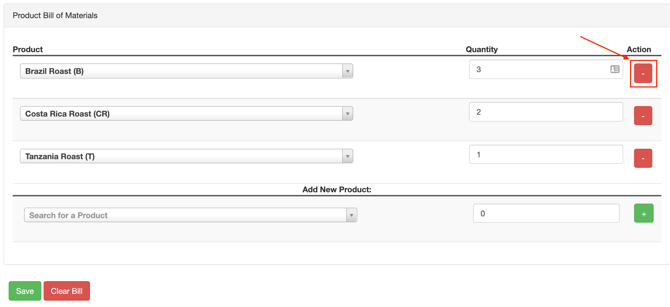
- Select the red minus button.
-
Once changes have been made, select Save.
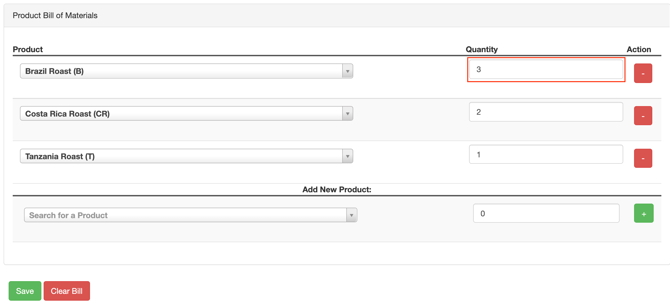
To update the quantity of a Product:
-
Enter a new number in the Quantity field.
-
Once changes have been made, select Save.
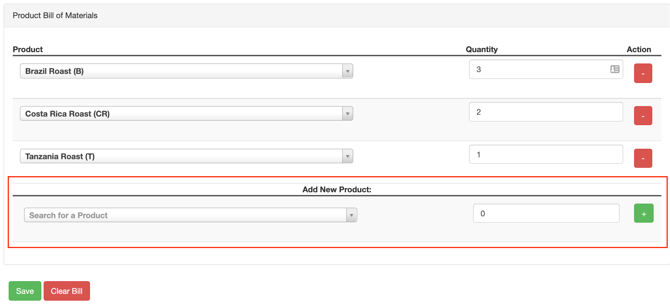
To add a new Product:
-
Use the Search for a Product bar, enter the quantity in the Quantity field and select the green + button.
To clear a Bill of Material:
-
Select the red Clear Bill button at the bottom of the screen.
-
A browser prompt will appear to check that you are sure as this cannot be undone.