Table of Contents
- Purpose
- Workflow
- How to set up banking sheets
- How to create a banking sheet
- Using a banking sheet
- Edit banking sheet
- Update status
- Export banking sheet
- Exporting banking sheets in bulk
Purpose
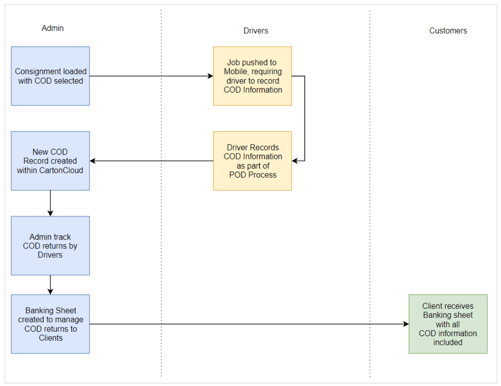
Banking Sheets allow you to aggregate Cash on Delivery's (COD) together for banking purposes.
Workflow
How to set up banking sheets
To utilise Banking Sheets, you need to be using Cash on Delivery (COD). This needs to be enabled in your Customer's Settings. Click here for more information. How to create a Banking Sheet
-
Navigate to the Banking Sheet page by typing in Banking Sheet to the Search for anything bar.
-
Select Actions>Add Banking Sheet.

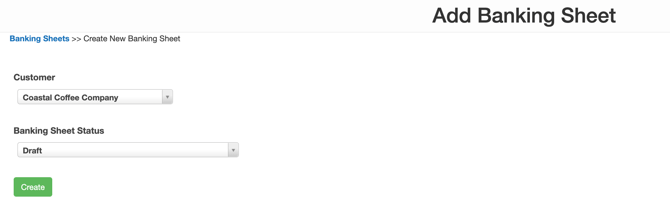
- Select the Customer and the Status of the Banking Sheet from the drop-down menu.
-
Click Create.
-
Select the Cash On Deliveries tab.
-
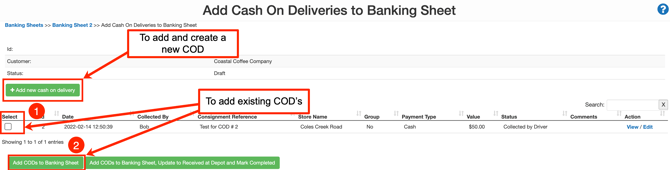
Click +Add CODs to Banking Sheet.

- Select the COD's you wish to add to the Banking Sheet by ticking the Select box.
-
Once all COD's have been selected, click Add CODs to Banking Sheet or Add CODs to Banking Sheet, Update to Received at Depot and Mark Completed.
-
Or, if you would like to create a new COD, select +Add new cash on delivery.
Using a Banking Sheet
Once you have created your Banking Sheet you can use the View Banking Sheet Screen. 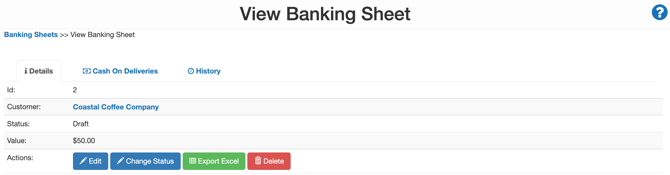
Edit Banking Sheet
-
Select Edit to edit the Banking Sheet.
Update Status
-
Select Change Status.
-
Select Update to Banked or Update to Returned to Customer, depending on what status you wish to update it to.

Export Banking Sheet
-
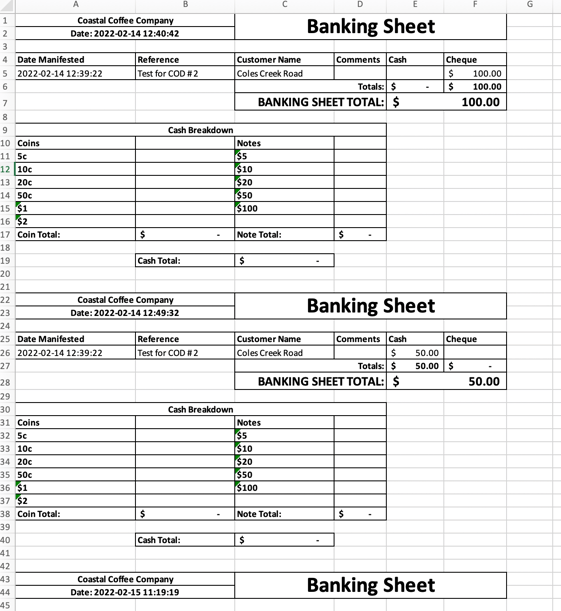
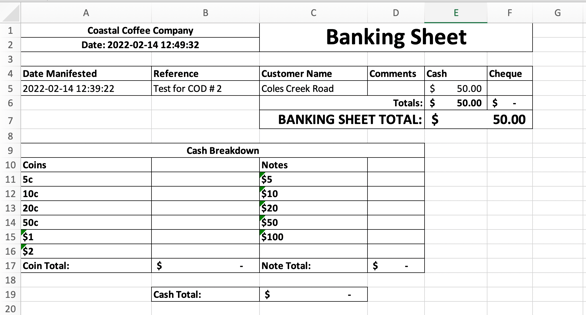
Select Export Excel.
-
Open the downloaded file.
Exporting Banking Sheets in Bulk
-
Navigate to the Banking Sheets page by typing in Banking Sheets to the Search for anything.
-
Select the Banking Sheets you wish to export using the tick select box.
-
Select Export Banking Sheets.
-
Open the downloaded file. All Banking Sheets will appear on the one page.