
Table of Contents
- Purpose
- How to associate the Rate Card with the Income Zone Set
- How to change the Income Zone Set associated with the Rate Card
Purpose
Please note that if your CartonCloud account was created prior to 1 July 2019 the below functionality may not be available at this stage. If you would like to discuss migrating to the newer version of the CartonCloud TMS, please use CartonCloud Help and lodge a case with our Service Desk.
Once the Income Zone Set has been created, you will then need to associate it with the applicable Rate Card. By associating the Zone Set with a Rate Card, CartonCloud will know what rates to apply when automatically calculating consignment charges.
You will not be able to create Transport Rates until you have associated the Rate Card with the appropriate Income Zone Set.
Note, once you have associated a Zone Set with a Rate Card you can not change the Zone Set unless there are no Transport Rates associated with the Rate Card. See How to change the Zone Set associated with the Rate Card for more information.
How to associate the Rate Card with the Income Zone Set
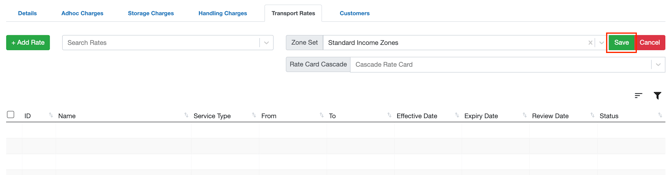
- Within the Rate Card page (use the 'Search for anything' bar at the top of the application to navigate to the Rate Card page), select the Rate Card you would like to associate an Income Zone Set to.
- Click the Transport Rates tab within the Rate Card.
- You will then be prompted to select the appropriate Income Zone Set from the drop-down menu.
- Click Save.
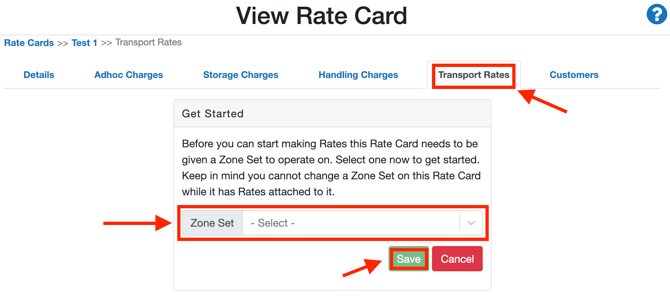
You can use different Income Zone Sets for each Rate Card, meaning you can use different Income Zone Sets for different customers. You can also use the same Income Zone Set for each Rate Card.
How to change the Income Zone Set associated with the Rate Card
To change the Zone Set associated with the Rate Card there must be no Transport Rates associated with the Rate Card.
To change the Zone Set associated with the Rate Card:
- Navigate to the Rate Card you wish to change the Zone Set for.
- Select the Transport Rates tab.
- If there are Transport Rates associated with the Rate Card:
- The Zone Set bar will be blocked out and you will not be able to edit it.
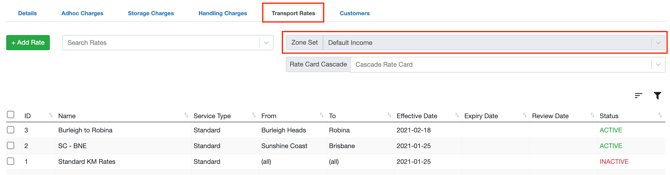
- To be able to edit the Zone Set bar, all Transport Rates associated with that Rate Card will need to be deleted.
- To delete the Transport Rates, select the heading tick box in the left corner.
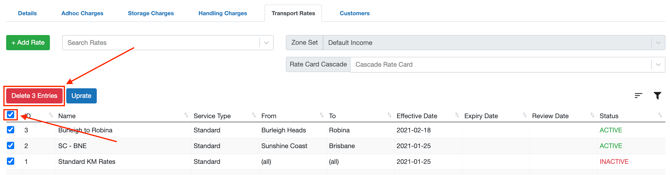
-
- Select Delete Entries.
- You will now be able to edit the Zone Set bar and select the relevant Zone Set from the drop-down menu.
- If there are no Transport Rates associated with the Rate Card:
- The Zone Set will not be blocked and you will be able to select the relevant Zone Set from the drop-down menu.
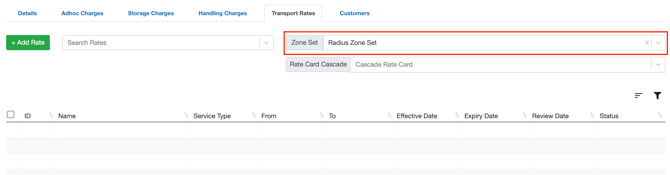
- Select the relevant Zone Set from the drop-down menu and select Save.
Next Step: Setting up Transport Rates