
Table of Contents
Purpose
By assigning an associated Product Type to a Warehouse Location you can mark that location to only store specific stock, for example, Frozen, Quarantine or Dangerous Goods.
For a further explanation about Product types please see the article Setting up Product Types.
Editing a single location
- Navigate to Warehouse > Warehouse Locations.
- Select the location you wish to change the Product type for.
- Click Edit.
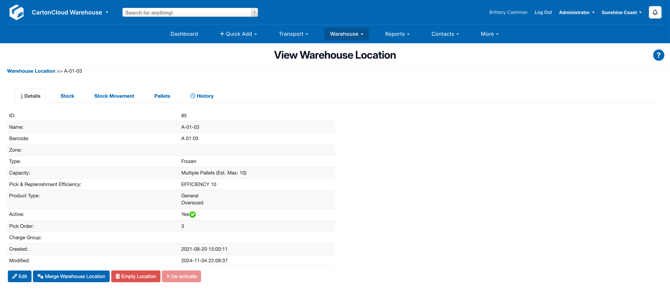
- Scroll down to Warehouse Location Product Type.
- Select the Product Type you want to enable for this location. Keep in mind that a location can store multiple Product Types.
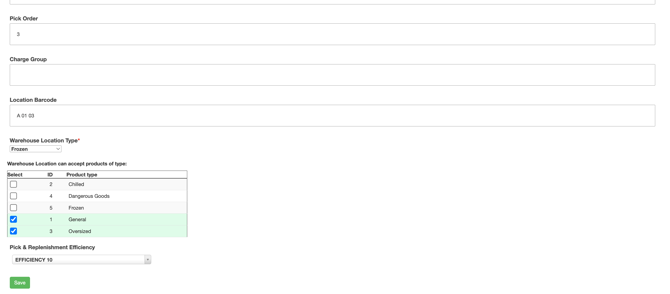
- Select Save.
Editing multiple locations in Bulk
If you want to update the Product type of many Warehouse Locations at once then this can be done quickly through the Edit Warehouse Locations in Bulk feature.
- Navigate to Warehouse > Warehouse Locations.
- Next, select the More button and then select Edit Warehouse Locations in Bulk from the drop-down menu.
- Now either use Filters to find the Warehouse Locations you wish to change then select Search, or immediately select Search to bring up a list of all locations (which will likely be separated over many pages).
- Select the Warehouse Locations you wish to edit, then select Bulk Edit.
- In the Edit Location pop up. Tick the Change Product type box, then select which Product Types you would like to apply to the Location.
- Select Save.