
Table of Contents
Purpose
To assign Consignment Invoices, POD's and Sale Orders to the relevant Consignment/Sale Order in CartonCloud.
Documents can be added to CartonCloud through a variety of sources, such as email, scanned documents or uploaded manually. In some cases, the documents may not be attached directly to the Consignment or Sale Order and in that case, you will need to assign the documents to the correct Sale Order/Consignment.
How to assign documents to the consignment/sale order
You can view the documents that need assigning from the Dashboard or the Documents page.
From the Dashboard
-
Navigate to the Dashboard.
-
Scroll down to the Notifications widget.
-
Select the blue number against Unassigned Consignment Customer Invoices or Unassigned Sale Order Customer Invoices.
-
This will take you through to the unassigned documents.
-
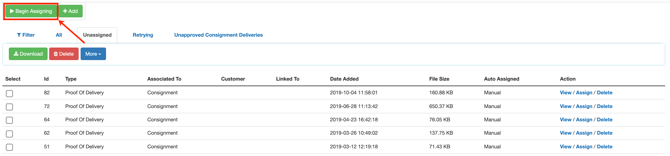
Click the Begin Assigning button.
-
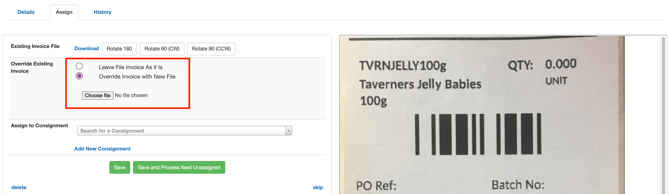
Select Leave File Invoices as it is (if you want to keep the existing file) or Override Invoice with New File (if you wish to replace the file). If you override the file you will need to upload a new file by clicking Choose file.
-
Search for a Consignment to assign it to or click Add New Consignment to create a new Consignment.

-
Click Save or Save and Process Next Unassigned.
From the Documents page
-
Navigate to the Documents page, More>Documents.
-
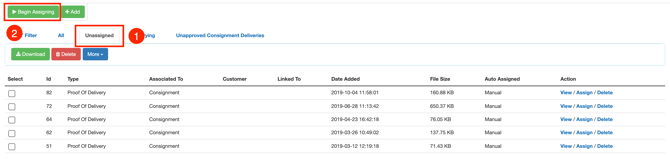
Select the Unassigned tab.
-
Select Begin Assigning.
-
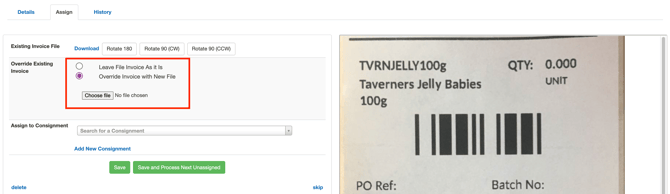
Select Leave File Invoices as it is (if you want to keep the existing file) or Override Invoice with New File (if you wish to replace the file). If you override the file you will need to upload a new file by clicking Choose file.
-
Search for a Consignment to assign it to or click Add New Consignment to create a new Consignment.

-
Click Save or Save and Process Next Unassigned.