Table of Contents
- Purpose
- Benefits
- Prerequisites
- How to enable vibration notifications
- How to enable sound notifications
Purpose
On your Android Mobile application, you have the option to enable sound and vibration notifications when error messages are presented.
Please note, at this stage, the sound and vibration notifications are only available for Android devices and not iOS.
Benefits
-
Reduced risk of the user missing the error message.
-
The user does not need to be viewing the mobile device screen to know an error has occurred.
Prerequisites
-
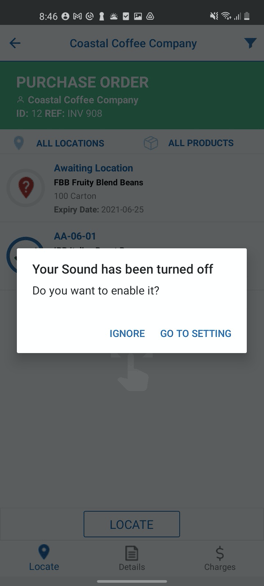
Ensure you have enabled sound and vibration on your device settings. If you have not turned them on, you will be prompted when using the CartonCloud application.
-
Ensure the volume is turned up and that silent mode is not turned on.
How to enable Vibration Notifications
-
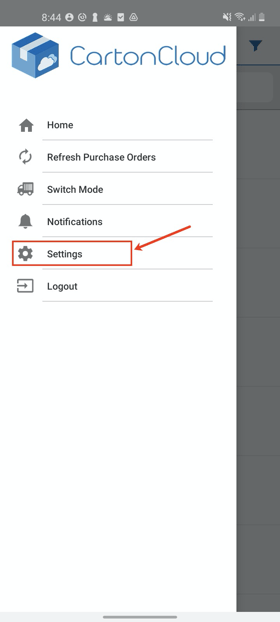
Navigate to Settings.
-
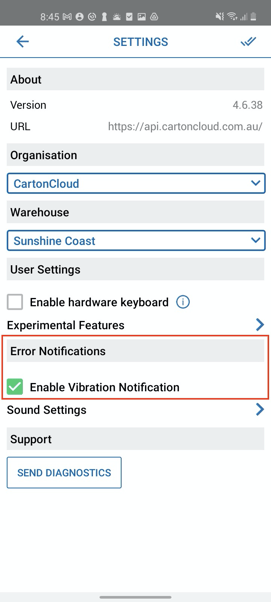
Under Error Notifications, check the Enable Vibration Notifications check box.
How to enable Sound Notifications
-
Navigate to Settings.
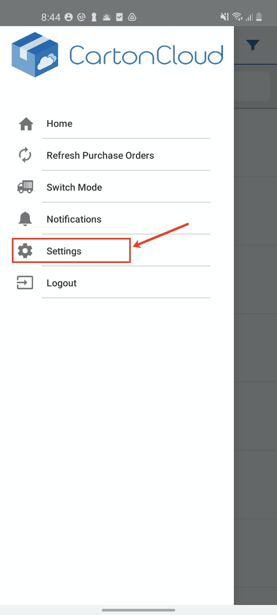
-
Scroll to the bottom and click Sound Settings.
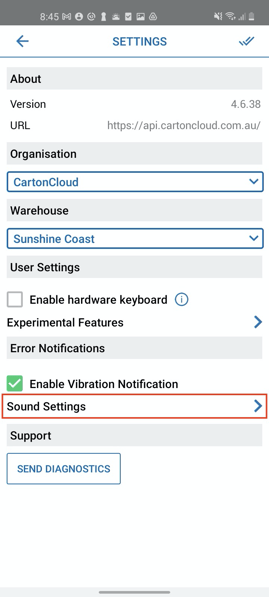
-
Click on a sound option to hear a preview of the sound.
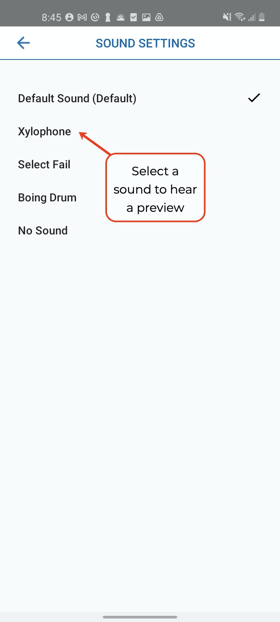
-
Select the sound you wish to use as the error message and click the back arrow in the top left.
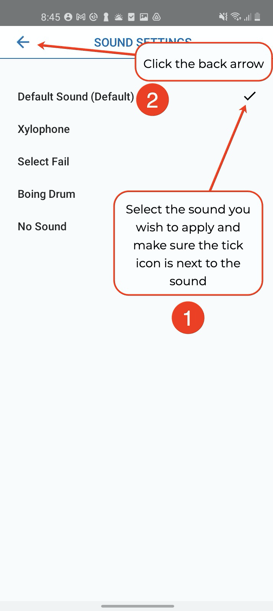
Select the No Sound option if you want to turn the sound notification off.
Example error message
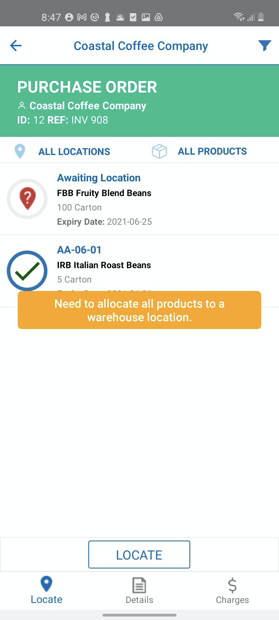
Examples of when an error sound and vibration will play:
Please note, the below is only examples and not an extensive list. The error sound and vibration will play each time an error message is received.
-
Quantity confirmation screen - scan/input a non-existent barcode of Unit of Measure.
-
Quantity confirmation screen - scan incorrect SSCC/Custom Field barcode.
-
Location filter/product filter - scan/input a non-existent barcode of the Product
-
Search screen - scan/input a non-existent POP or warehouse location.
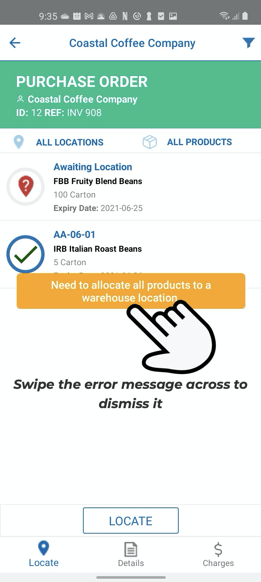
Swipe to dismiss the error message
You can dismiss the error message by swiping it across to the left.