Table of Contents
Purpose
If you have Item Codes or Charge Groups that you do not always charge for then you can configure them to 'Allow Zero Charge' from within the Transport Rate. By allowing zero charges, CartonCloud will not classify that particular Item Code, Charge Group, or rate as an error when there is no charge.
Where Allow Zero Charge can be applied
There are three different locations on the Transport Rate where you can allow zero charging.
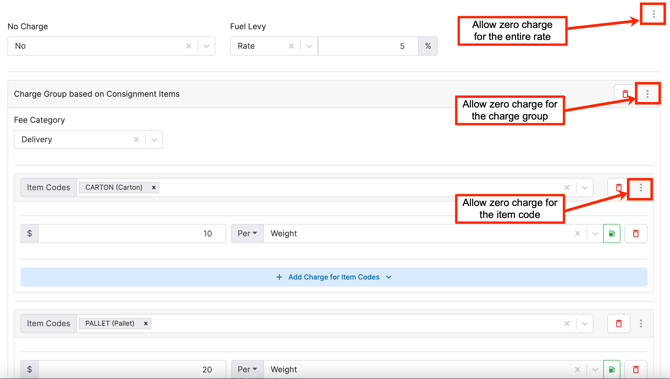
- Rate based 'Allow Zero Charges' -
- Enabled: no error will be raised if no charges are calculated (unless certain Charge Groups or Item Codes are turned off then they will not be included).
- Turned off: an error message will appear if there is no charge calculated.
- Charge Group based 'Allow Zero Charges' - there are two types of Charge Groups, Consignment Item, and Consignment Totals, and 'Allow Zero Charges' works differently for the two.
- Charge Group based on Consignment Item:
- Enabled: no error will be raised if no charges are calculated for the charges within that Charge Group (unless certain Item Codes within that Charge Group are turned off then they will not be included) and any items on the Consignment that do not have a charge will be skipped.
- Turned off: an error message will appear if there are no charges for the Consignment Items within the Charge Group.
- Charge Group based on Consignment Total:
- Enabled: no error will be raised if no charges are calculated for the charges within that Charge Group.
- Turned off: an error message will appear if there is no charge calculated for that Charge Group.
- Charge Group based on Consignment Item:
- Item Code based 'Allow Zero Charges' - this option is only available for Charge Group Consignment Item charges.
- Enabled: if there is no charge with that particular Consignment Item then no error message will appear.
- Turned off: an error message will appear if there is no charge associated with that Consignment Item.
How to configure Allow Zero Charge
-
Navigate to the relevant Transport Rate by typing 'Rate Card' into the Search for anything bar. Select the applicable Rate Card and then select the Transport Rate tab and the relevant Transport Rate.
-
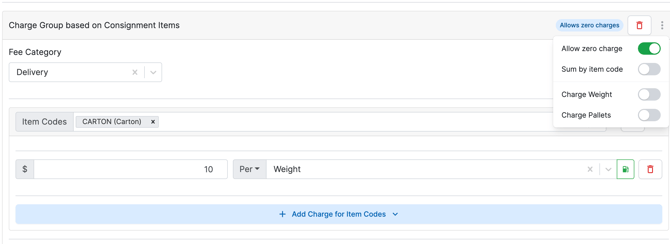
Select the 3 vertical dot icon on the relevant charge, then enable the Allow zero charge toggle.