Table of Contents
Purpose
Wave Pick Auto Generation allows for Wave Picks to be automatically generated on a defined schedule. By selecting a Wave Pick Template you can then define criteria on when a Wave Pick should be created and then what day and time it should be generated. This enables an efficient and streamlined wave pick process.
Prerequisites
- Wave Pick Auto Generation is included in Advanced Automation, wich is only available for WMS Premium accounts. Please reach out to the team here for more information.
- You must first create Wave Pick Templates before creating the automation.
- Wave Pick Auto Generation will only work for Wave Pick Types of Multiple Customers and Single Customer. It will not work for Run Sheet Wave Pick Type.
How to steps
-
Navigate to the Wave Pick page, Warehouse>Wave Picks.
-
Select +Add Wave Pick.
-
Select a Wave Pick Template from the Prefill Templates. If you have not yet set up a Wave Pick Template please do so following the steps here.

-
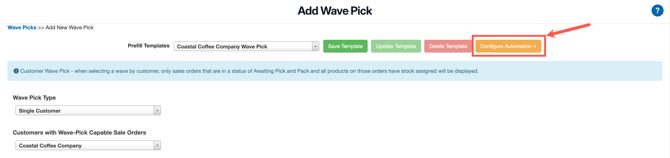
Select Configure Automation.
-
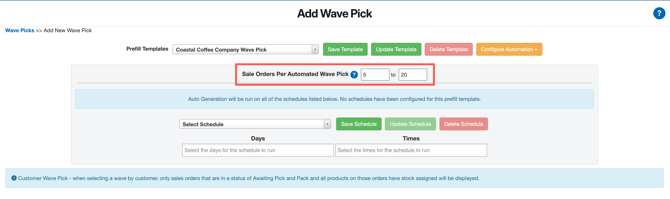
Select the minimum and maximum number of Sale Orders to be included in each automated Wave Pick.
Note:
- The orders that meet the Wave Pick template settings will be found and then if there are enough orders to meet the minimum a Wave Pick will be generated.
- If the number of Sale Orders that match the Wave Pick Template does not meet the minimum number of orders specified then the automated Wave Pick will not run, regardless if there are orders that meet the Wave Pick template settings.
- If the maximum number of orders per automated Wave Pick is 30 and there are 60 Sale Orders that meet the Wave Pick template settings then two wave picks of 30 orders each will be automatically generated.
-
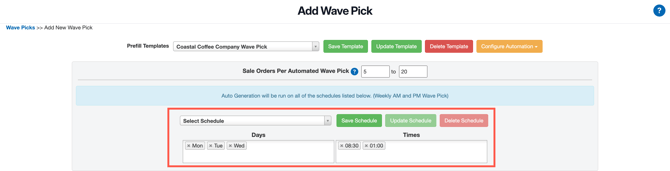
Create a schedule for the automated Wave Pick to run from. This will determine the day and time that CartonCloud will attempt to generate Wave Picks using the selected Prefill Templates.
-
Click into the Days field and select the days of the week you wish the Wave Pick to run.
-
In the Times field click in to select the times on each day selected that the automated Wave Pick will run.
-
Select Save Schedule.
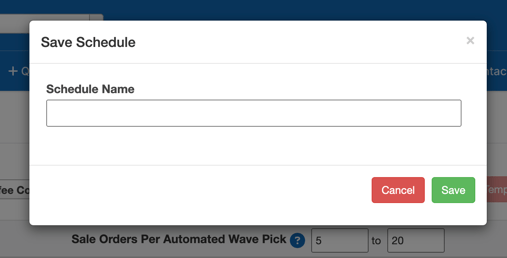
- Name the automation and click Save.
-
You can have multiple schedules running simultaneously for the one Wave Pick template. For example, you may have a weekday morning schedule and a weekend afternoon schedule for the one Wave Pick template.
-
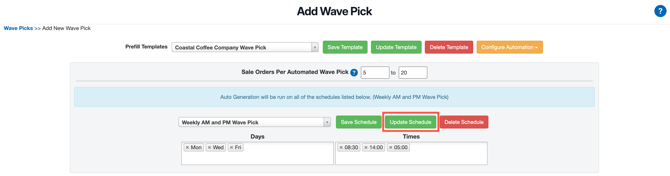
To update an existing schedule, ensure the schedule is selected, make the necessary changes and then click Update Schedule. Note, to update an existing Schedule select Update Schedule and to create a new Schedule select Save Schedule.
-
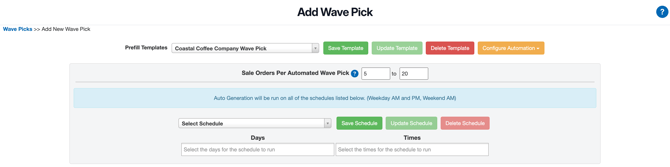
Text will appear listing all of the schedules that will run for the selected Wave Pick template.
Checking Automated Wave Pick History
To check the history of Automated Wave Picks:
-
Select More>Bolt Log.
-
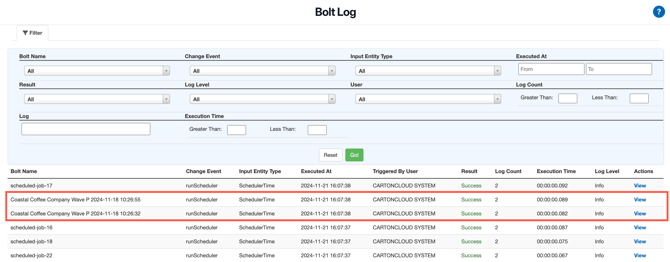
Within the Bolt Log, the Automated Wave Pick history will display.
-
The name of the Wave Pick Template and the created date of the schedule will display as the name of the log in the history.