
Table of Contents
Purpose
Replenishment Auto Generation allows for Replenishments to be automatically generated on a defined schedule. By selecting a Replenishment Template you can then define criteria on when a Replenishment should be created and then what day and time it should be generated. This enables an efficient and streamlined Replenishment process.
Prerequisites
- Replenishment Auto Generation is included in Advanced Automation, which is only available for WMS Premium accounts. Please reach out to the team here for more information.
- You must first create Replenishment Templates before creating the automation.
How to steps
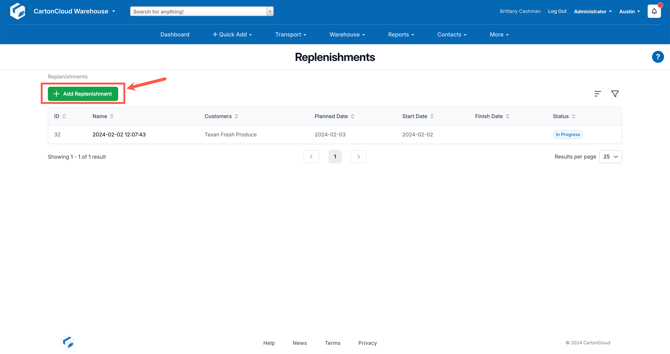
- Navigate to the Replenishment page, Warehouse > Replenishments.
- Select the +Add Replenishments button in the top left.
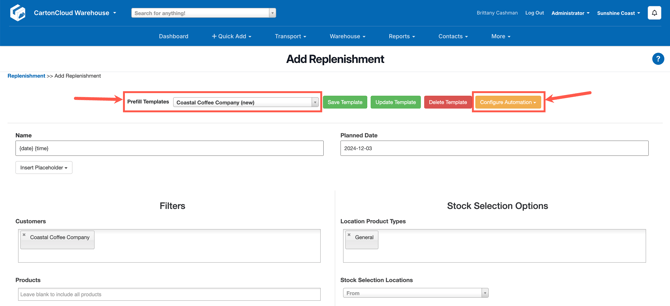
- Select a Replenishment Template from the Prefill Templates. If you have note yet set up a Replenishment Template please do so following the steps here.
- Select Configure Automation.
- Create a schedule for the automated Replenishment to run. This will determine the day and time that CartonCloud will attempt to generate Replenishments using the selected Prefill Templates.
- Click into the Days field and select the days of the week you wish the Wave Pick to run.
- In the Times field click in to select the times on each day selected that the automated Replenishment will run.
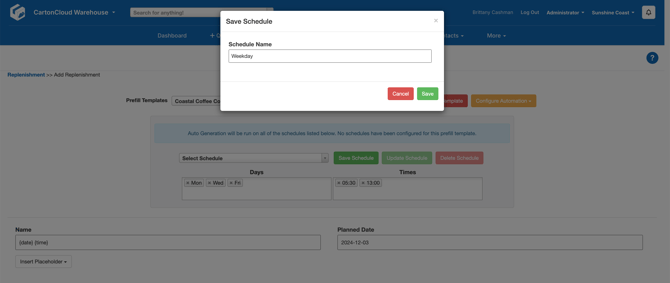
- Select Save Schedule.
- Name the automation and click Save.
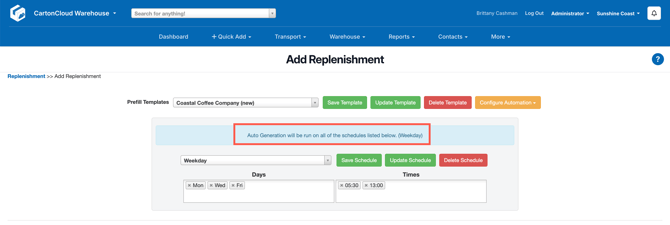
- You can have multiple schedules running simultaneously for the one Replenishment template. For example, you may have a weekday midday schedule and a weekend afternoon schedule for the one Replenishment template.
- To update an existing schedule, ensure the schedule is selected, make the necessary changes and then click Update Schedule. Note, to update an existing Schedule select Update Schedule and to create a new Schedule select Save Schedule.
- Text will appear listing all of the schedules that will run for the selected Replenishment Template.
Checking Automated Replenishment History
To check the history of the Automated Replenishments:
- Select More > Bolt Log.
- Within the Bolt Log, the Automated Replenishment history will be displayed.
- The name of the Replenishment Template and the created date of the schedule will display as the name of the log in the history.