
Table of Contents
Purpose
Purchase Order Products can be added to a Purchase Order that is either Not Yet Received or Received.
To add a product
- Select the plus icon in the top right of the Purchase Order Detail view.
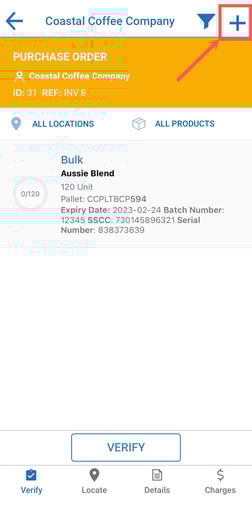
- On selecting this button, the Product Add view will open.
- Select the kind of product you want to add from the Product Search view. Tap the "Tap to choose product" text.
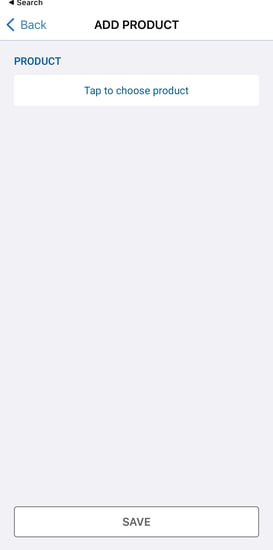
- To choose the kind of product to add, either search for a product by typing into the search field, or scan a product unit of measure barcode.
- After selecting a product from the search results, tap "Change" to confirm your selection.
- On scanning a product barcode, the Product Search view will be automatically dismissed.
- The Product Add view will now automatically populate with all the fields available to modify the product, e.g. expiry date picker, product packaging etc.
- Once you have edited all desired fields, choose "Save" (either from the top left or the bottom of the view) to add the product to the Purchase Order. The product list will then automatically be reloaded to reflect the newly added product.
Please note that the Quantity field is a required field when adding a product.