
Table of Contents
Purpose
When you add an address in CartonCloud, it will be available for selection when creating a Consignment or Sale Order. If the address doesn't already exist in your account, you can also add the address whilst you are creating the Consignment or Sale Order.
How to add an address
You can add an address individually, or you can do so in bulk. To edit or add addresses in bulk, please see this page.
To add an address individually:
- Navigate to the Addresses page, and type Addresses into the Search for anything bar.
- Click +Add Address.

- You can either fill in the fields manually or use the Company name to search for the address. When searching for the address, the form will auto-populate with information gathered from Google.
- If you enter a email address against the address a POD will be automatically sent to this address when a Consignment is delivered to the address. If you wish to send this POD to two email addresses ensure you seperate the address with ;
- To disable the POD email notification, navigate to the Customer Settings under the email notifications and disable the POD notification.
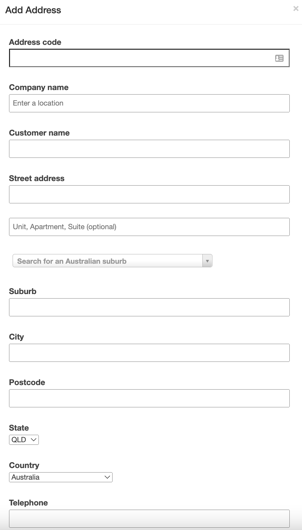
- If using the auto-population feature, be sure to double-check that the resulting address is accurate.
- Click Add Address, and the address will be added to the system.
Once created, you will arrive on to the View Address page for that address. From here, further actions can be taken using the address. For more details, see the View Address article.
How to edit an address
- Navigate to the relevant Address by typing Address into the Search for anything bar.
- Click on the relevant Address.
- Scroll down and click Edit against the actions bar.
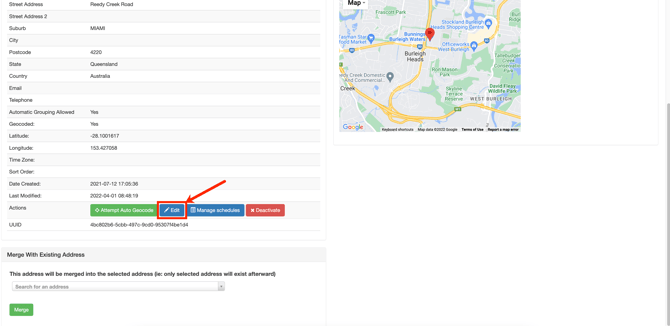
- Make the relevant changes and click Save.