Table of Contents
Purpose
If you wish to add charges after a consignment has already been invoiced, there are two ways to do this.
- Adding a charge to the same invoice
- Adding a charge to the next invoice.
How to steps
Adding a charge to the same Invoice
-
In order to add a charge to the invoice the Consignment is already on you will need to move the invoice back to a Draft status.
-
To do this, locate the invoice you wish to add the charge to then select Edit
-
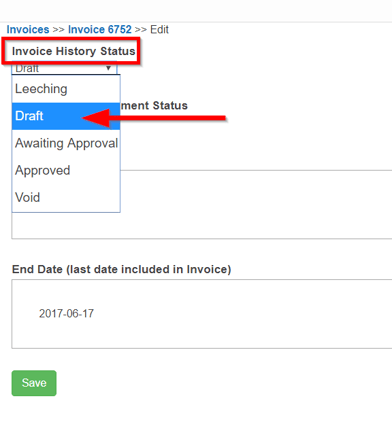
Then, change the Invoice History Status to Draft.
-
Now you can freely update the Invoice with the changes required before resending it.
-
Adding a charge to the next Invoice
-
This will require you to duplicate the consignment and add the extra charges on to that.
-
To do this, navigate to the consignment you wish to add the charge to and select Duplicate Consignment.
-
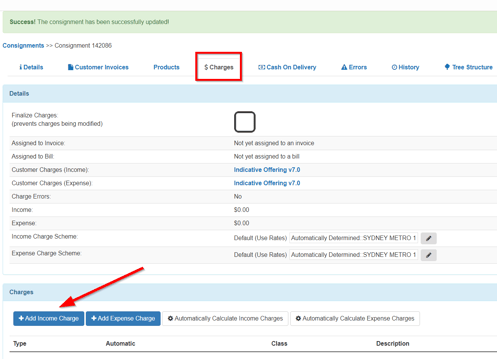
Now that your consignment is duplicated, go to the $ Charges tab and click on +Add Income Charge.
-
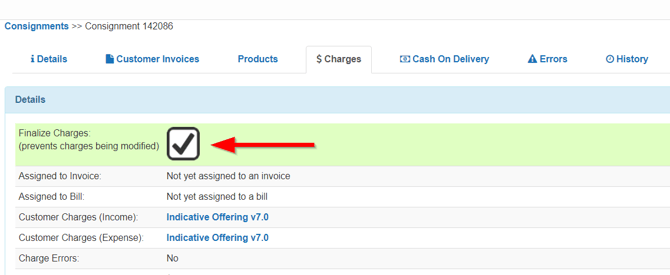
After creating the income charge, tick the Finalize Charges box so this charge can be added to the next invoice.