Table of Contents
Purpose
To add the product code to the mobile app view (for Sale Orders and Purchase Orders). Currently, you can only view the base Unit of Measure description.
Current View (product name only)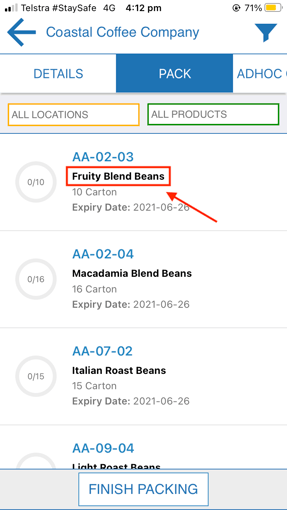
Product Code View (product code and name) 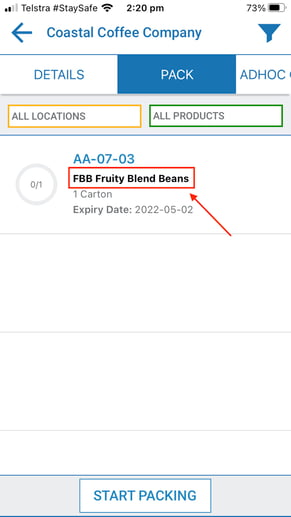
Prerequisites
How to add product code to the mobile app view
To add product code to the mobile app view you will need to export your Product list, edit it and then re-import it into CartonCloud.
Export Product List
-
Navigate to the Products page, Warehouse>Products.
-
Select the blue More button.
-
Select Export Products.
Edit the Product List file
-
Open the downloaded XSL file.
-
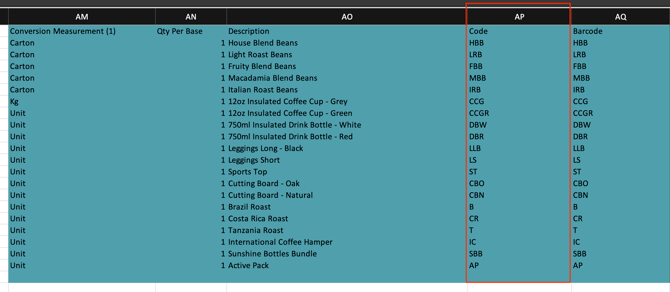
Navigate to column AP called Code. It will be highlighted in blue.
-
Insert a new column to the right of column AP.
-
In the new column in row 2, enter the CONCATENATE formula: =CONCATENATE(AP2," ",AO2)
-
Repeat this process for all the Products you wish to show the code for on the mobile app view. If you wish to do this for all Products, double click the bottom corner of the cell to copy the formula down the column.
-
Copy the data from the AQ column.
-
Paste the data into the AO column (Description column). Ensure you select the paste option, 'Paste as Values'.
-
Delete the original formula column (column AQ).
-
Save the file.
Import the edited Product List file
-
Navigate back to the CartonCloud Products page.
-
Select the blue More button.
-
Click Import Products.
-
Select the relevant file.
-
Click Upload File.
-
You will then be directed to the Product Import Results page and will receive a success message.
-
On your mobile view, you will now be able to see the Product code in front of the product name.