Table of Contents
User roles explained
When you create a User, you can select the role you wish to assign to them. This role will determine what access they have within your CartonCloud account. The below describes the different roles a user can be assigned to.
| Administrator |
Selecting this option provides access to all areas within CartonCloud, however there is an additional settings that can restrict this user. When you select the Administrator role tick box there is an option that appears to allow this user to add and edit other Users. If this is not selected the user will not have the ability to add or edit other users and their settings. This is typically only enabled for the System Administrator within your organisation for CartonCloud. |
| Customer | This role restricts the user to only login as a specific Customer. Please note that Order entry screens and features are different and restricted for these users. Note you must select at least one Customer. Note if you wish to provide a user with Administrator role access to login as a customer they will be provided with a drop down when the login to select which Customer they wish to emulate. |
| Data Entry |
This role provides the user with the ability to add, edit and view consignments, Manifests and upload consignment invoices (hard copy POD's & other paperwork). As a data entry user if you add documents to a Consignment it then needs to be approved by an admin user before the document is uploaded. |
| Driver | Select this role for all users who need to login to the mobile app for Delivering and to login to the Web App to view their Consignments and Run Sheets. You can assign one or more Carriers to a Driver user. When a Carrier is assigned, the Driver is only visible to Onforwarder users who share the same Carrier — Onforwarders cannot allocate consignments, Run Sheets, or Delivery Runs to Drivers outside their assigned Carriers. |
| Onforwarder | Enable this role for external Onforwarders who need to login to the system to update consignment status, attach additional paperwork and view their allocated consignments. Choose which Carriers the Onforwarder will have access to. |
| Packer | Select this option for users who need to view, edit and pack Purchase Orders and Sales Orders. This is also required for users who wish to use the mobile app for Putaway, Picking and Wave Picking features |
As a guide, the following user types would have these roles selected.
| User Type | Administrator | Packer | Customer | Driver | Data Entry | Onforwarder |
|---|---|---|---|---|---|---|
| System Admin | Yes | Yes | Yes | Yes | Yes | Yes |
| Operations | Yes | |||||
| Driver | Yes | |||||
| Administration | Yes | |||||
| Warehouse Manager | Yes | Yes | ||||
| Customer Service | Yes | |||||
|
Onforwarder/ Subcontractor |
Yes | |||||
| Customer | Yes | |||||
| Warehouse Picker | Yes |
Additional settings
For each user, you have the option to hide all charging information. This includes:
-
The Charges tab will be hidden on Sale Orders, Purchase Orders and Consignments
-
Rate Cards will not be visible.
-
Invoices will not be visible.
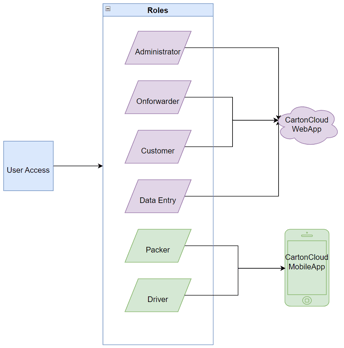
User Roles Web or Mobile Access
Below shows the various user roles and which interface that user role can access.