Table of Contents
- What is a Sale Order
- Benefits of Sale Orders
- How to add a Sale Order
- View Sale Order
- Mark order as urgent
What is a Sale Order?
A Sale Order is an outbound order with stock leaving the warehouse.
Benefits of Sale Orders
-
Helps to ensure the correct stock is assigned to the outbound order
-
Pick and packing accuracy
-
Visibility across orders leaving the warehouse
-
Allows for automatic email notifications to be sent out for certain events during the order process
How to add a Sale Order
There a number of different ways a Sale Order can be added to CartonCloud. It is highly recommended that orders are created automatically via a Parser or Integration. If you would like to be set up with a Parser or Integration please reach out to your CartonCloud account owner (3PL provider) or reach out to the CartonCloud team for more information via CartonCloud Help.
-
Navigate to the Sale Orders page, Warehouse > Sale Orders.
-
Click the +Add Sale Order button in the top left of the page.
-
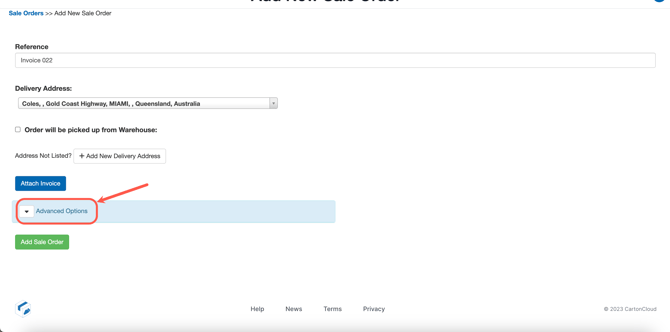
Enter the order reference, delivery address and attach an invoice if required.
-
Reference: this is the reference for the Sale Order (used for searching and appears on the invoice)
-
Delivery address: the final delivery address for the order.
-
-
If you click the Advanced Options drop down you can add additional data to the order.
-
Packing instructions: special instructions that show up on the packing slip and pick/pack screen.
-
Delivery instructions: special instructions that get copied into the Consignment Special Instructions (if using the CartonCloud Transport Management System)
-
Sale Order Value: the value (invoice amount) of the Sale Order
-
Required ship date: the date that the order should leave the warehouse
-
Required delivery date: the date that the stock should be delivered.
-
Once all of the information has been filled in, click Add Sale Order.
-
Click +Add Products to Sale Order.
-
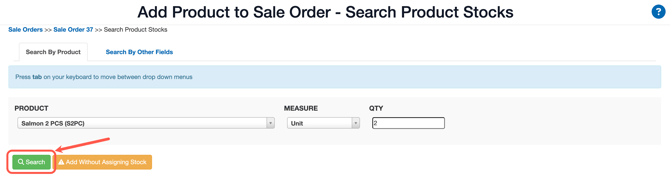
Select the product you wish to add to the order and enter the quantity. Select Search.
-
Enter the quantity against the line of stock you wish to add to the order and click Take Stock.
-
From the Details tab, you can either approve the order for packing or continue adding products to the order.
-
Once the order is approved it will be available to your 3PL / CartonCloud account owner to pick and pack.
View Sale Order
From the Sale Order page you can click into any order and view the details of the order.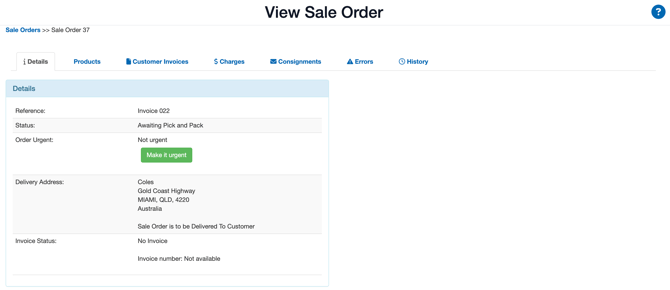
You can use the different tabs on the order to navigate to different information relating to the order.
-
Details tab: basic details surrounding the order
-
Products tab: details of the stock on the order. List of products and the relevant data for each line of stock.
-
Customer invoices: any invoices that have been uploaded against the order.
-
Charges: charges associated with the order and the relevant invoice the order is associated with.
-
Consignments: if your CartonCloud account owner is also using the TMS system, you may see the associated transport job (Consignment) associated with the Sale Order.
-
Errors: any errors with the order
-
History: history of status changes of the order
Making an order Urgent
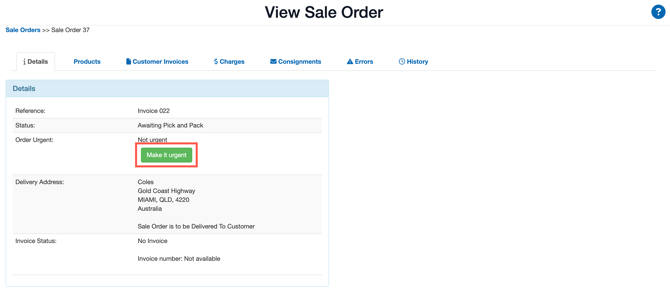
To mark select the Make it urgent button.