Table of Contents
Purpose
The Purchase Order list displays all Purchase Orders for the current warehouse (see Switch Warehouse for information on how to change the current warehouse) that are either Not Yet Received, Received or Verified.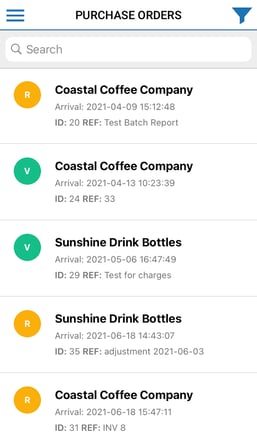
Purchase Order Information
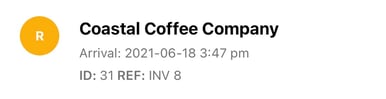
The information displayed includes:
-
Purchase Order Status: this label will display either NR (Not Yet Received), R (Received) or V (Verified) and reflects the current status of the Purchase Order. Please note, that you may also briefly see a Purchase Order Status of A (Allocated) while a finished Purchase Order is being uploaded to the server.
-
Customer Name: name of the customer the Purchase Order belongs to.
-
Arrival Time: the time the Purchase Order arrived.
-
Purchase Order Id
- Reference: the Purchase Order reference
Refresh Purchase Orders
There are two ways to refresh the Purchase Order List from the server. Either swipe down while viewing the list (iOS only) or use the Refresh Purchase Orders button in the menu.
Swipe Down to Refresh (iOS only)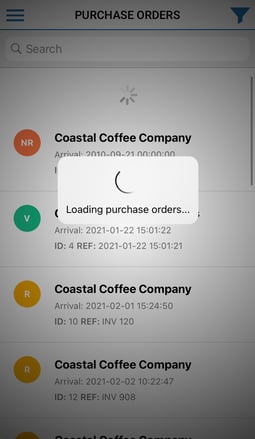
Menu Option to Refresh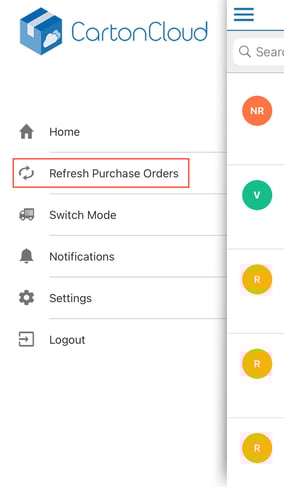
Search Purchase Orders
To search the Purchase Order List, tap onto the search bar on top of the list and start typing your search term such as a Purchase Order's reference. The list will be immediately filtered to match your search text and matching text within the list rows will be highlighted in red. 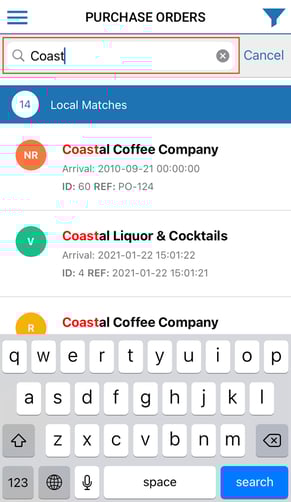
Search Criteria
Currently, the list search allows you to search for matching text in:
-
Purchase Order Customer Name
-
Purchase Order Id
-
Purchase Order Reference
Separate By Customer Name
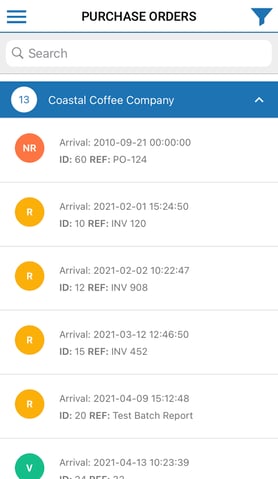
Should you prefer the Purchase Order List to be separated into sections by customer name, simply select the Filter button in the top navigation bar and activate the "Split by customer names" option and select the "Apply" button to confirm your selection. You will notice the list has now been updated to reflect your setting.
Without Splitting By Customer Name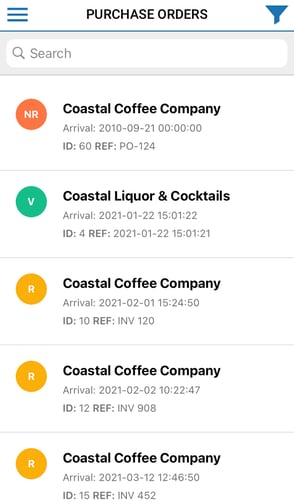
Filter View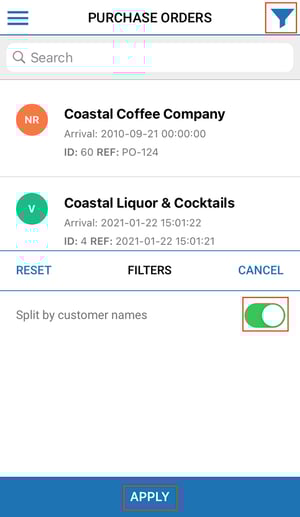
With Splitting By Customer