
Table of Contents
Purpose
To pack a Sale Order using the web application.
Depending on your operations, you may choose to use the Pack Screen to pack your orders. If you would like to use the Pack Screen, please see here for set-up instructions.
Prerequisites
To pack a Sale Order, the order must be in the Awaiting Pick and Pack status. If the order is still in draft status, you will not be able to pack the order.
To approve the Sale Order and move it into Awaiting Pick and Pack status, select the green Approve button from the View Sale Order>Details page. For more information on this process, please see the Sale Order page.
How to pack a Sale Order
- Navigate to the Sale Orders page by typing Sale Orders into the Search for anything bar.
- Select the Awaiting Pick and Pack tab.
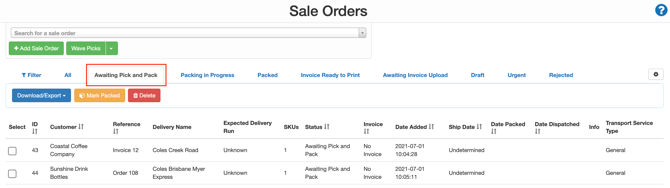
- Select the Sale Order to pack.
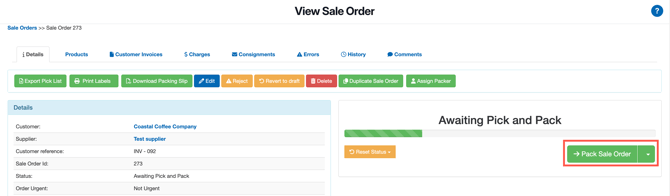
- Within the Details tab, select the green button Pack Sale Order.
Tip: Alternatively, you can select the green drop-down arrow and click Complete Packing. This will skip the input quantity being packed stage and move straight to 'Packed'. This is useful if you have already completed the packing in the warehouse and are updating your records in CartonCloud.
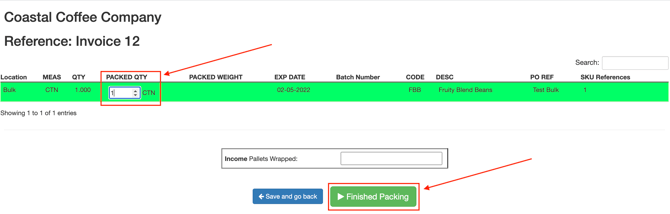
- Enter the quantity to pack by either typing in the number or using the arrow keys within the quantity box.
Tip: If you wish to generate an SSCC at this stage of packing the Sale Order, please see the Enabling and using SSCC/GS1 Labels page. SSCC is a paid feature and to enable this feature you will need to reach out to the CartonCloud team.
- Click Finished Packing at the bottom of the screen.
- You will then have the option to print labels.
Tip: See Label Printing for information on how to configure label printing with CartonCloud.
- If the default settings are on, the Sale Order will move straight to the Dispatched status. To change these settings, see Automatically updating Sale Orders to Dispatched.
In the below video, it is assumed you are also using CartonCloud Transport Management System (TMS) and, therefore, are generating Consignments from the Sale Orders.