
Table of Contents
Purpose
You can modify product quantities on a Sale Order regardless of its current status. This provides flexibility to correct stock levels without needing to create additional Sale or Purchase Orders. This process is commonly referred to as Post-Pack Stock Correction, but it applies to all Sale Order statuses.
How to steps
-
Navigate to the relevant Sale Order
-
Select the Products tab.
-
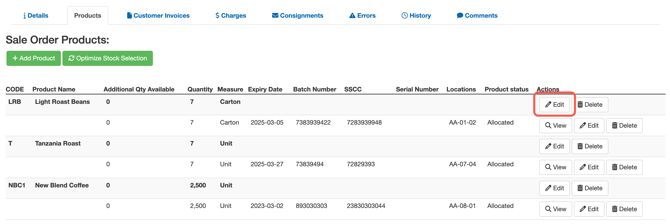
Click Edit against the line of stock you wish to adjust.
-
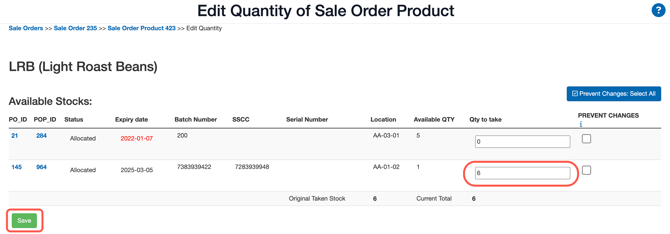
Update the quantity and click Save.
-
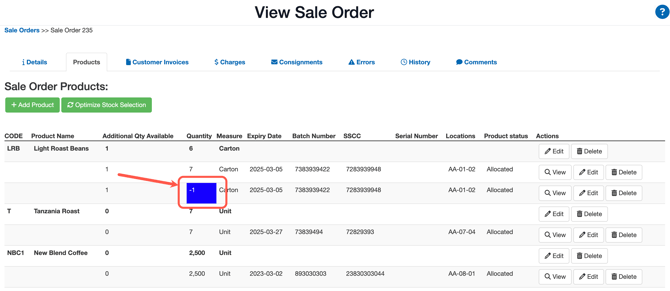
You will now be able to see the adjustment that has been made.
- For Packed and Dispatched orders, the change will be highlighted.
- For earlier statuses, the updated quantity will appear without highlight.
Behaviour by Order Status
Modifying product quantities behaves differently depending on the Sale Order status. The table below will explain the behaviour of each Sale Order status when quantities are adjusted:
| Status | Behaviour when modifying product quantity |
| Draft | Product quantities can be freely edited |
| Awaiting Pick and Pack | Changes apply normally without visual highlighting |
| Packing in Progress | Changes apply normally without visual highlighting |
|
Packed |
Changes will be highlighted to show the differences when adjustments are made |
|
Dispatched |
Changes will be highlighted to show the differences when adjustments are made |
Integration Warning
Amending product quantities after a Sale Order is Dispatched may cause issues with integrated systems.
For example, editing dispatched orders in CartonCloud may lead to mismatched data between CartonCloud and connected platforms (such as accounting or eCommerce systems).
It is strongly recommended to confirm the impact with your integration provider before making changes to a Dispatched Sale Order.