
Table of Contents
- Purpose
- Benefits
- How to download the invoice summary
- Modifying the invoice summary
- Further customisation for the sale order and purchase order tabs
Purpose
An Invoice Summary is a spreadsheet that contains a detailed breakdown of all charges on an individual Invoice.
Benefits
- The Invoice Summary provides you and your Customers a detailed breakdown of all charges.
- The Invoice Summary provides visibility for Customers on what each charge relates to.
- The Invoice Summary is accessible to your Customers through their CartonCloud login.
How to download the Invoice Summary
- Navigate to the Invoices page by typing Invoices into the Search for anything bar.
- Select the applicable Invoice.
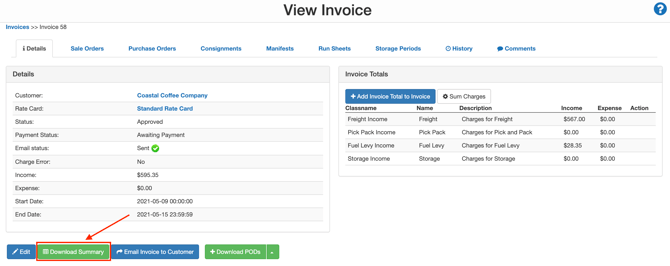
- Within the Details tab, click the Download Summary button.
Modifying the invoice summary
From the Customer Settings
From the Customer Settings, you can modify how the Invoice Summary will appear for that Customer.
-
Navigate to the Invoices page by selecting Contacts>Customers.
-
Select the relevant Customer.
-
Click the blue edit button in the bottom left corner.
-
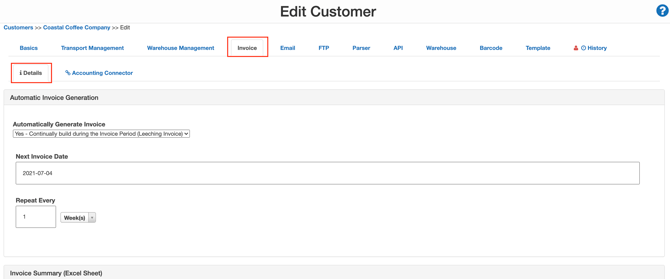
Select the Invoices tab and then the Details tab.
-
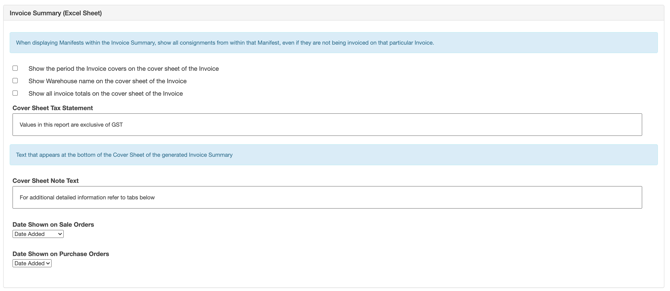
Scroll down to the Invoice Summary (Excel Sheet) section.
-
Using the table below, edit the settings you wish to configure.
|
Field |
Description |
|
Show period the Invoice covers on the cover sheet of the invoice |
If you enable this setting, the invoice time period will appear on the cover sheet of the invoice. |
|
Show Warehouse name on the cover sheet of the Invoice |
If you enable this setting, the name of the Warehouse will appear on the cover sheet of the invoice. |
|
Show all invoice totals on the cover sheet of the Invoice |
If you select this option, the invoice summary will display the below information highlighted in red. |
|
Cover Sheet Tax Statement |
You can select what text you wish to appear on the cover sheet. |
|
Cover Sheet Note Text |
You can select what text you wish to appear as the cover sheet note. |
|
Date Shown on Sale Orders |
Allows you to configure the date shown for a Sale Order on an Invoice:
Note that these settings will change the date shown on the Warehouse Summary tab, where it aggregates information by day. To include extra Sale Order dates, see Further customisation for the Sale Order and Purchase Order tabs. |
|
Date Shown on Purchase Orders |
Allows you to configure the date shown for Purchase Orders on an Invoice:
Note that these settings will change the date shown on the Warehouse Summary tab, where it aggregates information by day. To include extra Purchase Order dates, see Further customisation for the Sale Order and Purchase Order tabs. |
Further customisation for the Sale Order and Purchase Order tabs
The date shown on the Sale Order and Purchase Order summary tab is 'Date Added'. Date Added is the date the Purchase Order or Sale Order was added into CartonCloud. Other dates can be included on both the Sale Order and Purchase Order summary tab.
-
Sale Order tab:
-
Date Packed: this is the date the Sale Order was packed.
-
Date Dispatched: this is the date the Sale Order was dispatched.
-
-
Purchase Order tab:
-
Date Allocated: this is the date the Purchase Order was allocated.
-

In addition, you can also add Sale Order and Purchase Order custom fields to the Invoice Summary.
If you wish to make more detailed adjustments to your Invoice Summary, please reach out to the CartonCloud Support team.