Table of Contents
Purpose
Item-Level Scanning allows drivers to scan individual item labels at the point of delivery using the CartonCloud mobile app. This ensures that every item in a Consignment is accounted for, reduces delivery errors, and provides complete scan visibility.
This feature also supports label generation rules based on transport product quantity or pallets, making it easier to match the physical items loaded to what’s scanned on delivery.
Prerequisites
Before using this feature:
-
Enable the feature in your CartonCloud account, Organisation Settings > Transport > Enable Item-Level Scanning.
-
It is not required, but highly recommended that your Transport Products are configured with a Split By Field value.
-
You must have set up the correct Item-Level label template (ZPL or PDF).
-
Drivers must be using a 6.34.0 or higher version of the CartonCloud mobile app.
Configure Transport Products
-
Navigate to Transport Product by typing Transport Products into the Search for anything.
-
Select the relevant Transport Product.
-
Update the Split by Field to either Quantity or Pallet. This field will be used to determine how many item labels are required for the Transport Product.
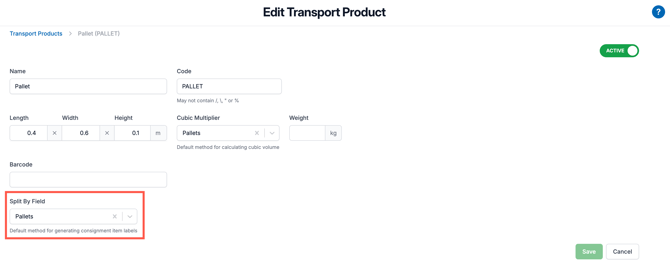
Note: If you have a large number of Transport Products to update, you can update the Transport Products in bulk following the instructions here.
Consignment Item Label
Consignment Item Level Scanning uses the Consignment Item ZPL template. This is used for ZPL and PDF labels.
Benefits
-
Reduces the risk of missed items during delivery.
-
Prevents re-delivery costs due to loading mistakes.
-
Provides full visibility over each scanned item.
-
Captures individual item proof-of-delivery.
Use Cases
Use Item-Level Scanning when:
-
Customers require full item-level proof of delivery.
-
Drivers need to confirm delivery of multiple cartons or pallets.
-
You want to monitor delivery performance at an item level.
How To Steps
Web App
From the web app, you can view and edit consignment items, print consignment item labels and view scan history.
-
Navigate to Consignments, Transport > Consignments.
-
Select the relevant Consignment.
-
Select the Consignment Items tab.
-
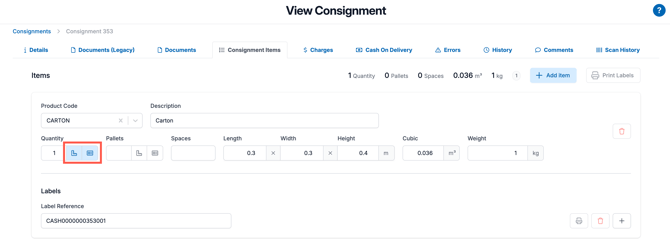
The ruler icon will be highlighted if the field is used for a cubic multiplier.
-
The printer icon will be highlighted if the field is used for label generation. This is set from the Split by Field at the Transport Product level and can also be updated directly against the Consignment Item by selecting the printer icon.
Generating Consignment Item Labels:
-
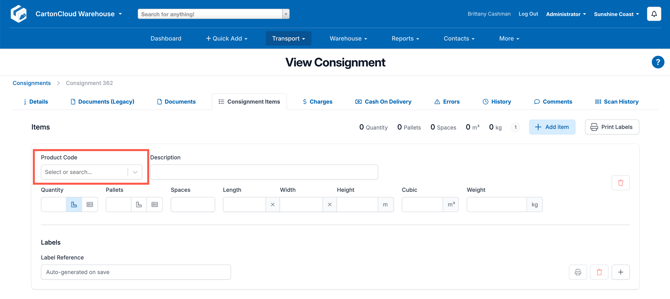
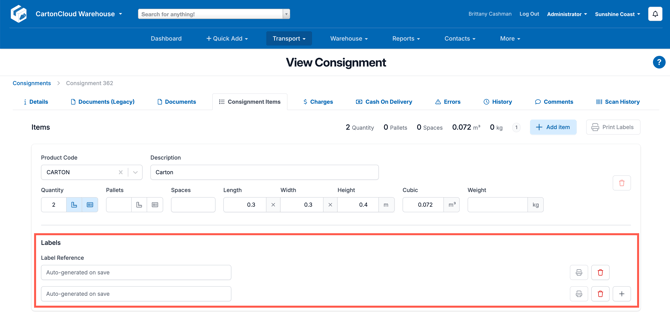
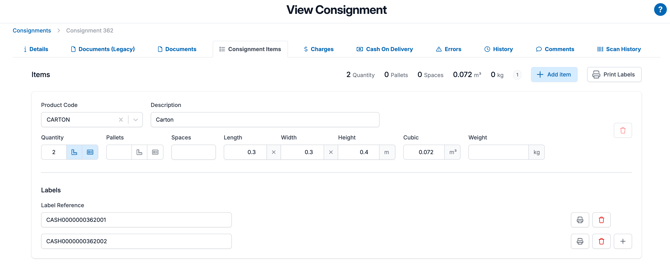
As you enter a Product Code and a Quantity/Pallet count, the required number of labels will be generated automatically on save.
- Click Save.
-
If you choose not to use the auto-generated labels, you can edit the label reference before saving.
Printing Consignment Item Labels:
-
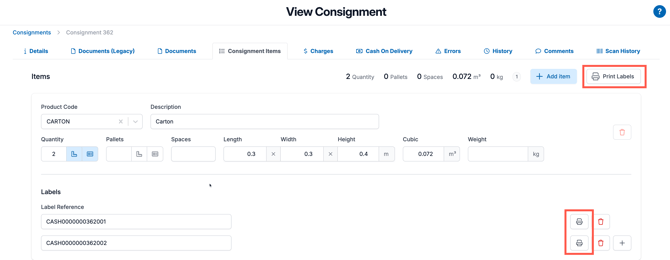
You can print all Consignment Item labels using the Print Labels button in the top right corner, or print individual Consignment Item labels using the print icon against each label. This is useful if a particular label has been damaged.
Viewing Scan History:
-
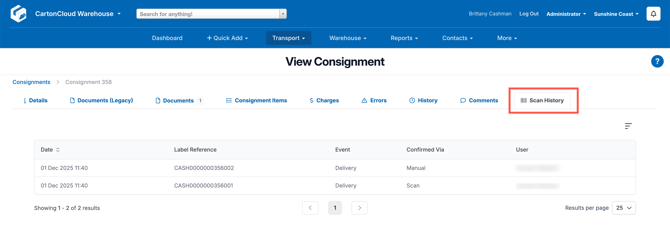
As the Consignment Item labels are scanned using the mobile app, the scan history will appear in the Scan History tab.
-
You will be able to view:
-
Each Consignment Item label reference
-
Scan date and time
-
Verification method (manual or scanned)
-
Mobile App
From the mobile app, you can scan and confirm the Consignment Items when recording the POD.
-
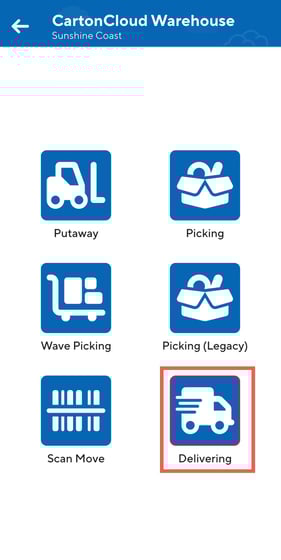
On the CartonCloud mobile app, select the Delivering mode.
-
Select the relevant Consignment.
-
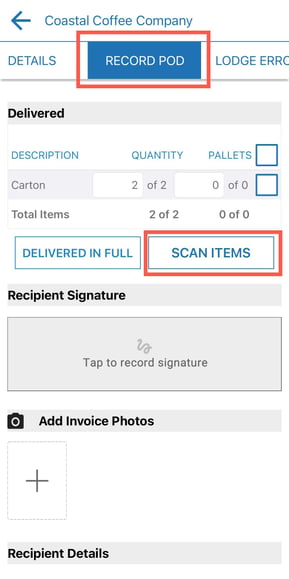
Select the Record POD tab.
-
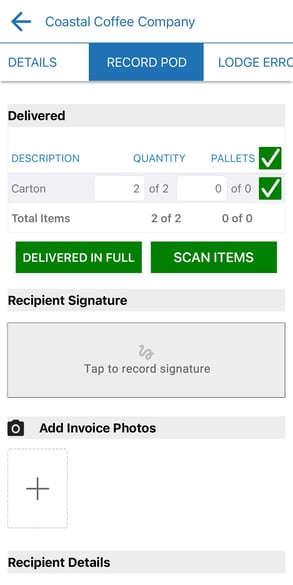
Under the Delivered heading, select the Scan Items button.
-
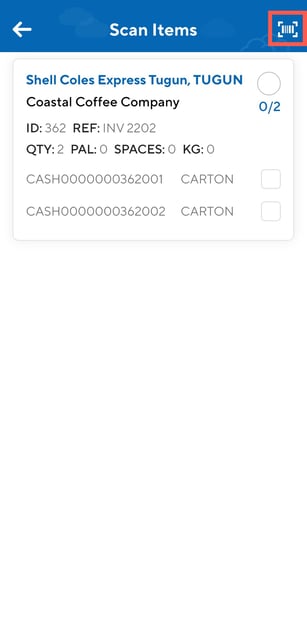
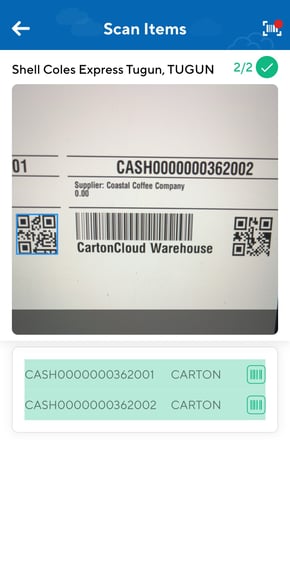
Use the Scan Items camera scanning functionality to scan the Consignment Item label barcodes. You can also use the tick box against the label to manually update the item as confirmed. Whether the label was confirmed via scan or manually will be available in the Scan History.
-
As the labels are scanned, the Consignment Items on the Record POD are updated to delivered.
-
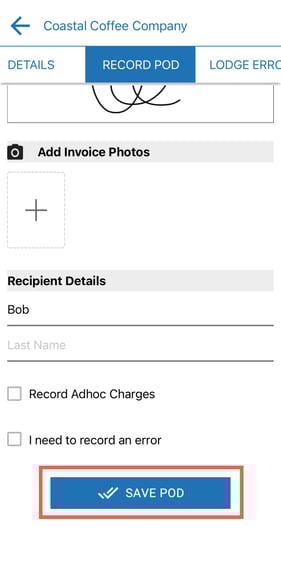
Continue with the POD process of recording a signature, photos and name and click Save POD.