
Table of Contents
- Purpose
- Benefits / Use Cases
- Considerations
- Backorder Management Available Workflows
- Viewing Awaiting Stock Orders
- Managing Awaiting Stock Orders
- Email Notifications
- Backorder Management on the Mobile App
- Further enhancements coming in May
Purpose
Backorder Management enables you to efficiently handle orders that contain out-of-stock products. Through the Sale Order status ‘Awaiting Stock’, orders can be managed and tracked through to fulfilment.
Benefits / Use Cases
-
Manage orders and stock more efficiently and effectively.
-
Greater transparency on order and stock management.
-
Prevent revenue leakage with the ability to split shipments.
-
Improve order management processes.
-
Create a more valuable service and experience for your customers.
Considerations
- There are two tiers of Backorder Management:
- Essentials Backordering: available to all CartonCloud accounts.
- Advanced Backordering: only available to WMS Premium accounts, Advanced Backordering offers additional settings and workflows for Backorder Management.
- Backorder Management supports orders that originated from a Self-Managed Shopify Integration.
- If using Backorder Management, it is important that you read the available workflows below and enable the correct settings.
- Cross Customer Picking is supported with Backorder Management.
Backorder Management Available Workflows
When an order is imported with products that are out of stock, there are two Customer settings that control the order’s behaviour:
-
Sale Order Importing
-
Automatic Sale Order Stock Allocation
If using Backorder Management, you will need to select the correct settings to enable the desired workflow for your operations. The applicable settings and corresponding workflow are outlined below:
|
Sale Order Importing Setting: If Sale Order is Imported and (any) product(s) are out of stock (or not enough stock) |
Automatic Sale Order Stock Allocation Setting: Automatically allocate stock as it becomes available for Awaiting Stock Sale Orders |
Workflow |
|
Assign whatever stock is available, keeping unavailable quantities as unassigned products. |
Always |
Upon import, the Sale Order will be in an ‘Awaiting Stock’ status. Products that are in stock will be assigned to the order, and items not in stock will be left as unassigned products. By allocating available stock, Awaiting Stock orders will essentially “Hold” stock, preventing other orders from taking it. Once stock becomes available (once the Purchase Order containing the stock reaches the status configured in the Minimum POP status setting) for the unassigned products, the stock will be automatically assigned to the Sale Order. Note: Auto-allocation is only triggered when a Purchase Order changes its status. Therefore, any changes in POPs linked to a Purchase Order (e.g. changes to individual Purchase Order Products) or changes to the Minimum Purchase Order Status setting will not trigger the automatic allocation process. Once all unassigned products are assigned, the order will be updated from ‘Awaiting Stock’ to ‘Awaiting Pick and Pack’ status. |
|
Assign whatever stock is available and move unavailable quantities to a new ‘Awaiting Stock’ Sale Order. |
Always |
Upon import, the Sale Order will be split:
Once stock becomes available (once the Purchase Order containing the stock reaches the status configured in the Minimum POP status setting) for the ‘Awaiting Stock’ Sale Order, the stock will be automatically assigned to the Sale Order. Note: Auto-allocation is only triggered when a Purchase Order changes its status. Therefore, any changes in POPs linked to a Purchase Order (e.g. changes to individual Purchase Order Products) or changes to the Minimum Purchase Order Status setting will not trigger the automatic allocation process. Once all unassigned products are assigned, the order will be updated from ‘Awaiting Stock’ to ‘Awaiting Pick and Pack’ status. |
|
Assign whatever stock is available, keeping unavailable quantities as unassigned products |
Never |
Upon import, the Sale Order will be in an ‘Awaiting Stock’ status, and products that are in stock will be assigned to the order, and items not in stock will be left as unassigned products. Stock will have to be manually assigned to the Sale Order once it becomes available. |
|
Assign whatever stock is available and move unavailable quantities to a new ‘Awaiting Stock’ Sale Order |
Never |
Upon import, the Sale Order will be split:
Stock will have to be manually assigned to the Sale Order once it becomes available. |
|
Assign whatever stock is available and move unavailable quantities to a new ‘Awaiting Stock’ Sale Order, but only if stock is not expected to arrive in a configured number of days. Advanced Backordering Only Workflow |
Always |
Upon import, the Sale Order will be split:
However, this will only occur if the stock is not expected to arrive in the configured number of days. If the stock is expected to arrive in the configured number of days, the order will not be split. Once stock becomes available (once the Purchase Order containing the stock reaches the status configured in the Minimum POP status setting) for the unassigned products, the stock will be automatically assigned to the Sale Order. Note: Auto-allocation is only triggered when a Purchase Order changes its status. Therefore, any changes in POPs linked to a Purchase Order (e.g. changes to individual Purchase Order Products) or changes to the Minimum Purchase Order Status setting will not trigger the automatic allocation process. Once all unassigned products are assigned, the order will be updated from ‘Awaiting Stock’ to ‘Awaiting Pick and Pack’ status. |
|
Assign whatever stock is available and move unavailable quantities to a new ‘Awaiting Stock’ Sale Order, but only if stock is not expected to arrive in a configured number of days. Advanced Backordering Only Workflow |
Never |
Upon import, the Sale Order will be split:
However, this will only occur if the stock is not expected to arrive in the configured number of days. If the stock is expected to arrive in the configured number of days, the order will not be split. Stock will have to be manually assigned to the Sale Order once it becomes available. |
|
Assign whatever stock is available and move unavailable quantities to a new ‘Awaiting Stock’ Sale Order, but only if stock is not expected to arrive in a configured number of days. Advanced Backordering Only Workflow |
Only if all of the stock for the Sale Order is available. |
Upon import, the Sale Order will be split:
However, this will only occur if the stock is not expected to arrive in the configured number of days. If the stock is expected to arrive in the configured number of days, the order will not be split. Once stock becomes available (once the Purchase Order containing the stock reaches the status configured in the Minimum POP status setting) for the ‘Awaiting Stock’ Sale Order, the stock will be automatically assigned to the Sale Order only if the allocation will completely fulfil the Sale Order. Note: Auto-allocation is only triggered when a Purchase Order changes its status. Therefore, any changes in POPs linked to a Purchase Order (e.g. changes to individual Purchase Order Products) or changes to the Minimum Purchase Order Status setting will not trigger the automatic allocation process. The order will then be updated from ‘Awaiting Stock’ to ‘Awaiting Pick and Pack’ status. |
|
Assign whatever stock is available and move unavailable quantities to a new ‘Awaiting Stock’ Sale Order, but only if stock is not expected to arrive in a configured number of days. Advanced Backordering Only Workflow |
Only if the remaining stock on an order is expected within X configured number of days |
Upon import, the Sale Order will be split:
However, this will only occur if the stock is not expected to arrive in the configured number of days. If the stock is expected to arrive in the configured number of days, the order will not be split. Once stock becomes available (once the Purchase Order containing the stock reaches the status configured in the Minimum POP status setting) for the ‘Awaiting Stock’ Sale Order, the stock will be automatically assigned to the Sale Order only if the unassigned stock of the order arrives within the configured number of days. Note: Auto-allocation is only triggered when a Purchase Order changes its status. Therefore, any changes in POPs linked to a Purchase Order (e.g. changes to individual Purchase Order Products) or changes to the Minimum Purchase Order Status setting will not trigger the automatic allocation process. The order will then be updated from ‘Awaiting Stock’ to ‘Awaiting Pick and Pack’ status. |
|
Assign whatever stock is available, keeping unavailable quantities as unassigned products. Advanced Backordering Only Workflow |
Only if all of the stock for the Sale Order is available. |
Upon import, the Sale Order will be in an ‘Awaiting Stock’ status. Products that are in stock will be assigned to the order, and items not in stock will be left as unassigned products. By allocating available stock, Awaiting Stock orders will essentially “Hold” stock, preventing other orders from taking it. Once stock becomes available (once the Purchase Order containing the stock reaches the status configured in the Minimum POP status setting) for the ‘Awaiting Stock’ Sale Order, the stock will be automatically assigned to the Sale Order only if the allocation will completely fulfil the Sale Order. Note: Auto-allocation is only triggered when a Purchase Order changes its status. Therefore, any changes in POPs linked to a Purchase Order (e.g. changes to individual Purchase Order Products) or changes to the Minimum Purchase Order Status setting will not trigger the automatic allocation process. The order will then be updated from ‘Awaiting Stock’ to ‘Awaiting Pick and Pack’ status. |
|
Assign whatever stock is available, keeping unavailable quantities as unassigned products. Advanced Backordering Only Workflow |
Only if the remaining stock on an order is expected within X configured number of days |
Upon import, the Sale Order will be in an ‘Awaiting Stock’ status. Products that are in stock will be assigned to the order, and items not in stock will be left as unassigned products. By allocating available stock, Awaiting Stock orders will essentially “Hold” stock, preventing other orders from taking it. Once stock becomes available (once the Purchase Order containing the stock reaches the status configured in the Minimum POP status setting) for the ‘Awaiting Stock’ Sale Order, the stock will be automatically assigned to the Sale Order only if the unassigned stock of the order arrives within the configured number of days. Note: Auto-allocation is only triggered when a Purchase Order changes its status. Therefore, any changes in POPs linked to a Purchase Order (e.g. changes to individual Purchase Order Products) or changes to the Minimum Purchase Order Status setting will not trigger the automatic allocation process. The order will then be updated from ‘Awaiting Stock’ to ‘Awaiting Pick and Pack’ status. |
|
Assign whatever stock is available and move unavailable quantities to a new ‘Awaiting Stock’ Sale Order. Advanced Backordering Only Workflow |
Only if all of the stock for the Sale Order is available. |
Upon import, the Sale Order will be split:
Once stock becomes available (once the Purchase Order containing the stock reaches the status configured in the Minimum POP status setting) for the ‘Awaiting Stock’ Sale Order, the stock will be automatically assigned to the Sale Order only if the allocation will completely fulfil the Sale Order. Note: Auto-allocation is only triggered when a Purchase Order changes its status. Therefore, any changes in POPs linked to a Purchase Order (e.g. changes to individual Purchase Order Products) or changes to the Minimum Purchase Order Status setting will not trigger the automatic allocation process. The order will then be updated from ‘Awaiting Stock’ to ‘Awaiting Pick and Pack’ status. |
|
Assign whatever stock is available and move unavailable quantities to a new ‘Awaiting Stock’ Sale Order. Advanced Backordering Only Workflow |
Only if the remaining stock on an order is expected within X configured number of days |
Upon import, the Sale Order will be split:
Once stock becomes available (once the Purchase Order containing the stock reaches the status configured in the Minimum POP status setting) for the ‘Awaiting Stock’ Sale Order, the stock will be automatically assigned to the Sale Order only if the unassigned stock of the order arrives within the configured number of days. Note: Auto-allocation is only triggered when a Purchase Order changes its status. Therefore, any changes in POPs linked to a Purchase Order (e.g. changes to individual Purchase Order Products) or changes to the Minimum Purchase Order Status setting will not trigger the automatic allocation process. The order will then be updated from ‘Awaiting Stock’ to ‘Awaiting Pick and Pack’ status. |
Avoiding Partial SKU Allocation on Import
By default, if a SKU doesn't have its full requested quantity available on import, CartonCloud assigns what it can and leaves the remainder unassigned (see table above). If you'd rather a SKU never be partially allocated, you can enable:
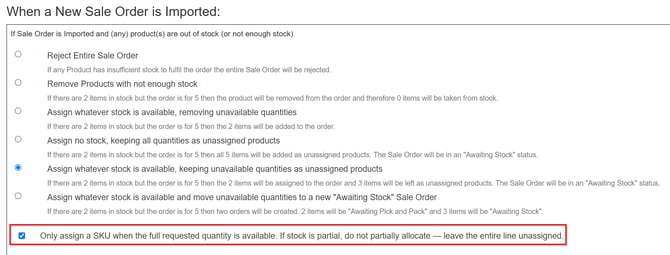
This is a checkbox setting — disabled by default — that appears under each of the following Sale Order Importing Settings:
| Sale Order Importing Setting | Behaviour with checkbox enabled |
|---|---|
| Assign whatever stock is available, keeping unavailable quantities as unassigned products. | If the full quantity isn't available, the entire line stays on the same order, fully unassigned — it is not moved elsewhere. |
| Assign whatever stock is available and move unavailable quantities to a new 'Awaiting Stock' Sale Order. | If the full quantity isn't available, the entire line moves to the new 'Awaiting Stock' order — no partial quantity is left on the original order. |
| Assign whatever stock is available and move unavailable quantities to a new 'Awaiting Stock' Sale Order, but only if stock is not expected to arrive in a configured number of days (Advanced Backordering) |
If the missing stock is expected within the configured window, the order does not split — same as without the checkbox. If it is not expected within the window, the order splits, and the entire SKU line moves to the new 'Awaiting Stock' order — no partial quantity is left behind. |
Note: This setting only changes import-time behaviour. Once an order is in 'Awaiting Stock' status, the Automatic Sale Order Stock Allocation Setting (Always / Never / Advanced options) continues to control restock allocation exactly as described above.
To access the above Customer Settings:
-
Navigate to the relevant Customer you wish to enable the Backorder Management workflow, Contacts > Customers.
-
Click Edit at the bottom of the page.
-
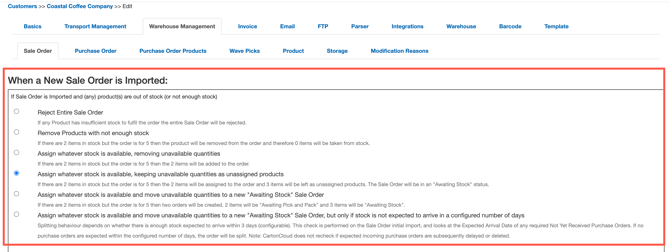
Navigate to the Warehouse Management > Sale Order tab.
-
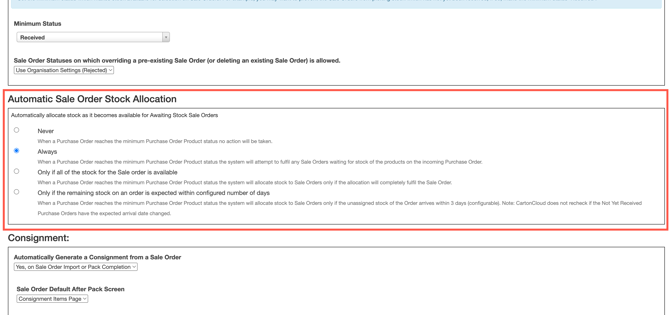
The applicable settings are under When a New Sale Order is Imported and Automatic Sale Order Stock Allocation heading.
Note, the setting 'Assign whatever stock is available and move unavailable quantities to a new "Awaiting Stock" Sale Order, but only if stock is not expected to arrive in a configured number of days' is only available for Advanced Backordering.
Note, the setting 'Only is all of the stock for the Sale order is available' and 'Only if the remaining stock on an order is expected within configured number of days' is only available for Advanced Backordering.
Viewing Awaiting Stock Orders
To view Awaiting Stock orders:
-
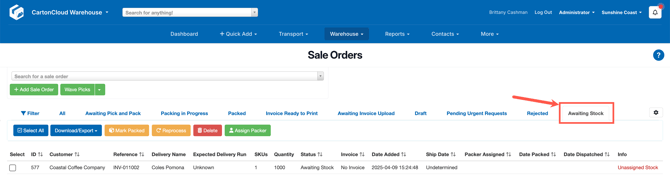
Navigate to the Sale Order page, Warehouse > Sale Orders.
-
Along the filter panel, select Awaiting Stock.
-
From here, you will see all orders in Awaiting Stock status.
To view split Awaiting Stock Sale Orders:
-
Navigate to the ‘Awaiting Stock’ Sale Order (following instructions above).
-
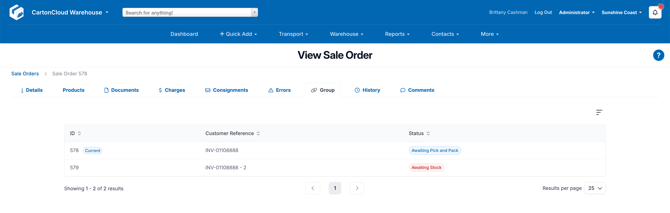
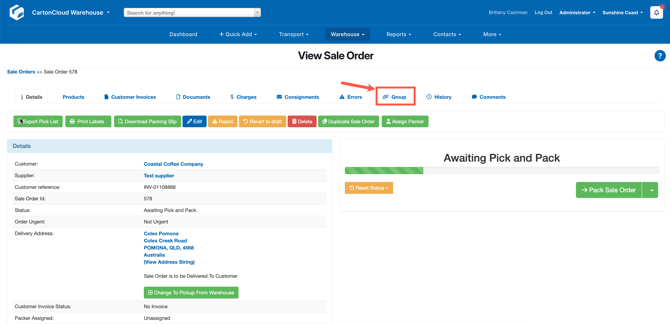
Select the Group tab on the Awaiting Pick and Pack Sale Order.
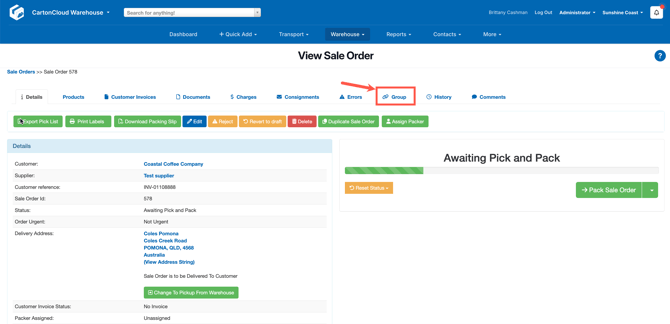
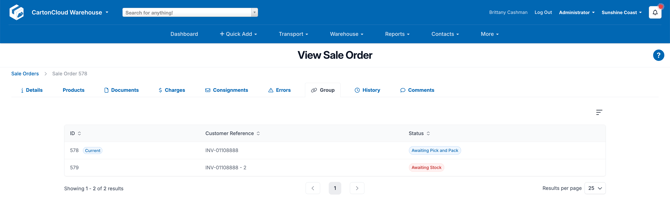
- You will be able to see the split orders and access them by selecting the order.
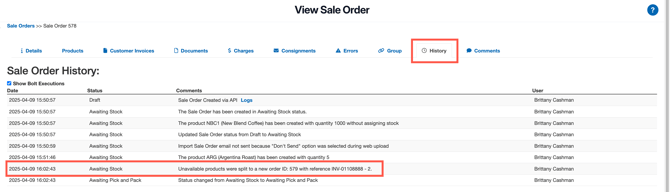
To view the history logs on a split Sale Order:
-
By selecting the History tab against the Sale Order, you will be able to see in the history logs if the order was split.
Managing Awaiting Stock Orders
For orders in Awaiting Stock status, there are three options to manage the order:
1) Wait until stock is available
If you would like to wait for the entire order to be fulfilled before shipping, you can leave the Sale Order in the ‘Awaiting Stock’ status until all products become available. Once the products are available, you can either assign the stock manually, or, if enabled, it can assign automatically.
Automatic Assignment:
Refer to the Automatic Sale Order Stock Selection Setting mentioned here.
Manual Assignment:
-
Navigate to the Awaiting Stock order.
-
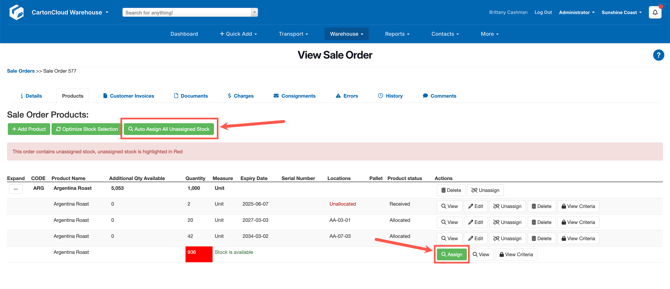
Select the Products tab.
-
Click either Auto Assign All Unassigned Stock or Assign against the product line.
-
The order will now be updated to Awaiting Pick and Pack status.
2) Split the order
If you would like to ship available stock and maintain the unavailable stock on an ‘Awaiting Stock’ Sale Order, you can split the order manually or automatically.
To split the order automatically:
Refer to the Sale Import Setting mentioned here.
To split the order manually:
-
Navigate to the Awaiting Stock order.
-
On the Details tab, select Manage Available Products.
Note, if you do not have any available products assigned, the button will not be available as the order cannot be split.
-
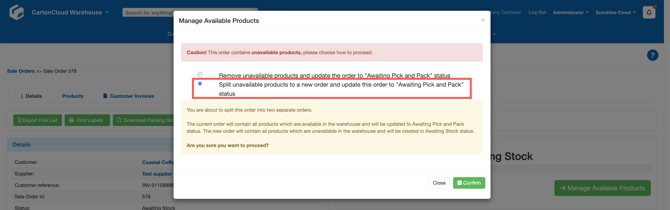
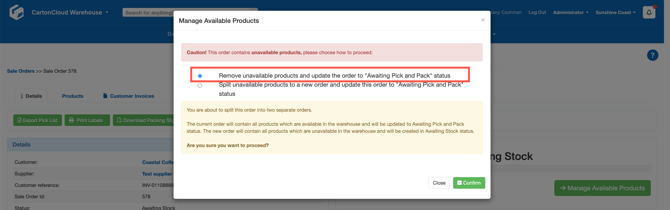
You will have two options: select the second option, Split unavailable products to a new order and update this order to ‘Awaiting Pick and Pack’ status.
-
Click Confirm.
- You will be able to view the split Sale Order by selecting the Group tab on the Awaiting Pick and Pack Sale Order.
- You will be able to see the split orders.
3) Remove unavailable products and ship what is available
If you would like to remove unavailable products and ship what is available, you can do so manually or automatically.
To remove unavailable products automatically:
Refer to the Sale Import Setting mentioned here.
To remove unavailable products manually:
-
Navigate to the Awaiting Stock order.
-
On the Details tab, select Manage Available Products.
Note, if you do not have any available products assigned, the button will not be available.
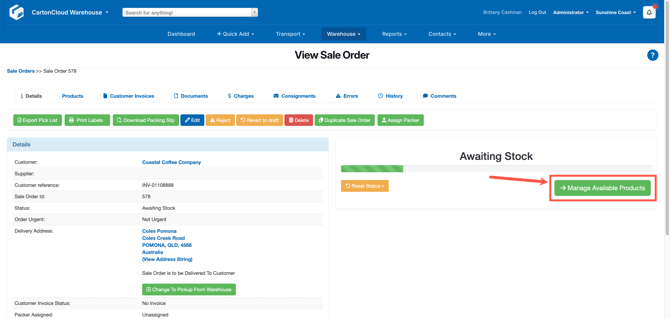
-
You will have two options: select the first option, Remove unavailable products and update the order to "Awaiting Pick and Pack" status.
-
Click Confirm.
Email Notifications
Notifications can be enabled for Backorder Management. This includes:
-
When an order is moved into an Awaiting Stock status
To enable these notifications, please see Configuring Outgoing Email Notifications.
Backorder Management on the Mobile App
Mobile App (from version 6.24.0+)
To improve clarity and reduce confusion during picking, Awaiting Stock orders display stock status using distinct visual cues:
-
Unassigned and Not Yet Received items are shown in red text.
-
The quantity is displayed as a single total only, e.g. 2 Units rather than 0/2 Units.
-
The circular status indicators (used to show allocation progress) are not displayed for these orders.
-
Tapping on items in Awaiting Stock orders is disabled—packers cannot open item rows.
-
Sorting is still available and follows the same order as previous item listings.
These changes help warehouse staff quickly distinguish between what is ready for picking and what is pending allocation, without needing to open individual items or misinterpret availability.
Example Display
-
If 2 cartons of an item are still awaiting stock assignment, the item will appear as:
-
"2 Cartons" in red
-
No status circle
-
Tapping disabled
-